1. Nhanganyaya
Welcome to the user manual for your new XIAOMI Redmi 15C smartphone. This guide provides essential information to help you get started, operate, maintain, and troubleshoot your device. Please read this manual carefully to ensure optimal performance and longevity of your smartphone.
Zvinokosha:
- Massive 6000mAh (typ) battery with 33W fast charging support.
- Immersive 6.9-inch display with up to 120Hz refresh rate.
- Powerful octa-core processor for smooth performance.
- 50MP AI dual camera system for high-quality photos.
- Sleek and refined design.
2. Setup Guide
2.1 Chii chiri muBhokisi
Upon unboxing your Redmi 15C, verify that the following items are included:
- Smartphone yeXIAOMI Redmi 15C
- USB Cable
- Chishandiso cheSIM Ejector (chinogona kusiyana zvichienderana nedunhu)
- Quick Start Guide (gwaro iri)
Note: A charger is not included with this device and must be purchased separately. For optimal charging, use a 33W compatible charger.
2.2 Kuisa SIM Kadhi
- Tsvaga iyo SIM kadhi tireyi padivi pechishandiso chako.
- Isa iyo SIM ejector chishandiso mugomba diki padivi petireyi uye wodzvanya zvakasimba kusvika tireyi yabuda.
- Place your Nano-SIM card(s) and/or microSD card into the tray with the gold contacts facing down. Ensure they are correctly aligned.
- Sundidzira tireyi zvakanaka-naka mugomba kusvika yanyatsozara nemudziyo.
2.3 Yekutanga Simba Kubatidza uye Setup
- Dzvanya wobata bhatani rePower kusvika logo yeXIAOMI yaonekwa.
- Tevedza mirairo iri pa-screen kuti usarudze mutauro wako, dunhu, batanidza kuWi-Fi, uye gadzira yako Google account.
- You will be guided through setting up security features like a PIN, pattern, fingerprint, or face unlock.
2.4 Kuchaja Chishandiso
Usati watanga kushandisa, zvinokurudzirwa kubhadharisa zvizere mudziyo wako.
- Batanidza tambo ye USB kuchiteshi chekuchaja pafoni yako.
- Connect the other end of the USB cable to a compatible 33W power adapter (sold separately) and plug it into a power outlet.
- Iyo yekuchaja chiratidzo ichaonekwa pachiratidziri.
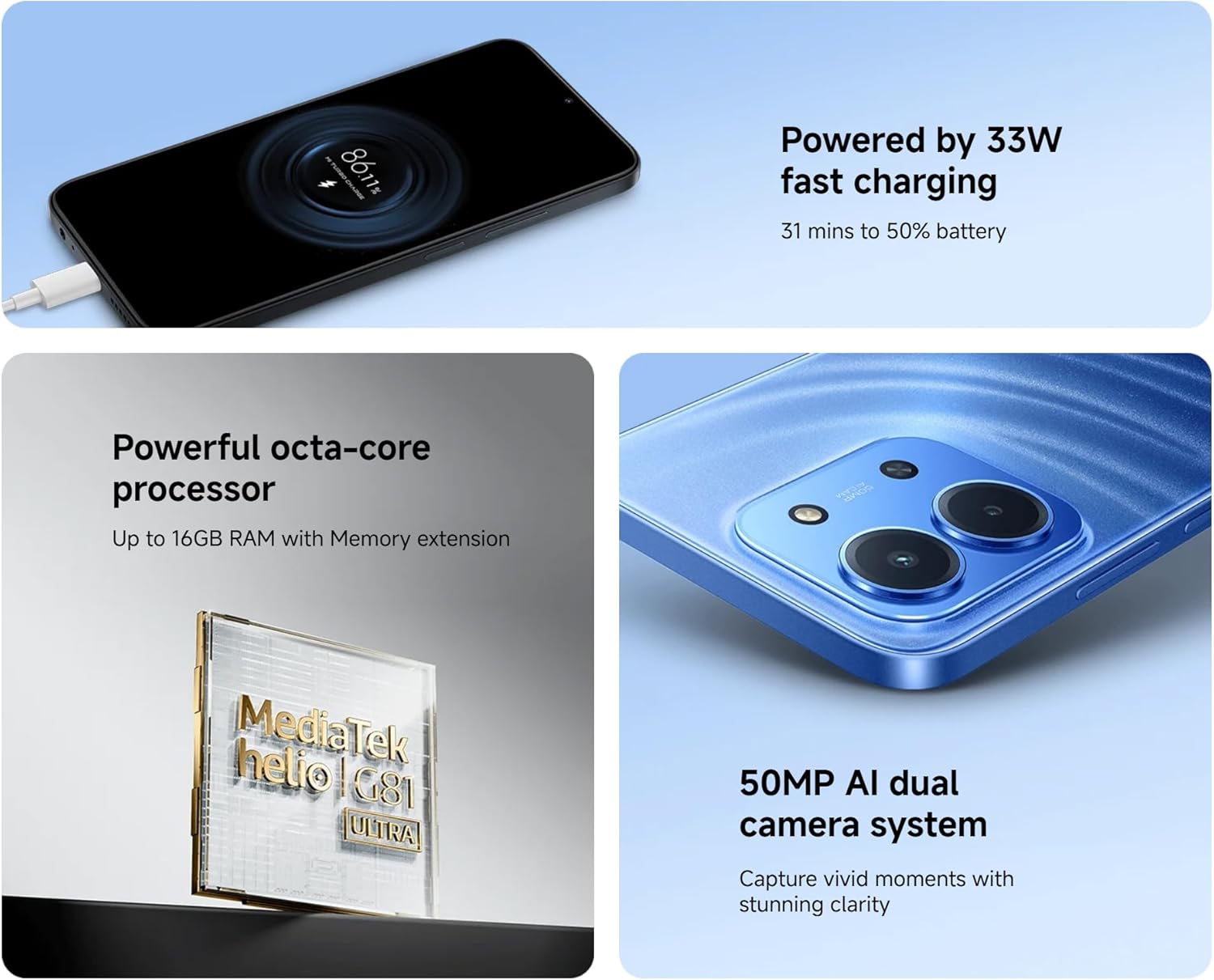
Image: The Redmi 15C connected to a charger, displaying a charging animation indicating 33W fast charging capability.
3. Kushandisa mudziyo wako
3.1 Basic Navigation
- Touchscreen Gestures: Swipe, tap, pinch-to-zoom are standard.
- Bhatani reSimba: Dzvanya kumutsa / kurara skrini. Dzvanya uye ubate kuti udzime kana kutangazve.
- Mabhatani eVolume: Rongedza vhoriyamu yemedia, vhoriyamu yekufona, kana vhoriyamu yeringi.
3.2 Kufona uye kutumira mameseji
- Open the 'Phone' app to dial numbers or select contacts.
- Open the 'Messages' app to compose and send SMS/MMS messages.
3.3 Kushandisa Kamera
Your Redmi 15C features a 50MP AI dual camera system.
- Vhura iyo 'Kamera' app.
- Sarudza modhi yaunoda (Mufananidzo, Mufananidzo, Vhidhiyo, nezvimwewo).
- Tap the shutter button to capture images or start/stop video recording.

Mufananidzo: Kuvhara view of the XIAOMI Redmi 15C's dual camera module, highlighting its 50MP AI capabilities.
3.4 Ratidza Zvimiro
The 6.9-inch immersive display offers a smooth visual experience with up to a 120Hz refresh rate.
- Adjust display settings (brightness, color scheme, refresh rate) in 'Settings > Display'.
- AdaptiveSync technology automatically adjusts the refresh rate for optimal viewing and battery efficiency.

Image: The XIAOMI Redmi 15C's large 6.9-inch display, showcasing its immersive viewing experience.
3.5 Battery Management
Bhatiri re6000mAh rinopa kushandiswa kwenguva refu. Kuti bhatiri rigare kwenguva refu, wedzera simba rayo:
- Use 'Battery Saver' mode when needed.
- Deredza kupenya kwescreen uye kudzima nguva.
- Vhara mapurogiramu asina kushandiswa ari kushanda kumashure.
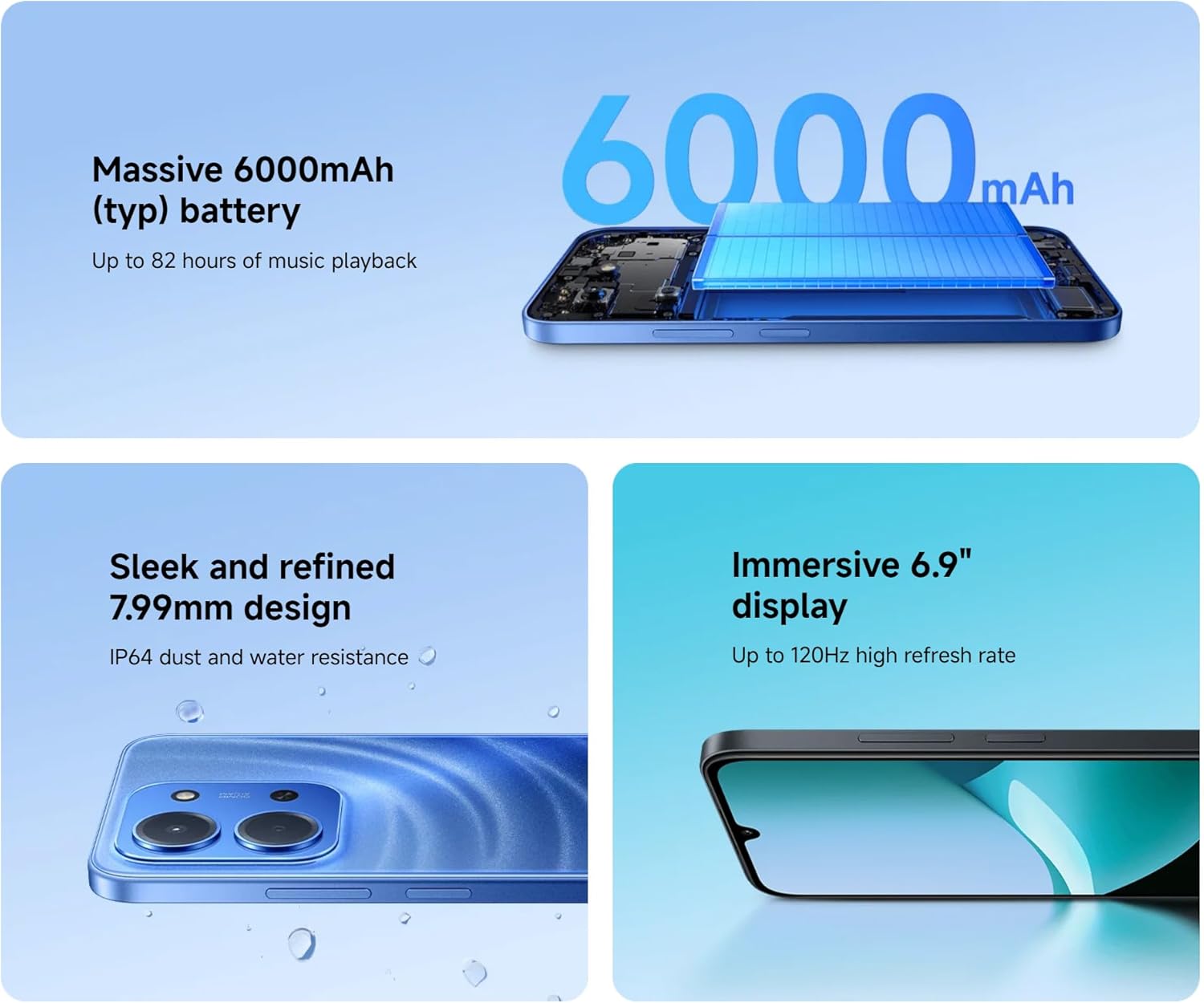
Image: An illustration of the XIAOMI Redmi 15C's internal structure, highlighting its massive 6000mAh battery.
3.6 Processor Performance
The powerful octa-core processor ensures smooth multitasking and efficient app performance.

Image: A visual representation of the MediaTek Helio G81-Ultra octa-core processor, emphasizing its power and efficiency.
3.7 Google Gemini Integration
The Redmi 15C integrates with Google Gemini, your AI assistant from Google, to enhance productivity and creativity. Use Gemini for writing, brainstorming, learning, and more.
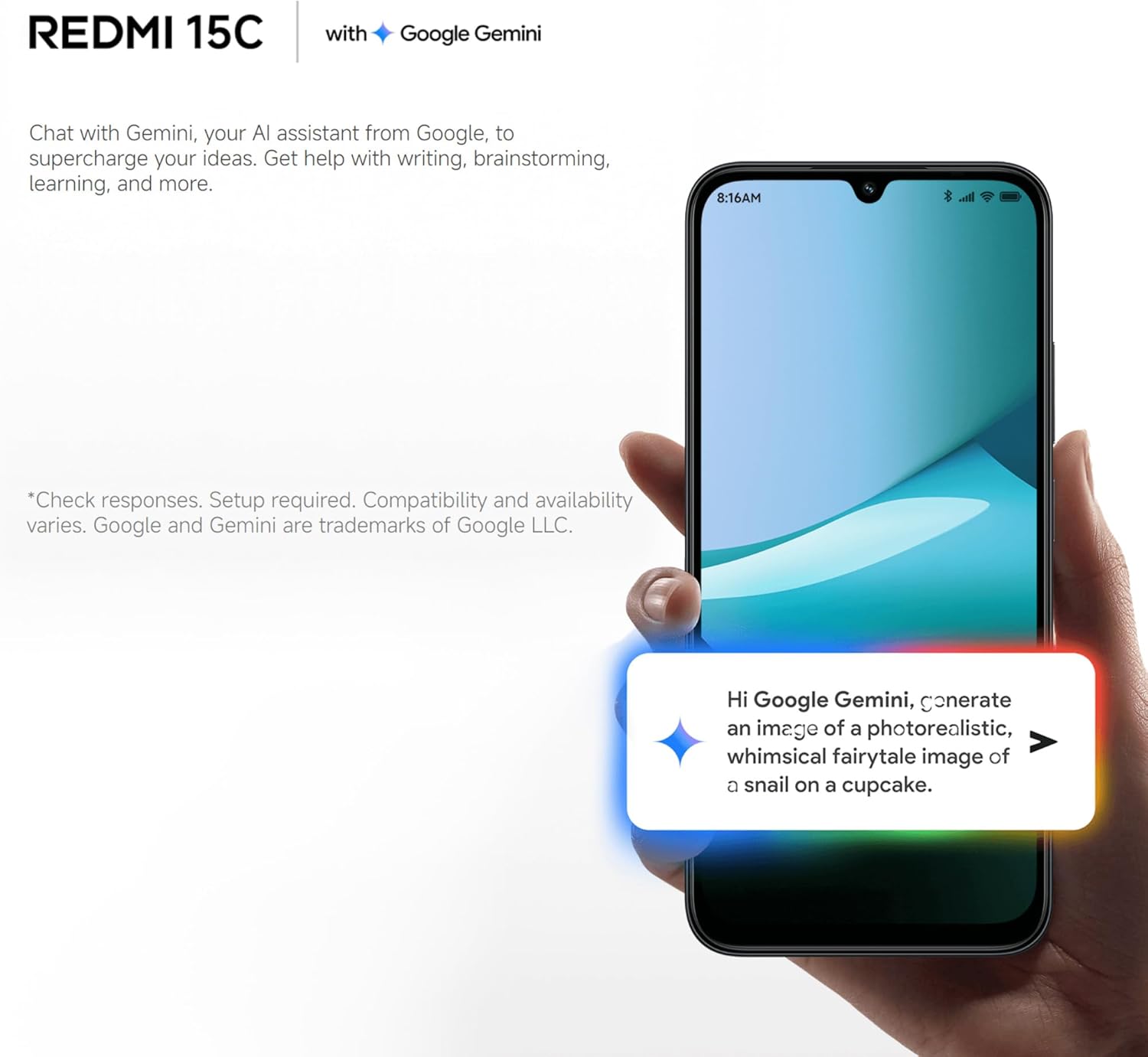
Image: A Redmi 15C displaying a chat interface with Google Gemini, demonstrating its AI capabilities.
4. Kuchengeta
4.1 Kuchenesa mudziyo wako
- Shandisa jira rakapfava, risina lint kupukuta skrini nemuviri.
- Dzivisa kushandisa makemikari ane hasha, abrasive cleaners, kana compressed mweya.
- Chengetedza zviteshi zvisina guruva nemarara.
4.2 Zvigadziriso zveSoftware
Regularly check for and install system updates to ensure your device has the latest features, security patches, and performance improvements. Go to 'Settings > About phone > MIUI version' to check for updates.
4.3 Kuchengeta Battery
- Dzivisa tembiricha yakanyanyisa, sezvo inogona kukanganisa hupenyu hwebhatiri.
- Usarega foni ichichaja kwenguva yakareba mushure mekunge yachaja zvizere.
- Use only original or certified compatible chargers and cables.
4.4 Kuchengeta Kuchengeta
To maintain optimal performance, regularly manage your device's storage:
- Delete zvisina basa files, mapikicha, uye mavhidhiyo.
- Bvisa mapurogiramu asina kushandiswa.
- Bvisa data rekuchengetedza maapplication.
5. Kugadzirisa matambudziko
Chikamu chino chinotaura nezvematambudziko akajairika aungasangana nawo neRedmi 15C yako.
| Nyaya | Possible Solution |
|---|---|
| Mudziyo haubatike | Ensure the battery is charged. Connect to a charger for at least 30 minutes. If it still doesn't turn on, try a forced restart by holding the Power button for 10-15 seconds. |
| Slow performance / Apps freezing | Close background apps. Clear app caches. Restart the device. Check for system updates. If issues persist, consider a factory reset (back up data first). |
| Bhatiri kupera nekukurumidza | Reduce screen brightness. Disable unused features like GPS, Bluetooth, Wi-Fi when not needed. Check battery usage in settings to identify power-hungry apps. |
| Cannot connect to Wi-Fi / Mobile Data | Toggle Wi-Fi/Mobile Data off and on. Restart the device. Forget the Wi-Fi network and reconnect. Ensure SIM card is properly inserted and activated. |
| Kamera haisi kushanda | Restart the device. Clear the Camera app's cache and data in 'Settings > Apps'. Ensure no other app is using the camera. |
5.1 Kugadziriswazve Kwefekitori (Nzvimbo Yekupedzisira Yekuzorora)
Kana ukasangana nematambudziko esoftware anoramba aripo, kugadzirisa dambudziko racho nekugadzira reset yefekitori kunogona kugadzirisa matambudziko acho. Warning: This will erase all data on your device. Back up all important information before proceeding.
- Go to 'Settings > About phone > Factory reset'.
- Tevedza zviri pa-skrini kuti usimbise kuseta patsva.
6. Zvinotsanangurwa
Below are the detailed technical specifications for the XIAOMI Redmi 15C:
| Feature | Tsanangudzo |
|---|---|
| Model Name | Redmi 15C |
| Operating System | Hyper OS 2 |
| processor | MediaTek Helio Octa-core (20 GHz CPU speed) |
| RAM | 4 GB |
| Storage Capacity | 256 GB |
| Kukura Kwekuratidza | 6.9 inches |
| Display Resolution | 720 x 1560 |
| Refresh Rate | 120 Hz |
| Battery Capacity | 6000 mAh |
| Kuchaja | 33W Fast Charging compatible |
| Rear Camera | 50 MP AI Dual Camera |
| Kubatana | 4G LTE, Wi-Fi, Bluetooth, GPS |
| Dimensions | 0.82 x 8.1 x 17.3 cm |
| Kurema | 200 g |
| Special Features | Dual SIM, International Functionality, Wi-Fi Hotspot, Integrated GPS |
7. Warranty uye Tsigiro
For detailed warranty information, please refer to the warranty card included with your product or visit the official XIAOMI website. XIAOMI provides customer support for product inquiries, technical assistance, and service requests.
You can find support resources, FAQs, and contact information on the official XIAOMI support page. Please have your device's model number and purchase details ready when contacting support.
No official product videos were found in the provided data.