1. Nhanganyaya
This manual provides detailed instructions for the setup, operation, maintenance, and troubleshooting of the RGBlink NDI PTZ Camera Controller (RGBBKT). This device is designed for professional video production environments, offering comprehensive control over various PTZ cameras using multiple protocols.
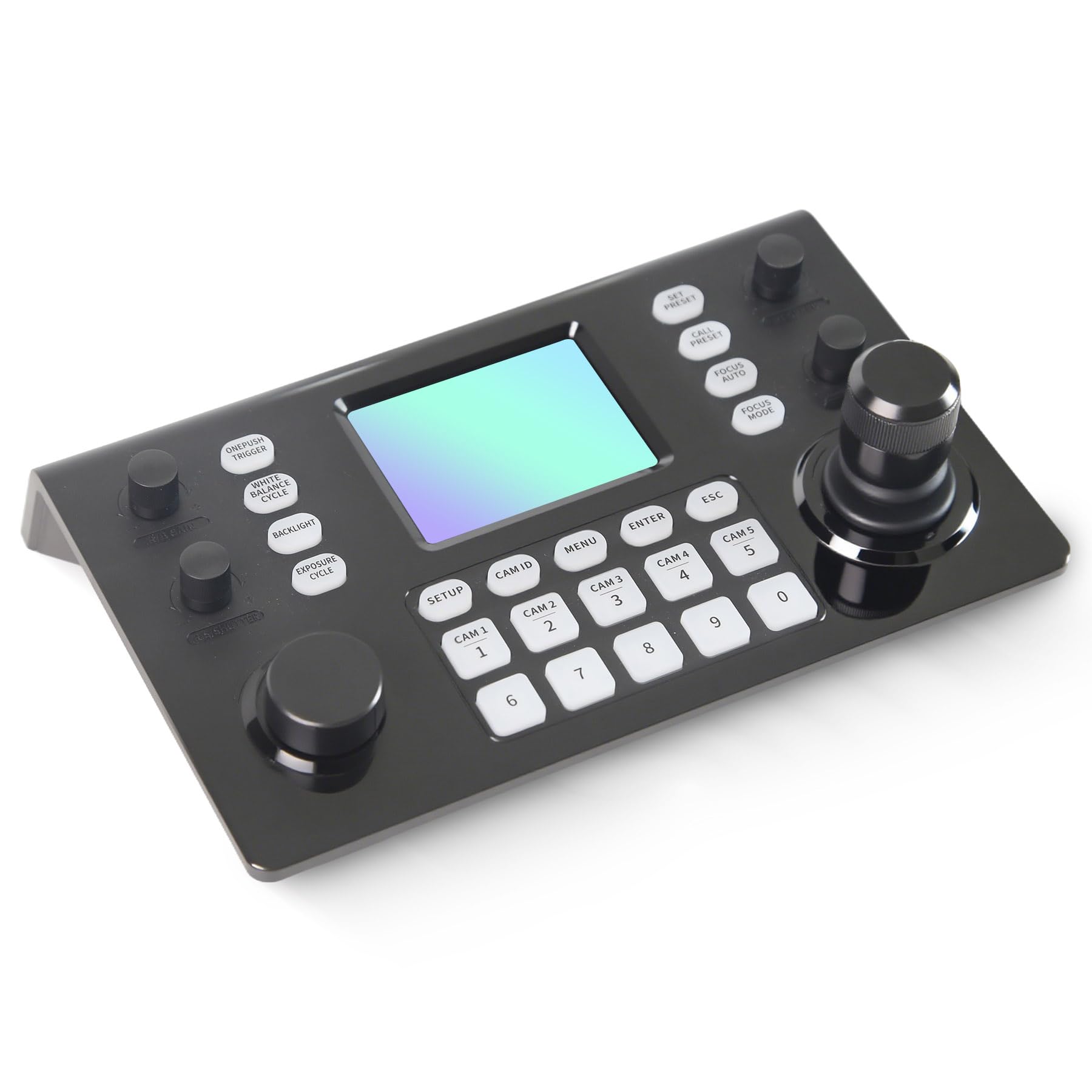
Image 1.1: RGBlink NDI PTZ Camera Controller (RGBBKT).
2. Setup
Follow these steps to set up your RGBlink NDI PTZ Camera Controller.
2.1 Kusunungura uye Kwekutanga Kuongorora
- Nyatsobvisa zvese zvikamu kubva pakurongedza.
- Iva nechokwadi chekuti zvinhu zvese zvakanyorwa pane rondedzero yemapakeji zviripo.
- Inspect the controller for any signs of physical damage. If damage is found, contact your dealer immediately.
2.2 Kubatanidza Controller
The RGBlink NDI PTZ Camera Controller supports various connection methods for power and camera control.
- Simba pamusoro peEthernet (PoE): Connect a single RJ45 Ethernet cable from a PoE-enabled network switch to the controller's LAN port. This provides both power and network connectivity.
- External Power Adapter: If PoE is not available, connect the provided power adapter to the DC 12V input port and to a power outlet.
- Kubatanidza Kamera:
- Ethernet (IP Control): Connect PTZ cameras to the same network as the controller via RJ45 Ethernet cables. The controller supports VISCA over IP, ONVIF v2.42, and NDI v5.5 protocols.
- Serial Control: For cameras supporting serial communication, use RS232, RS422, or RS485 interfaces. Connect the appropriate cables from the controller's serial ports to the cameras.

Image 2.1: Rear panel connections including RS-232, RS-422, LAN (PoE), and Power Input.

Mufananidzo 2.2: Eksample connection diagram showing PTZ Controller, PoE Switch, PTZ Cameras, Audio Mixer, and Computer.

Image 2.3: Diagram illustrating IP camera connections via a network switch.
2.3 Network Kugadziridza
For IP-based camera control, ensure the controller and cameras are on the same network segment. The controller supports automatic detection of NDI-enabled PTZ cameras.
- Access the controller's web interface nekuisa yayo IP kero mu a web browser. (Refer to the device's display or network tools to find the IP address).
- The default login credentials are typically 'admin' with a blank password. It is recommended to set a strong password immediately.
- Mukati me web interface, configure camera protocols (e.g., ONVIF, VISCA over IP) and enter camera-specific user credentials if required.

Image 2.4: NDI|HX camera search and control interface on the controller.
3. Kushanda
This section details the operational functions of the RGBlink NDI PTZ Camera Controller.
3.1 Pamusoroview of Controls
The controller features a 3.49" LCD display, a 3D joystick, various knobs, and a numeric keypad for intuitive control.

Image 3.1: The controller's 3.49-inch LCD display.

Mufananidzo 3.2: Yakadzama view of the 3D joystick and multi-function knobs.

Image 3.3: Layout of the controller's buttons and numeric keypad area.
3.2 Kusarudzwa kwekamera
- Kurumidza Sarudza Mabhatani: Use the dedicated CAM 1-5 buttons for quick selection of up to 5 cameras.
- Numeric Keypad: For cameras beyond the quick select buttons (up to 255), press the CAM ID button, then enter the camera number using the numeric keypad, and press PINDA.

Image 3.4: The controller's ability to manage multiple cameras.
3.3 PTZ Kudzora
- Joystick: The 3D joystick controls pan (left/right), tilt (up/down), and zoom (rotate the joystick).
- PT Speed Knob: Adjusts the gimbal movement speed for pan and tilt.
- Zoom Knob: Provides precise zoom control, especially useful in preview mode.
3.4 Image Parameter Adjustment
- IRIS/SHUTTER Knob: Rotate to adjust aperture and shutter speed. Press to switch control modes.
- R/B GAIN Knob: Rotate to adjust red and blue gain. Press to switch control modes.
- FOCUS Button: Press the AUTO FOCUS button to switch the camera to auto focus mode.
- EXPOSURE Button: Cycles through exposure modes (Aperture Priority, Shutter Priority, Gain Priority, Manual Exposure, Auto Exposure).
- Bhatani reMwenje wekumashure: Toggles the camera's backlight mode.
- WHITE BALANCE CYCLE Button: Cycles through white balance modes (Indoor, Outdoor, Manual, Auto).
- ONE PUSH TRIGGER Button: When white balance is set to "One-Push White Balance", press this button to initiate a one-push white balance calibration.

Image 3.5: Functions of buttons and knobs on the left side of the controller.

Image 3.6: Functions of buttons and knobs on the right side of the controller, including preset controls.
3.5 Presets
- SET PRESET Button: Press to enter preset position mode. Use the numeric keys to enter the preset number (0-9) and press PINDA kuchengetedza. Press ESC kubuda.
- CALL PRESET Button: Press to enter preset recall mode. Use the numeric keys to enter the preset number (0-9) and press PINDA to recall. Press ESC kubuda.
- The controller supports saving and recalling up to 255 presets per camera.
3.6 Menyu Navigation
- Menu Bhatani: Press to open or close the camera settings menu. In menu control mode, the joystick controls navigation (up, down, left, right), PINDA confirms selections, and ESC acts as a back button.
4. Kuchengeta
Proper maintenance ensures the longevity and optimal performance of your RGBlink NDI PTZ Camera Controller.
4.1 Kuchenesa
- Use a soft, dry cloth to clean the exterior of the controller.
- Patsvina yakasindimara, zvishoma dampen the cloth with water or a mild, non-abrasive cleaning solution.
- Avoid using harsh chemicals, solvents, or abrasive materials, as these can damage the surface and display.
- Ensure no liquids enter the device through openings or ports.
4.2 Kuchengeta
- Kana usingashandiswe kwenguva yakareba, chengeta mudziyo wekutonga munzvimbo inotonhorera, yakaoma kure nezuva rakananga uye tembiricha yakanyanya.
- Chengetedza chigadziro kubva kuguruva uye unyoro.
5. Kugadzirisa matambudziko
Ichi chikamu chinopa mhinduro kune zvakajairika zvaungasangana nazvo.
5.1 Hapana Simba
- Tarisa Power Source: Ensure the power adapter is securely connected to both the controller and a working power outlet.
- PoE Check: If using PoE, verify that the Ethernet cable is connected to a PoE-enabled port on your network switch and that the switch is powered on.
- Cable Integrity: Inspect the power cable and Ethernet cable for any damage.
5.2 Cannot Control Camera
- Network Connectivity: For IP cameras, ensure the controller and cameras are on the same network and can communicate. Check network cables and IP addresses.
- Protocol Mismatch: Verify that the correct control protocol (e.g., VISCA over IP, ONVIF, NDI, Pelco-D/P) is selected on both the controller and the camera.
- Kamera ID: Ensure the correct camera ID is selected on the controller.
- Zvinyorwa Zvekupinda: If the camera requires authentication, confirm that the correct username and password are configured in the controller's web interface.
- Serial Connection: For serial control, check RS232/RS422/RS485 cable connections and ensure baud rates and addresses match between the controller and camera.
- Firmware: Ensure both the controller and cameras have the latest firmware installed. Visit the RGBlink support website for updates.
5.3 LCD Display Issues
- Hapana Chiratidziro: Ita shuwa kuti controller yakabatidzwa.
- Dim Display: Check if there are any brightness settings on the controller that can be adjusted.
6. Zvinotsanangurwa
| Feature | Detail |
|---|---|
| Model | RGBBKT |
| Dimensions (L x W x H) | 11.4 x 7.8 x 5.9 inches (approx. 290 x 200 x 150 mm) |
| Kurema | 2.2 pounds (approx. 1 kg) |
| Display | 3.49" LCD |
| Dzora MaProtocol | VISCA over IP, ONVIF v2.42, NDI v5.5, Pelco-D/P |
| Interfaces | RS232, RS422, RS485, RJ45 Ethernet (PoE) |
| Camera Capacity | Up to 255 PTZ cameras |
| Power Input | PoE or DC 12V (external adapter) |
| Joystick | High-precision Hall sensor 3D joystick |

Image 6.1: Controller dimensions and typical usage environments.

Image 6.2: Visual representation of supported protocols including RJ45, RS485, RS422, RS232, ONVIF, NDI, Pelco-D, Pelco-P, and Visca.
7. Kuratidzwa kweVhidhiyo yeChigadzirwa
Watch the official product video for a visual demonstration of the RGBlink NDI PTZ Camera Controller's features and operation.
Video 7.1: Official demonstration of the RGBlink PTZ Camera Controller Joystick, showcasing multi-camera control and key features.
8. Warranty uye Tsigiro
For warranty information, technical support, or service inquiries, please contact RGBlink customer service or visit their official website.
- Mugadziri: Xiamen RGBlink Sainzi & Tekinoroji Co., Ltd.
- Official Websaiti: www.rgblink.com (Cherechedza: Ichi chibatiso chenzvimbo URL, please refer to your product packaging or official documentation for the correct support website.)
- Contact Information: Refer to the RGBlink official website for the most current contact details for technical support and warranty claims.


