1. Nhanganyaya
This manual provides essential information for the proper setup, operation, and maintenance of your NIMO 15.6 inch Laptop Computer. Please read this manual thoroughly before using your device to ensure optimal performance and longevity. Keep this manual for future reference.
2. Chigadzirwa Pamusoroview
2.1. Zvikamu zveLaptop
The NIMO 15.6 inch Laptop features a Full HD display, a backlit keyboard, and an integrated fingerprint reader for secure access. It is powered by an AMD Ryzen 5 3500U processor and runs on Windows 11.

Mufananidzo 2.1: Mberi view of the NIMO 15.6 inch Laptop, showcasing kuratidza kwayo uye chimiro chekhibhodi.
2.2. Ports uye Connectors
Your NIMO laptop is equipped with various ports for comprehensive connectivity, allowing you to connect peripherals and external devices.

Figure 2.2: Expanded Connectivity Options. This image illustrates the location and type of ports available on the laptop, including Type-C (Charge Only), USB 3.0, HDMI, Type-C (Full Function), Charge LED, Micro SD Reader, USB 2.0, USB 3.0, Headphone Combo, and Kensington Lock.
- Type-C (Charge Only): Zvekupinza simba.
- USB 3.0: Zvekumhanyisa data data.
- HDMI: Zvekubatanidza kune zvekunze zvinoratidzwa.
- Type-C (Full Function): Supports Power Delivery (PD), DisplayPort (DP), and data transfer.
- Kubhadharisa LED: Inoratidza mamiriro ekuchaja.
- Muverengi weMicro SD: Yekuverenga makadhi eMicro SD.
- USB 2.0: Zvemhando dze USB midziyo.
- USB 3.0: Zvekumhanyisa data data.
- Headphone Combo: Kuti mubudise odhiyo uye maikorofoni.
- Kensington Lock: Kuchengetedzwa kwemuviri.
3. Setup
3.1. Kutanga Kuchaja
Before first use, connect the laptop to a power outlet using the provided 65W PD Type-C charger. The Charge LED indicator will illuminate. Allow the battery to charge fully.

Figure 3.1: Type-C 65W PD Charger. This image highlights the versatility of the 65W Power Delivery charger, capable of charging the laptop, tablets, and smartphones, reducing cable clutter.
3.2. Powering On
Open the laptop lid. Press the power button located on the keyboard deck. The laptop will boot up, and you will be guided through the Windows 11 initial setup process.
3.3. Kugadzika kweWindows 11
Follow the on-screen instructions to configure your Windows 11 operating system. This includes selecting your region, language, connecting to a Wi-Fi network, and setting up your user account.
4. Operating Instructions
4.1. Keyboard and Input
The laptop features a backlit keyboard for comfortable typing in various lighting conditions, a responsive touchpad, and a numeric keypad for data entry.

Figure 4.1: Effortless Typing in Any Environment. This image demonstrates the backlit keyboard, touchpad, fingerprint reader, and numeric keypad, enhancing user experience and productivity.
- Backlit Keyboard: Press the Fn key and the appropriate function key (usually F3 or F4, indicated by a keyboard icon) to adjust the backlight brightness or turn it on/off.
- Touchpad: Use the touchpad for navigation. Supports multi-touch gestures for scrolling, zooming, and other functions.
- Numeric Keypad: Provides dedicated number keys for efficient data entry.
4.2. Kuzivikanwa kweFingerprint
The integrated fingerprint reader allows for secure and quick login. Set up your fingerprint in Windows Settings under 'Sign-in options'.
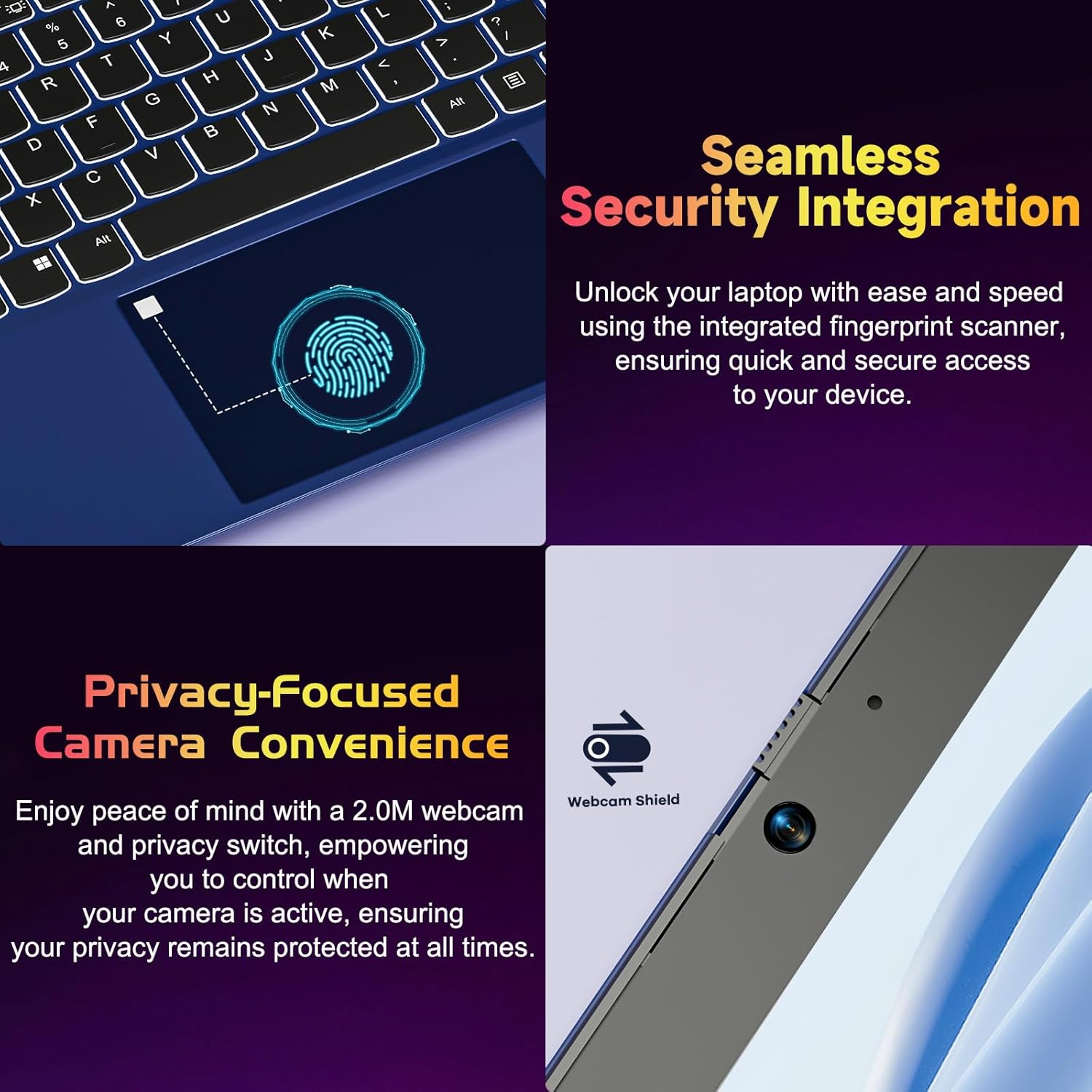
Figure 4.2: Seamless Security Integration and Privacy-Focused Camera. This image highlights the fingerprint scanner for quick and secure access, and the 2.0MP webcam with a physical privacy switch for enhanced user privacy.
4.3. Ratidza Zvimiro
The 15.6 inch Full HD (1920 x 1080 Pixel) IPS display offers vivid visuals and a wide viewing angle. The 180° lay-flat hinge allows for flexible screen positioning, ideal for sharing content.

Figure 4.3: Vivid Full HD Display. This image emphasizes the laptop's 15.6-inch Full HD (1920x1080) IPS display, offering bright visuals and eye protection.

Figure 4.4: 180° Lay-Flat Hinge. This image illustrates the laptop's ability to lay flat, expanding usage scenarios and facilitating content sharing.
4.4. Webcam Yakavanzika
The laptop includes a 2.0MP webcam with a physical privacy switch (Webcam Shield). Slide the switch to cover the camera lens when not in use to ensure your privacy.
5. Kuchengeta
- Kuchenesa: Use a soft, lint-free cloth to clean the screen and exterior. For stubborn marks, slightly dampsn jira nemvura kana screen cleaner. Dzivisa makemikari ane hasha.
- Battery Care: To prolong battery life, avoid fully discharging the battery frequently. Store the laptop in a cool, dry place if not used for extended periods.
- Zvigadziriso zveSoftware: Gara uchigadzirisa sisitimu yako yekushanda yeWindows nemadhiraivha kuti uve nechokwadi chekuti inoshanda zvakanaka uye yakachengeteka.
- Kuwedzera Kwekuchengetedza: The laptop supports dual DDR4 SO-DIMM slots and M.2 NVMe SSD for memory and storage expansion. Consult a qualified technician for upgrades.
6. Kugadzirisa matambudziko
6.1. Nyaya dzeMasimba
- Laptop haibatike: Ensure the laptop is charged. Connect the charger and wait a few minutes before attempting to power on again.
- Bhatiri risiri kuchaja: Verify the charger is properly connected to both the laptop and the power outlet. Try a different outlet.
6.2. Ratidza Nyaya
- Screen haina chinhu: Check if the laptop is powered on. Try adjusting screen brightness using the function keys. If an external monitor is connected, ensure it is properly configured.
6.3. Performance Nyaya
- Laptop inononoka: Close unnecessary applications. Check for background processes consuming high resources. Ensure sufficient free storage space. Consider performing a system scan for malware.
6.4. Nyaya dzekubatanidza
- Wi-Fi haisi kubatanidza: Ensure Wi-Fi is enabled. Restart your router and the laptop. Check network settings in Windows.
7. Zvinotsanangurwa
| Feature | Detail |
|---|---|
| Brand | NIMO |
| Model Name | NIMO N152R |
| Screen Size | 15.6 inches |
| Screen Resolution | 1920 x 1080 Pixels (Yakazara HD) |
| processor | AMD Ryzen 5 3500U (3.7 GHz, 4 Cores, 8 Threads) |
| RAM | 8 GB DDR4 (Inogona Kuvandudzwa) |
| Memory Speed | 3200 MHz |
| Hard Drive | 256 GB SSD (Upgradable M.2 NVMe) |
| Graphics Coprocessor | AMD Integrated graphics (Vega) |
| Operating System | Windows 11 |
| Wireless Type | 802.11abg |
| USB Ports | 1x USB 2.0, 2x USB 3.0, 2x USB-C (1x Charge Only, 1x Full Function) |
| HDMI Port | Ehe |
| Micro SD Reader | Ehe |
| Avhareji Hupenyu hweBhatiri | 5 Maawa |
| Item Weight | 3.8 makirogiramu (1.72 kg) |
| Product Dimensions | 14.07 x 8.98 x 0.76 inches |
| Color | Rose |
| Rear Webcam Resolution | 2 MP |
8. Warranty uye Tsigiro
Your NIMO laptop comes with a 2-year warranty, covering manufacturing defects and hardware malfunctions under normal use. Additionally, a 90-day free return policy is provided.

Figure 8.1: After-Sales Support. This image outlines the 2-year warranty, 90-day return policy, and professional customer service available for NIMO products.
8.1. Kubata nerutsigiro
For technical assistance, warranty claims, or product-related questions, please contact the NIMO U.S.-based support team. Contact information can typically be found on the official NIMO webnzvimbo kana chigadzirwa kurongedza.
9. Safety Information
Kuti udzivise kukuvara kana kukuvara kwemudziyo wako, tevera matanho ekuchengetedza:
- Usaise laptop panzvimbo inopisa zvakanyanya, pachiedza chezuva chakananga, kana pahunyoro hwakawanda.
- Dzivisa kuisa zvinhu zvinorema palaptop.
- Use only the provided charger or a compatible 65W PD Type-C charger.
- Usaedza kuparadzanisa kana kugadzirisa laptop iwe pachako. Tarisa kune vashandi vanokwanisa.
- Chengetedza zvinwiwa kubva palaptop kudzivirira kuvhunduka kwemagetsi kana kukuvara.
- Ensure proper ventilation when using the laptop to prevent overheating.


