1. Nhanganyaya
Thank you for choosing the Diydeg 4G LTE Mobile Hotspot. This portable device provides high-speed 3G/4G internet access, allowing you to connect up to 10 devices simultaneously. Its compact design makes it ideal for travel, business, and home use. This manual will guide you through the setup, operation, and maintenance of your mobile hotspot.

Image: The Diydeg 4G LTE Mobile Hotspot providing internet connectivity to a user's laptop.
2. Chigadzirwa Pamusoroview
2.1 Mamiriro Akakosha
- High-Speed 4G LTE Connectivity: Provides fast internet access for various online activities.
- Multi-Mushandisi Tsigiro: Connects up to 10 WiFi-enabled devices simultaneously.
- Bhatiri Inogara kwenguva refu: Equipped with a 2100mAh battery for extended standby time (up to 10 hours).
- Portable Design: Lightweight, thin, and compact for easy carrying.
- Wide Compatibility: Works with mobile phones, laptops, desktops, and tablets.
- LED Smart Display: Easy-to-read display for operational status.
2.2 Package Zviri mukati
Ndokumbira utarise pasuru yezvinhu zvinotevera:
- Diydeg 4G LTE Mobile Hotspot Device
- Rechargeable Battery
- USB Kuchaja Cable
- Mushandisi Chinyorwa (gwaro iri)

Image: The Diydeg Mobile Hotspot device shown alongside its USB charging cable.
3. Setup Instructions
3.1 Kuisa SIM Card neBattery
- Carefully remove the back cover of the mobile hotspot device.
- Insert your micro SIM card into the designated SIM card slot. Ensure the card is oriented correctly according to the diagram inside the device.
- Take out the battery and locate the yellow insulation tape. Gently tear off this insulation tape from the battery terminals.
- Insert the battery into the battery compartment, ensuring the contacts align properly.
- Dzorera chivharo chekumashure kusvika chadzvanya zvakanaka panzvimbo.

Image: A three-step visual guide showing how to remove the battery, peel off the insulation tape, and insert the battery into the device.
3.2 Kuisa Simba paChishandiso
Press and hold the power button (usually located on the side) for a few seconds until the LED display illuminates. The device will begin searching for a network signal.

Mufananidzo: Side view of the Diydeg Mobile Hotspot, highlighting the power button location.
4. Operating Instructions
4.1 Kubatana neWiFi Network
- Ensure your mobile hotspot is powered on and has established a network connection (indicated by the signal strength icon on the display).
- On your WiFi-enabled device (phone, laptop, tablet), open the WiFi settings.
- Look for the network name (SSID) displayed on your hotspot's screen or on a sticker inside the battery compartment.
- Select the hotspot's SSID from the list of available networks.
- Enter the WiFi password (Key) displayed on the hotspot's screen or sticker.
- Chishandiso chako zvino chinofanira kunge chakabatana neinternet.
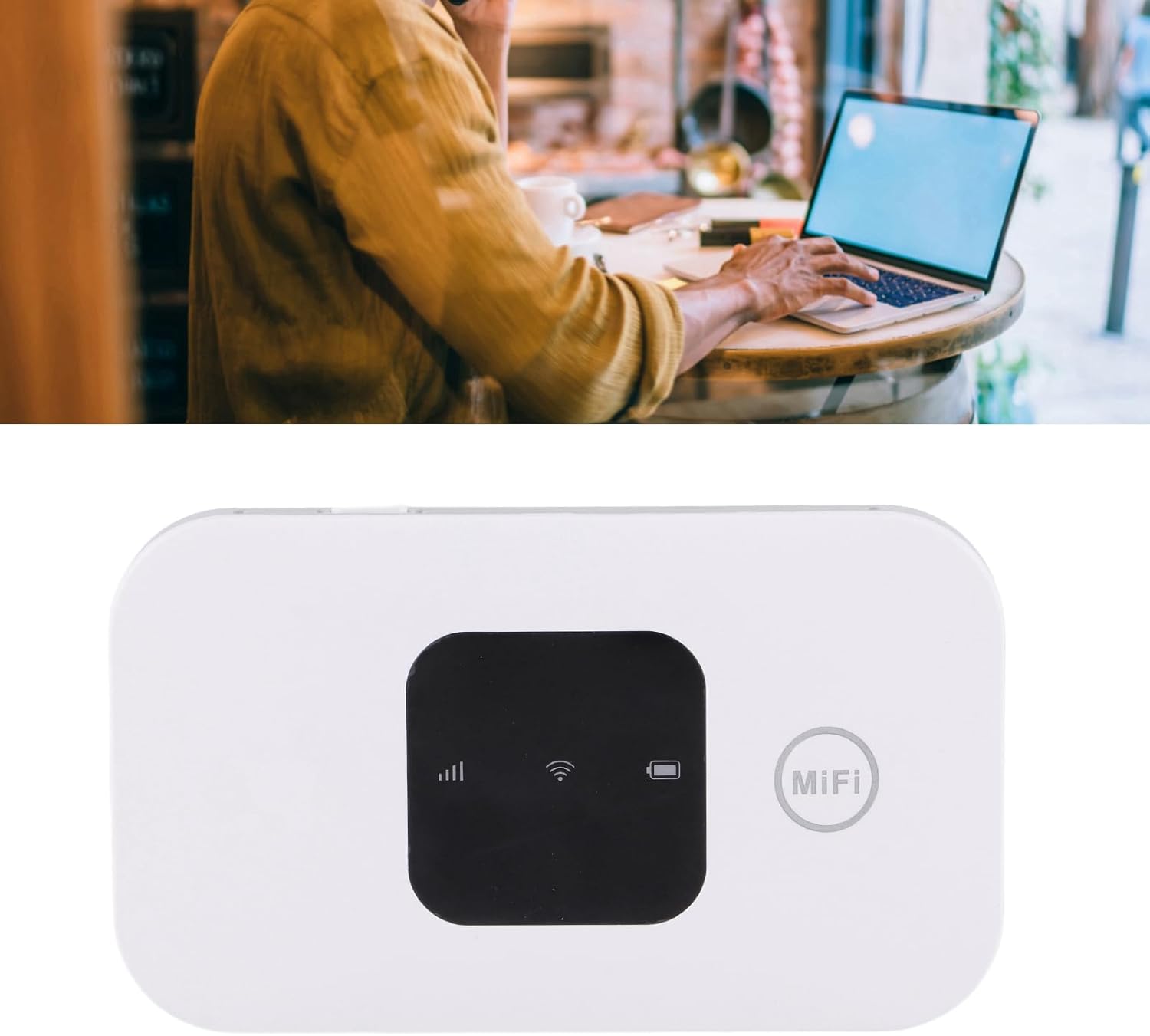
Image: A user working on a laptop, connected to the Diydeg Mobile Hotspot for internet access.
4.2 Kuchaja Chishandiso
Connect the provided USB charging cable to the hotspot's charging port and plug the other end into a USB power adapter or a computer's USB port. The battery indicator on the display will show charging status.
4.3 Powering Off the Device
Press and hold the power button for a few seconds until the LED display turns off, indicating the device has shut down.
5. Kuchengeta
- Chengetedza mudziyo wakaoma uye kure nekunyorova.
- Dzivisa kupisa kwakanyanya.
- Chenesa mudziyo nejira rakapfava, rakaoma. Usashandise mishonga yekuchenesa yemvura.
- Usaedze kudimbura kana kugadzirisa mudziyo wega.
- Kuti bhatiri rigare kwenguva refu, dzivisa kuburitsa bhatiri rakazara nguva nenguva.
6. Kugadzirisa matambudziko
6.1 Hapana Chiratidzo cheNetiweki
- Ita shuwa kuti SIM kadhi rakaiswa nemazvo uye rakaitwa.
- Check if you are in an area with 3G/4G network coverage.
- Tangazve mudziyo.
- Verify that your SIM card plan supports data usage.
6.2 Haikwanise Kubatanidza neWiFi
- Confirm the WiFi password (Key) is entered correctly.
- Ensure the hotspot is powered on and broadcasting its WiFi signal.
- Check if too many devices are already connected (maximum 10).
- Restart both the hotspot and the device you are trying to connect.
6.3 Kumhanya KwepaIndaneti Kunonoka
- Move to an area with better network signal strength.
- Deredza huwandu hwemidziyo yakabatana.
- Check your data plan for any speed limitations or data caps.
- Tangazve mudziyo.
7. Zvinotsanangurwa
| Feature | Tsanangudzo |
|---|---|
| Model Number | Diydeghebi7gopvf |
| Battery Capacity | 2100mAh |
| Max WiFi Users | 10 |
| Wireless Connection Speed | Kusvikira ku150Mbps |
| Item Weight | 3.88 ounces |
| Package Dimensions | 4.33 x 3.15 x 1.57 inches |
| Mugadziri | Diydeg |
Ongorora: Zvinotsanangurwa zvinogona kuchinja pasina chiziviso chekutanga.
8. Warranty uye Tsigiro
Diydeg is committed to providing quality products and customer satisfaction. This product comes with:
- Mhinduro yeMaawa makumi maviri nemana: Our support team aims to respond to inquiries within 12 hours.
- 365-Mazuva Akaganhurirwa Warranty: Inovhara zvikanganiso zvekugadzira kwegore rimwe kubva pazuva rawakatenga.
- Lifelong Unlimited Technical Support: Assistance with product usage and troubleshooting for the lifetime of the product.
For technical support or warranty claims, please contact Diydeg customer service through your purchase platform or visit our official website.