1. Nhanganyaya
This manual provides essential information for the setup, operation, maintenance, and troubleshooting of your NIMO N159 15.6-inch IPS FHD Gaming Laptop. This device is equipped with an AMD Ryzen 7 7735HS processor, 32GB DDR5 RAM, and a 1TB PCIe SSD, designed for balanced performance in productivity and light gaming tasks. Please read this manual thoroughly to ensure proper usage and to maximize the lifespan of your laptop.
2. Chii chiri muBhokisi
Iva nechokwadi chekuti zvinhu zvese zviripo mupakeji:
- Laptop 1 x NIMO N159
- 1 x Type-C 100W PD Inochaja Inokurumidza
- 1 x Chinyorwa cheMushandisi (gwaro iri)
- Windows 11 Home (yakaiswa kare)
3. Chigadzirwa Pamusoroview
Familiarize yourself with the components and features of your NIMO N159 laptop.

Mufananidzo 3.1: Mberi view of the NIMO N159 laptop, showcasing its 15.6-inch display and overall design.
3.1 Mamiriro Akakosha
- processor: AMD Ryzen 7 7735HS with 8 Cores and 16 Threads, up to 4.75GHz.
- Mifananidzo: Integrated AMD Radeon 680M GPU.
- Memory: 32GB DDR5 RAM for efficient multitasking.
- Kuchengeta: 1TB PCIe 4.0 SSD for fast boot times and data access.
- Ratidza: 15.6-inch Full HD (1920x1080) IPS Anti-Glare Display.
- Kuchaja: 100W Type-C PD Fast Charger.
- Chengetedzo: Fingerprint Unlock integrated into the touchpad.
- Input: Backlit Keyboard with Numeric Keypad.

Mufananidzo 3.2: Kupfuuraview of the AMD Ryzen 7 7735HS processor and its integrated Radeon 680M graphics.
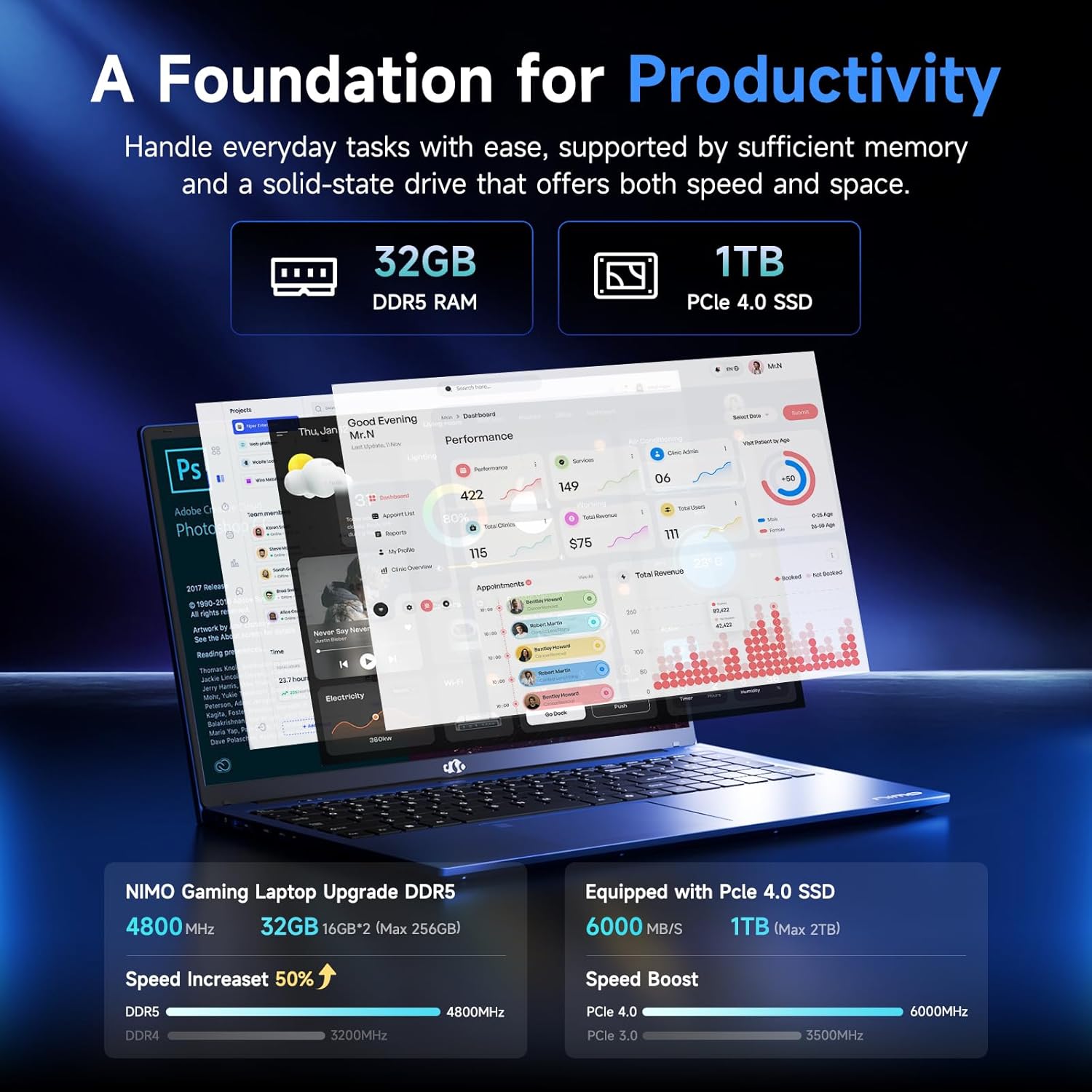
Figure 3.3: Illustration of the 32GB DDR5 RAM and 1TB PCIe 4.0 SSD, highlighting their speed and capacity.
3.2 Zviteshi uye Zvibatanidza
The NIMO N159 laptop provides a variety of ports for connectivity:

Mufananidzo 3.4: Detailed view of the laptop's ports and their functions.
- Kuruboshwe: Kensington Lock, Audio Jack, USB 3.2 Gen 1, USB 2.0, Micro SD Reader.
- Rutivi rworudyi: Type-C Gen2 (Multifunction), USB 3.2 Gen 1, HDMI 2.0, Type-C Gen2 (Multifunction).
3.3 Simba uye Bhatiri

Figure 3.5: Battery and charging capabilities of the NIMO N159 laptop.
The laptop is equipped with a 54Wh smart battery. It supports fast charging via the included 100W Type-C PD charger, providing approximately 5 hours of usage from a 1-hour charge.
3.4 Keyboard and Fingerprint Unlock
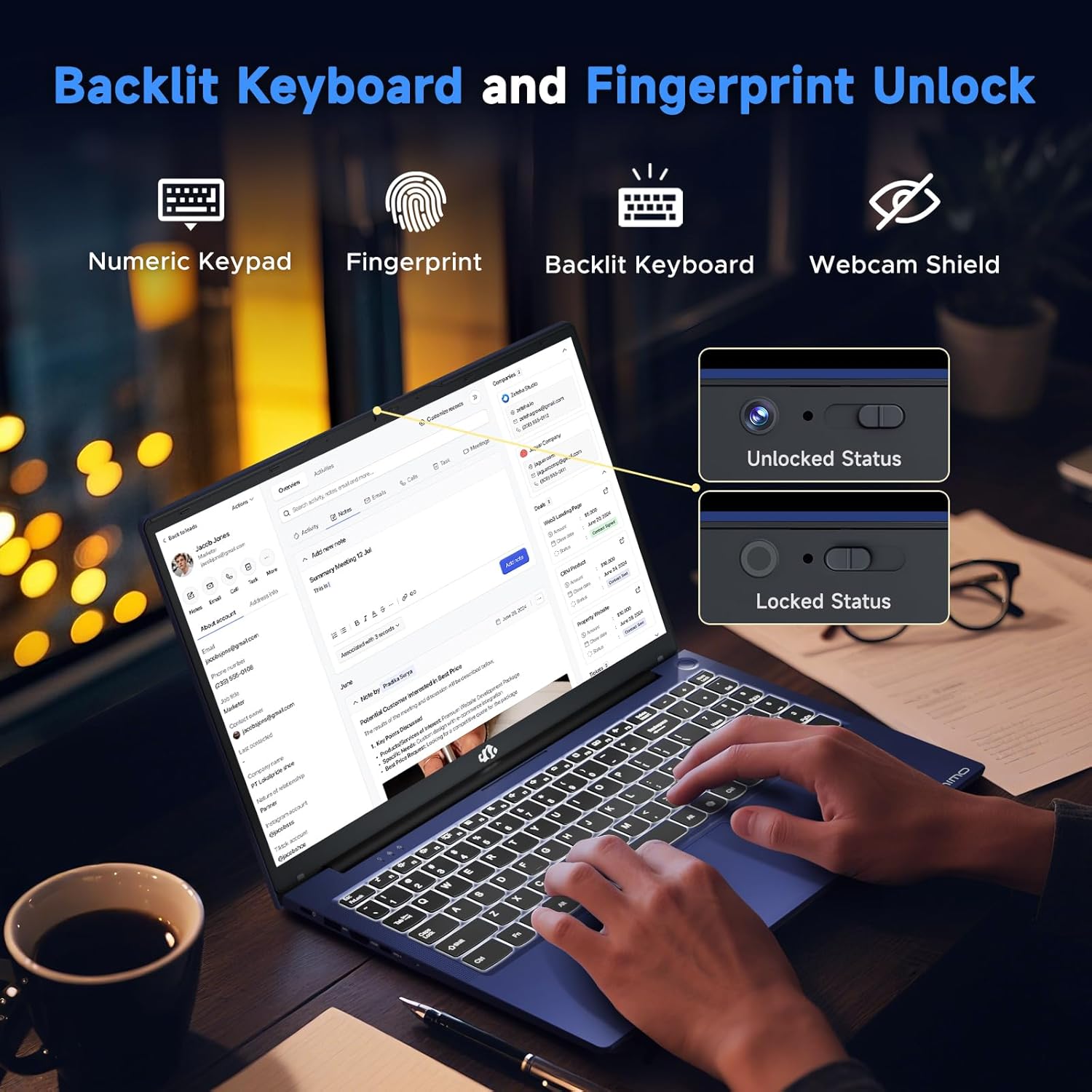
Figure 3.6: Features of the backlit keyboard, numeric keypad, fingerprint unlock, and webcam shield.
The keyboard features backlighting for use in low-light conditions and includes a numeric keypad. The fingerprint reader is integrated into the touchpad for secure and quick access.
3.5 Ratidza
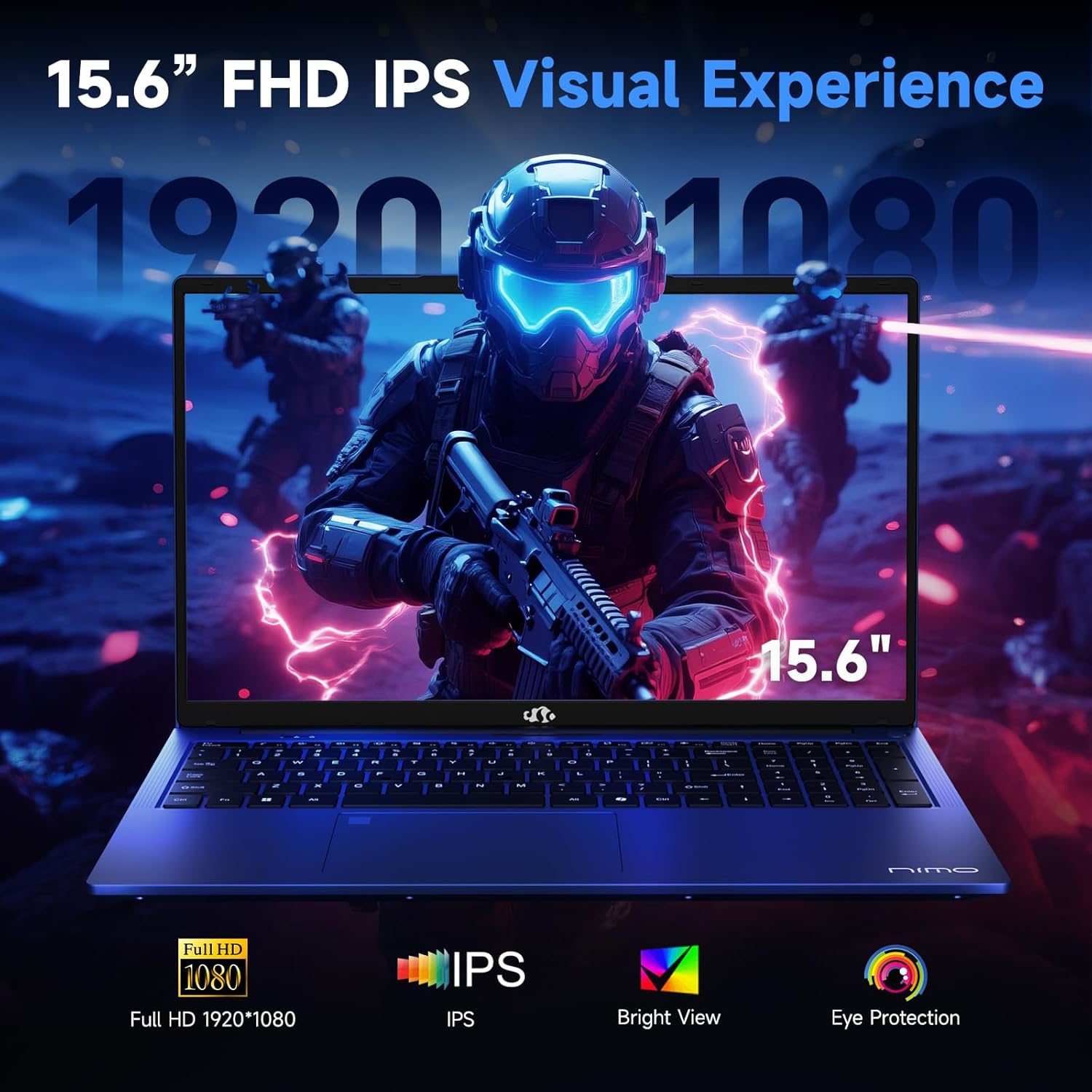
Figure 3.7: Visual representation of the 15.6-inch FHD IPS display quality.
The 15.6-inch Full HD (1920x1080) IPS Anti-Glare Display offers vibrant visuals and a wide viewing angle, suitable for various tasks from work to entertainment.
4. Setup
4.1 Kutanga Simba-Kubatidza
- Bvisa zvinhu: Nyatsobvisa laptop uye zvese zvishongedzo kubva pakurongedzerwa.
- Batanidza Simba: Plug the Type-C 100W PD Fast Charger into a power outlet and connect the Type-C connector to one of the multifunction Type-C ports on the laptop.
- Kutanga Boot: Open the laptop lid and press the power button, typically located on the top-right of the keyboard or side.
- Windows Setup: Tevedzera mirairo iri pachikirini kuti upedze kugadzirisa Windows 11 Home, kusanganisira mutauro, dunhu, network connection, uye kugadzira account yemushandisi.
4.2 Kubatanidza kune Network
- Wi-Fi: During Windows setup or later, select your Wi-Fi network from the available list and enter the password.
- Wired (Optional): If an Ethernet adapter (not included) is used with a USB port, connect an Ethernet cable to the adapter and then to your router/modem.
5. Operating Instructions
5.1 Simba On/Kudzima
- Power On: Dzvanya bhatani remagetsi.
- Vhara: Click the Start button in Windows, then Power > Shut down.
- Kurara: Vhara chivharo kana kudzvanya bhatani reKutanga, wozoti Simba > Kurara.
5.2 Kushandisa kiyibhodhi
- Backlight Control: Press the designated function key (e.g., F9) to cycle through backlight brightness levels (off, low, medium, high).
- Makiyi ebasa: Use the Fn key in combination with F1-F12 for various shortcuts (e.g., volume, brightness, Wi-Fi toggle).
5.3 Using the Touchpad and Fingerprint Sensor
- Touchpad: Supports multi-touch gestures for navigation. Refer to Windows settings for customization.
- Kufambiswa Kweminwe: Enroll your fingerprint through Windows Hello settings for secure login. Place your registered finger on the sensor located on the touchpad to unlock the device.
5.4 Kubatanidza Zvishandiso Zvekunze
Use the available USB-A, USB-C, and HDMI ports to connect peripherals such as external monitors, USB drives, mice, and keyboards. The Type-C Gen2 ports support multifunctionality, including data transfer and video output.
6. Kuchengeta
6.1 Kuchenesa
- Sikirini Shandisa jira rakapfava, risina jira zvinyoro dampyakavharwa nemvura kana screen cleaner. Usafire mvura yakananga pachiratidziri.
- Kiyibhodhi uye Chassis: Shandisa jira rakapfava, rakaoma. Patsvina yakasindimara, zvishoma damp jira rinogona kushandiswa, kuve nechokwadi kuti hapana mvura inopinda mumazaru.
- Zviteshi: Shandisa mweya wakadzvanywa kuti ubvise huruva kubva kumadoko zvinyoronyoro.
6.2 Kuchengeta Battery
- Dzivisa kuburitsa bhatiri zvakazara nguva zhinji.
- Chengeta laptop iyi munzvimbo inotonhorera, yakaoma kana ikasashandiswa kwenguva yakareba, bhatiri richichajwa kusvika pa50-60%.
- Use only the provided NIMO charger or a compatible 100W Type-C PD charger.
6.3 Zvigadziriso zveSoftware
Regularly check for and install Windows updates and driver updates to ensure optimal performance and security. These can typically be found in Windows Settings > Windows Update.
7. Kugadzirisa matambudziko
This section addresses common issues you might encounter with your NIMO N159 laptop.
| Dambudziko | Zvinogona Kukonzera | Solution |
|---|---|---|
| Laptop haibatike. | Low battery, power adapter issue, or hardware fault. | Ensure the charger is properly connected and the outlet is working. Try charging for at least 30 minutes. If the issue persists, contact support. |
| Sikirini haina blank kana nhema. | Display settings, external monitor conflict, or driver issue. | Press Fn + F7 (or relevant display toggle key) to cycle display modes. Disconnect any external monitors. Restart the laptop. |
| Wi-Fi nyaya dzekubatanidza. | Incorrect password, router issue, or Wi-Fi adapter disabled. | Verify Wi-Fi password. Restart your router. Check Windows settings to ensure Wi-Fi is enabled. |
| Laptop iri kushanda zvishoma nezvishoma. | Too many applications open, low storage, or outdated drivers. | Close unnecessary applications. Check available storage. Update Windows and drivers. Run a malware scan. |
| Fingerprint sensor not working. | Finger not clean, sensor dirty, or software issue. | Ensure your finger and the sensor are clean and dry. Re-enroll your fingerprint in Windows Hello settings. |
8. Zvinotsanangurwa
Detailed technical specifications for the NIMO N159 laptop:
| Feature | Detail |
|---|---|
| Brand | NIMO |
| Model Name | NIMO N159B |
| Screen Size | 15.6 inches |
| Screen Resolution | Mapikisheni 1920 x 1080 (FHD IPS) |
| processor | AMD Ryzen 7 7735HS (8 Cores, up to 4.75 GHz) |
| RAM | 32 GB DDR5 (4800 MHz) |
| Hard Drive | 1024 GB SSD (PCIe 4.0) |
| Graphics Coprocessor | AMD Radeon 680M (Yakabatanidzwa) |
| Operating System | Windows 11 Home |
| Wireless Type | 802.11a/b/g/n/ac |
| USB 2.0 Ports | 1 |
| USB 3.0 Ports | 4 |
| Type-C Ports | 2 (Gen2, Multifunction) |
| HDMI Port | 1 (HDMI 2.0) |
| Avhareji Hupenyu hweBhatiri | Maawa gumi nemaviri (54Wh) |
| Item Weight | 3.8 makirogiramu |
| Product Dimensions | 14.07 x 8.98 x 0.76 inches |
| Color | Bhuruu |
| Special Features | Kiyibhodhi ine mwenje wekumashure, Muverengi weminwe, HD Audio, Keypad yenhamba |
9. Warranty uye Tsigiro
NIMO is committed to providing quality products and customer satisfaction.
- Warranty yemugadziri: Your NIMO N159 laptop is covered by a 2-Year Manufacturer's Warranty from Nimo Direct Inc. This warranty covers defects in materials and workmanship under normal use.
- Return Policy: A 90-Day Hassle-Free Return Policy is offered by Nimo Direct Inc. from the date of purchase.
9.1 Bata Rutsigiro
For technical assistance, warranty claims, or product-related inquiries, please contact NIMO customer support:
- Email: service@nimopc.com
- Pamhepo: Shanyira NIMO yepamutemo website for further support options and FAQs.
Our dedicated support team is available to assist you with any issues or replacements.


