1. Nhanganyaya
This manual provides detailed instructions for the proper setup, operation, and maintenance of your AOC ACW2212 Headset. Designed for PC use, this headset features a noise-cancelling microphone and voice isolation technology to enhance communication clarity in various work environments. Please read this manual thoroughly before using the product to ensure optimal performance and longevity.
2. Package Zviri mukati
Tarisa kuti zvinhu zvese zvakanyorwa pazasi zviripo mupakeji yako yechigadzirwa:
- AOC ACW2212 Headset
- USB Wireless Dongle
- 3.5mm Audio Cable
- Kutengesa Cable (USB-C ku USB-A)
- Mushandisi Chinyorwa (gwaro iri)
3. Chigadzirwa Pamusoroview
Familiarize yourself with the components of your AOC ACW2212 Headset:
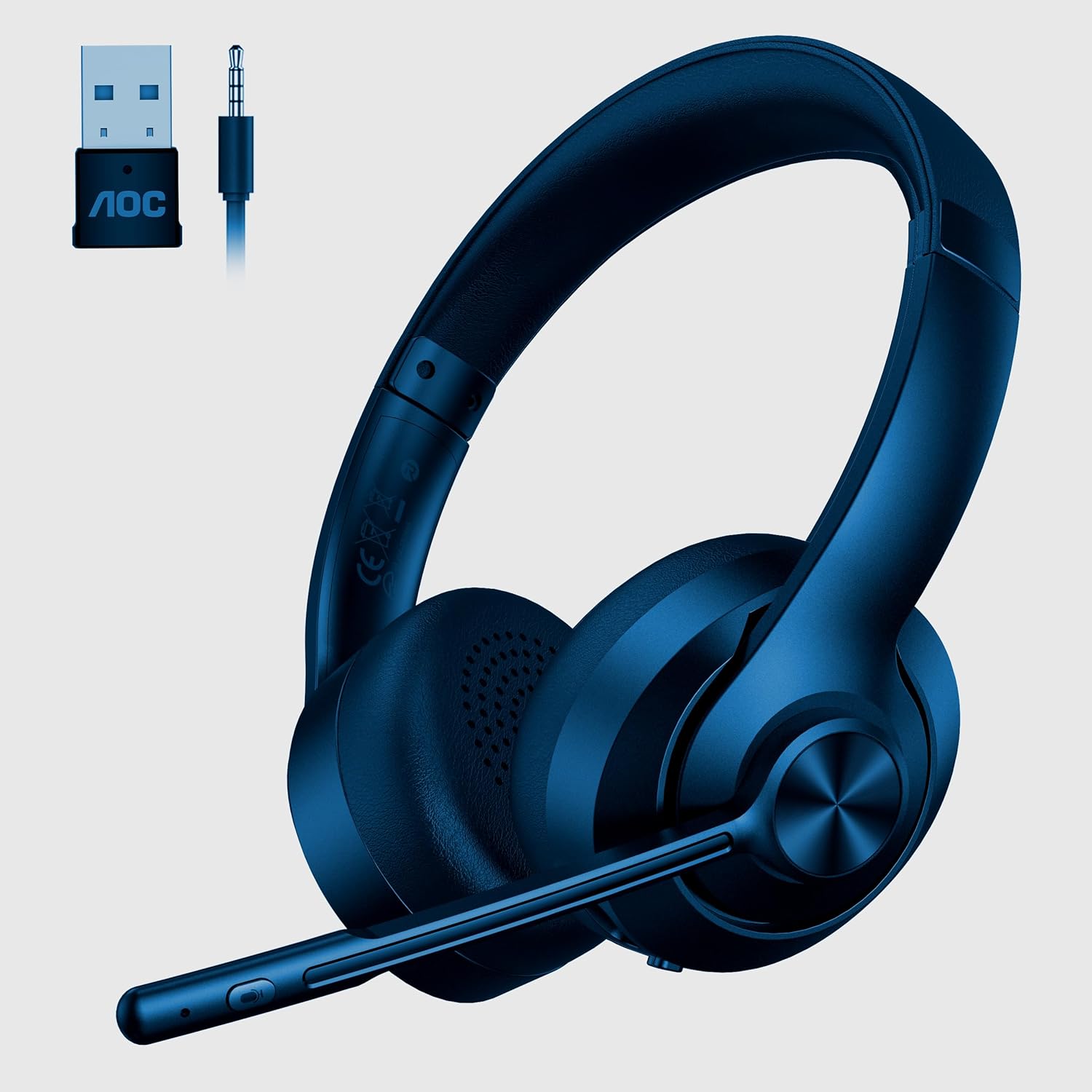
Image 1: AOC ACW2212 Headset with included USB wireless dongle and 3.5mm audio jack. The headset features an adjustable headband, over-ear cups, and a flexible boom microphone with integrated controls.
Headset Components:
- Adjustable Headband: Kuti ikwane zvakanaka.
- Nzeve: Over-ear design for sound isolation.
- Maikorofoni yeBoom: Flexible and adjustable, with noise-cancelling capabilities.
- Kudzora Kwevhoriyamu: Buttons located on the earcup for adjusting audio output.
- Bhatani reKunyararidza Maikorofoni: For quick muting/unmuting of the microphone.
- Bhatani reSimba: To turn the headset on or off.
- USB-C yekuchaja Port: Yekuchaja bhatiri remukati.
- 3.5mm Audio Jack: Zvekubatanidza newaya.
4. Setup
4.1 Wired Connection (3.5mm Audio Cable)
- Connect one end of the 3.5mm audio cable to the 3.5mm audio jack on the headset.
- Connect the other end of the 3.5mm audio cable to the audio output port on your PC or device.
- Ensure your device's audio settings are configured to use the headset as the input and output device.
4.2 Wireless Connection (USB Dongle)
- Insert the USB wireless dongle into an available USB port on your PC.
- Power on the headset by pressing and holding the Power button until the indicator light illuminates.
- The headset and dongle should automatically pair. A solid indicator light on the headset typically signifies a successful connection.
- Adjust your PC's sound settings to select the AOC ACW2212 Headset as the default playback and recording device.
4.3 Bluetooth Connection
- Iva nechokwadi chekuti headset inobviswa.
- Dzvanya wobata bhatani rePower kwemasekondi angangoita mashanu kusvika manomwe kusvika rambi rechiratidzo rapenya nekukurumidza, zvichiratidza kuti pane pairing mode.
- On your device (PC, smartphone, etc.), navigate to the Bluetooth settings and enable Bluetooth.
- Tsvaga available devices and select "AOC ACW2212" from the list.
- Once connected, the headset's indicator light will typically become solid or flash slowly.
5. Operating Instructions
5.1 Simba On/Kudzima
- Kubatidza: Dzvanya uye bata bhatani reSimba kwemasekonzi matatu.
- Kudzima: Dzvanya uye bata bhatani reSimba kwemasekonzi matatu.
5.2 Kudzora Inzwi
- Vhoriyamu Kumusoro: Dzvanya bhatani re'+'.
- Vhoriyamu Pasi: Dzvanya bhatani '-'.
5.3 Microphone Mute/Unmute
- Press the Microphone Mute button on the boom mic to toggle mute on or off. An indicator light on the mic or headset may show the mute status.
5.4 Kuchaja mahedhifoni
- Connect the charging cable to the USB-C port on the headset and the other end to a USB power source.
- The indicator light will typically show charging status (e.g., red for charging, green/off for fully charged).
6. Kuchengeta
To ensure the longevity and optimal performance of your headset, follow these maintenance guidelines:
- Kuchenesa: Use a soft, dry cloth to clean the headset. For earcups, a slightly damp jira rinogona kushandiswa, asi dzivisa hunyoro hwakanyanyisa. Usashandise makemikari ane hasha kana abrasive cleaners.
- Kuchengeta: Chengetedza mahedhifoni munzvimbo inotonhorera, yakaoma kure nechiedza chezuva uye tembiricha yakanyanyisa.
- Cable Care: Dzivisa kukotamisa kana kumonyorora tambo zvakanyanya kudzivirira kukuvara.
- Bhatiri: Kuti bhatiri rigare kwenguva refu, dzivisa kuburitsa headset yese nguva nenguva. Ichaje nguva dzose.
7. Kugadzirisa matambudziko
If you encounter issues with your headset, refer to the following table for common problems and solutions:
| Dambudziko | Zvinogona Kukonzera | Solution |
|---|---|---|
| Hapana ruzha kubva kumahedhifoni | Headset not powered on; Incorrect audio output selected; Low battery; Loose cable connection. | Ensure headset is on; Check PC audio settings; Charge headset; Reconnect cables securely. |
| Maikorofoni haisi kushanda | Microphone muted; Incorrect audio input selected; Loose cable connection. | Unmute microphone; Check PC audio input settings; Reconnect cables securely. |
| Cannot pair via Bluetooth/Wireless | Headset not in pairing mode; Device Bluetooth off; Dongle not properly inserted. | Put headset in pairing mode; Enable Bluetooth on device; Reinsert USB dongle. |
| Hunhu hwekuteerera husina kunaka | Interference; Distance from dongle/device; Low battery. | Move closer to device/dongle; Charge headset; Avoid sources of interference. |
8. Zvinotsanangurwa
Technical specifications for the AOC ACW2212 Headset:
| Feature | Detail |
|---|---|
| Model Name | ACW2212 |
| Kubatana Technology | Wired (3.5mm), Wireless (USB Dongle), Bluetooth |
| Fomu Factor | On Ear |
| Kuiswa Nzeve | Over Ear |
| Color | Nhema |
| Mugadziri | AOC |
| Item Weight | 331.12 g |
| Mabhatiri | 1 Bhatiri (inosanganisirwa) |
9. Warranty uye Tsigiro
This AOC ACW2212 Headset comes with a standard manufacturer's warranty. For specific warranty terms and conditions, please refer to the warranty card included in your product packaging or visit the official AOC website. For technical support, troubleshooting assistance, or service inquiries, please contact AOC customer support through their official channels.


