1. Nhanganyaya
This manual provides essential information for the setup, operation, maintenance, and troubleshooting of your Razer Blade 14 (2025) Gaming Laptop. This device is engineered for high performance in a portable form factor, suitable for gaming, creative tasks, and professional use.
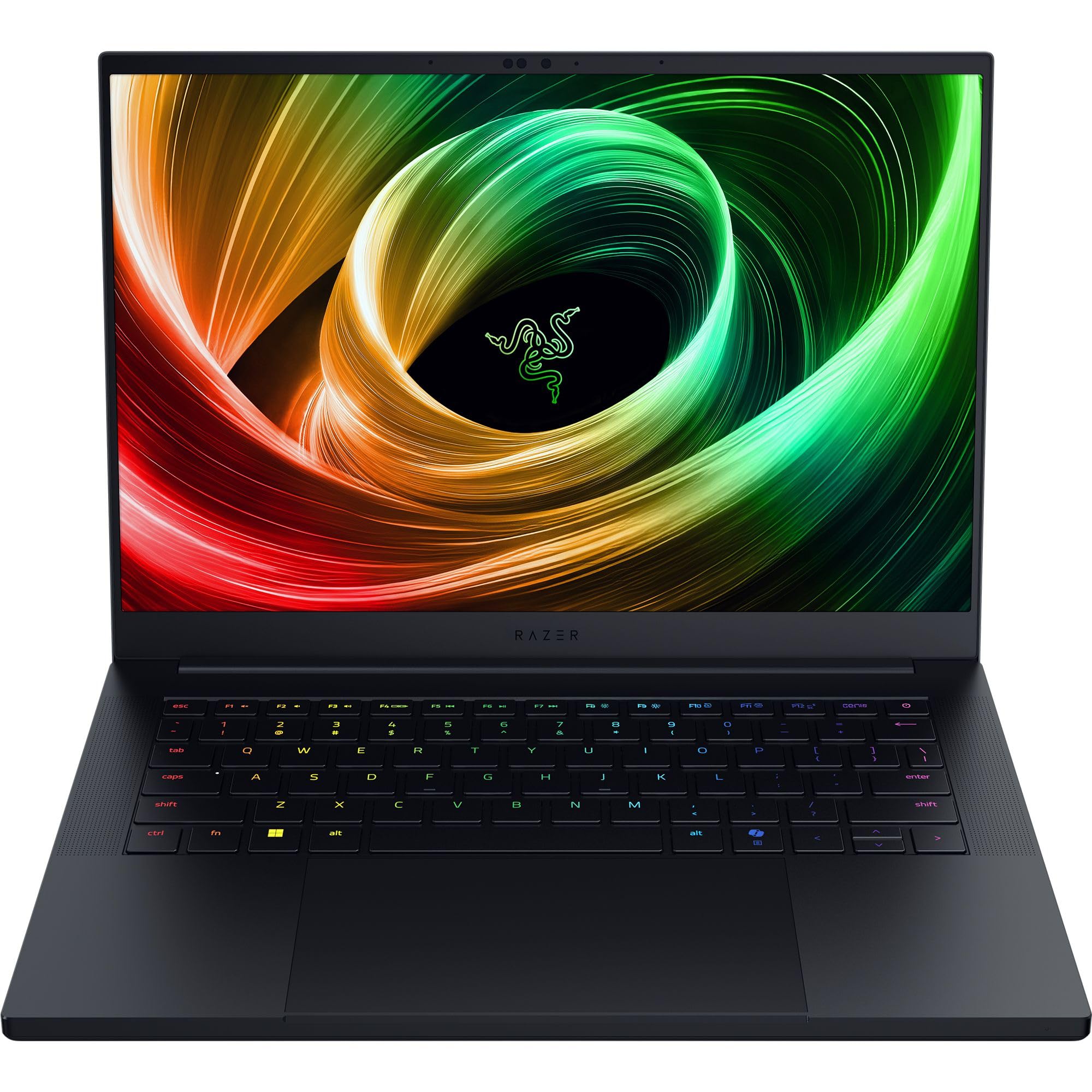
Figure 1: Razer Blade 14 (2025) Gaming Laptop.
2. Chii chiri muBhokisi
Iva nechokwadi chekuti zvinhu zvese zviripo mupakeji:
- Razer Blade 14 Gaming Laptop
- Power adapter + yedunhu simba tambo
- Micro-fiber yekuchenesa jira
- Yakakosha Chigadzirwa Ruzivo Gwaro
Vhidhiyo 1: Unboxing uye yekutanga pamusoroview of the Razer Blade 14. This video provides a visual guide to the contents of the box and the laptop's initial appearance.
3. Setup
3.1 Kutanga Simba-Kubatidza
- Unpack the Razer Blade 14 and its power adapter from the box.
- Batanidza adapta yemagetsi kune chiteshi chekuchaja chelaptop wobva wabatanidza kune chinoburitsa magetsi.
- Open the laptop lid. The system may power on automatically or require you to press the power button located on the top-right of the keyboard.
- Follow the on-screen instructions to complete the Windows 11 Home setup process. This includes selecting your region, connecting to a network, and creating a user account.
3.2 Kubatanidza Peripherals
The Razer Blade 14 offers a variety of ports for connecting external devices:
- USB-A Ports: Connect USB accessories such as mice, keyboards, or external storage.
- USB4 Type-C Ports: Use for data transfer, video output, or charging compatible devices.
- HDMI Port: Connect to external displays or TVs for extended screen real estate.
- 3.5mm Audio Jack: Unganidza mahedhifoni kana masipika ekunze.

Figure 2: The thin and lightweight design of the Razer Blade 14, highlighting its portability.
4. Kushandisa Laptop
4.1 Ratidza Zvimiro
The Razer Blade 14 features a 14-inch 3K (2880x1800) OLED display with a 120Hz refresh rate and an ultra-fast 0.2ms response time. This display is Calman Verified, ensuring professional-grade color accuracy with support for Rec. 709, DCI-P3, sRGB, and Adobe RGB color profiles.

Figure 3: The vibrant 3K 120Hz OLED display of the Razer Blade 14, showcasing its color accuracy and smooth visuals.
4.2 Kushanda Kwaperaview
Your Razer Blade 14 is equipped with:
- processor: AMD Ryzen AI 9 365 CPU with up to 50 TOPS of AI processing power.
- Mifananidzo: NVIDIA GeForce RTX 5060 Laptop GPU (up to 115W TGP) for immersive graphics and AI-enhanced performance with DLSS 4.
- Memory: 16GB LPDDR5X RAM running at 8000 MHz for ultra-fast and efficient multitasking.
- Kuchengeta: 1TB SSD for ample and fast storage.
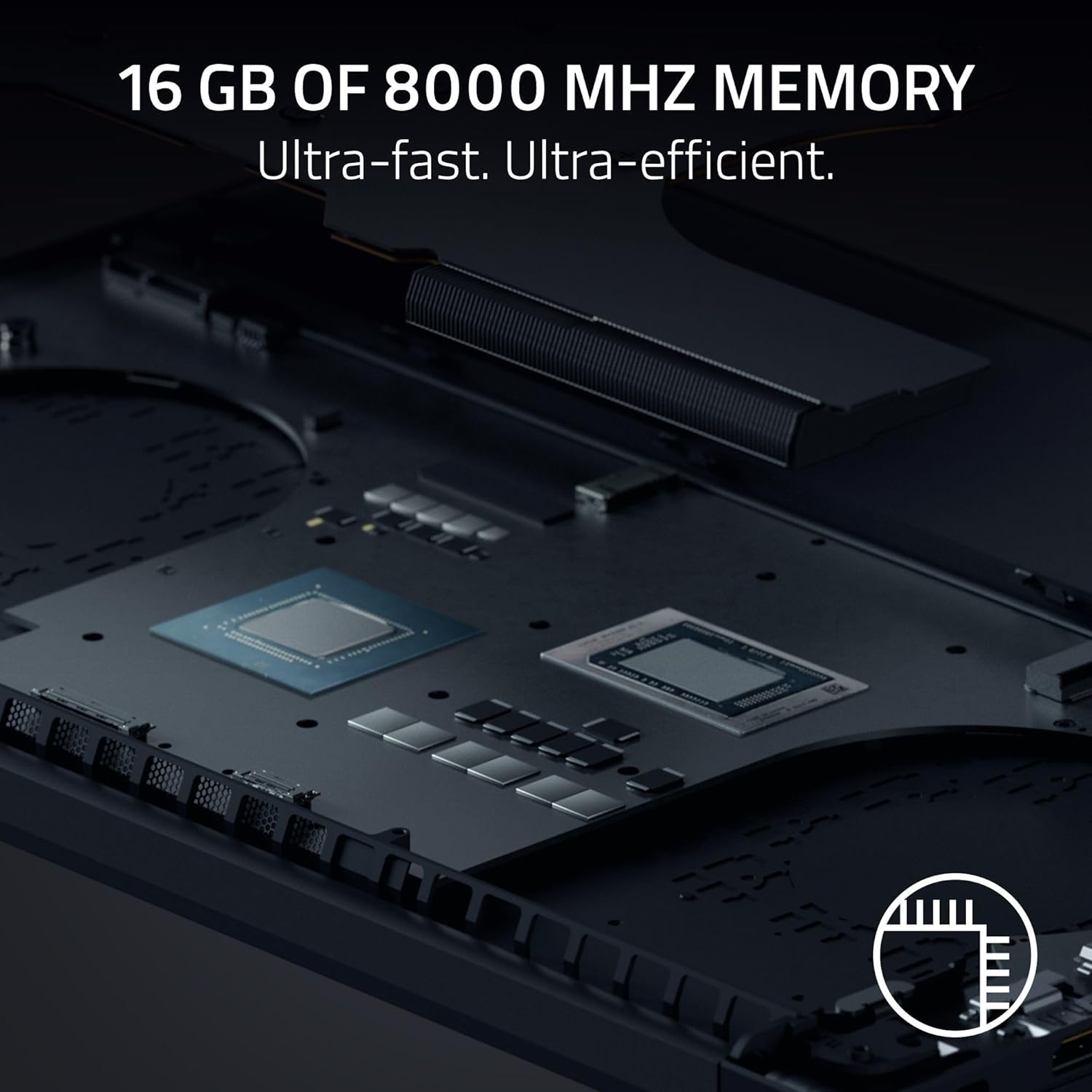
Mufananidzo 4: Yemukati view of the Razer Blade 14, showing the high-performance CPU and RAM modules.
4.3 Audio and Keyboard
Experience rich, immersive sound with the new six-speaker array featuring THX Spatial Audio. The keyboard includes Razer Chroma RGB lighting, which can be customized through Razer Synapse software.

Mufananidzo 5: Pamusoro-pasi view of the Razer Blade 14 keyboard, showcasing the customizable Chroma RGB lighting.
4.4 Bhatiri Hupenyu uye Kuchaja
The laptop offers up to 11 hours of battery life. For quick charging, the compact 200W adapter can charge the battery up to 50% in just 30 minutes.

Figure 6: A user operating the Razer Blade 14 on a laptop stand, illustrating its portability and extended battery life.
5. Kuchengeta
5.1 Kutarisira Kwese
- Keep the laptop clean using the provided micro-fiber cloth. Avoid abrasive cleaners.
- Handle the laptop with care to prevent physical damage to the aluminum unibody.
- Avoid placing heavy objects on the laptop or exposing it to extreme temperatures.
5.2 Zvigadziriso zveSoftware
Regularly update your Windows 11 Home operating system and NVIDIA graphics drivers to ensure optimal performance and security. Utilize Razer Synapse for managing Chroma RGB lighting and accessing performance profiles, including overclocking options.
5.3 Kutonhodza System
The Razer Blade 14 features an advanced cooling design with a vapor chamber and thermal hood. To maintain optimal cooling performance, ensure that the air vents are not obstructed during use.
Video 2: Official Razer Blade 14 Accolade Trailer. This video highlights key features and design aspects of the laptop, including its cooling system.
6. Kugadzirisa matambudziko
6.1 Matambudziko Anowanikwa uye Magadzirirwo
- System Unresponsiveness: If the system becomes unresponsive, perform a hard reset by holding down the power button until the laptop shuts off, then restart.
- Ratidza Nyaya: Ensure graphics drivers are up to date. If using an external monitor, check cable connections.
- Bhatiri risingachaji: Verify the power adapter is securely connected to both the laptop and the power outlet. Try a different outlet if necessary.
- Performance Degradation: Check for background applications consuming resources. Ensure the cooling vents are clear and the laptop is on a hard, flat surface. Update drivers and operating system.
6.2 Kubata Rutsigiro
If you encounter persistent issues that cannot be resolved with the above steps, please refer to the Important Product Information Guide included in your box or visit the official Razer support website kuti uwane rumwe rubatsiro.
7. Zvinotsanangurwa
| Feature | Tsanangudzo |
|---|---|
| Model Name | Blade 14 |
| Item Model Number | RZ09-05305ES3-R3U1 |
| Screen Size | 14 inches |
| Screen Resolution | 2880 x 1800 pixels (3K) |
| Max Screen Resolution | 2880x1800 Pixels |
| Refresh Rate | 120 Hz |
| processor | AMD Ryzen AI 9 365 (2 GHz ryzen_ai) |
| RAM | 16 GB LPDDR5X (8000 MHz) |
| Hard Drive | 1TB SSD |
| Graphics Card | NVIDIA GeForce RTX 5060 (8 GB GDDR7) |
| Operating System | Windows 11 Home |
| Wireless Type | 802.11a/g/n/ac (Wi-Fi 7 capable) |
| USB Ports | 2x USB 3.0, Dual USB4 Type-C |
| Avhareji Hupenyu hweBhatiri | 11 Maawa |
| Item Weight | 7.79 pounds (approx. 3.53 kg) |
| Product Dimensions | 12.24 x 0.64 x 8.83 inches |
| Special Features | AI-driven productivity tools, Advanced cooling system, Calman Verified display, THX Spatial Audio |
8. Warranty uye Tsigiro
Your Razer Blade 14 (2025) Gaming Laptop comes with a manufacturer's warranty. Please refer to the 'Important Product Information Guide' included in your product packaging for detailed warranty terms and conditions.
For technical support, driver downloads, and FAQs, visit the official Razer Support websaiti: www.razer.com/support. You can also find additional resources and community forums there.


