Nhanganyaya
Thank you for choosing the ROYALAXE R68 Wireless Mechanical Keyboard. This manual provides detailed instructions for setting up, operating, and maintaining your keyboard. The R68 features a compact 60% layout, tri-mode connectivity (2.4GHz wireless, Bluetooth 5.0, and USB Type-C wired), hot-swappable switches, and customizable RGB backlighting.
Gadzirira
Package Zviri mukati
- Kiyibhodhi yeMichina yeROYALAXE R68
- USB Type-C Cable
- 2.4GHz USB mugamuchiri
- Keycap Puller
- Chinja Puller
- MaSpare Switch (zvidimbu zvitatu)
- Mushandisi Chinyorwa (gwaro iri)
Kuchaja kiyibhodhi
Before first use, fully charge the keyboard. Connect the provided USB Type-C cable to the keyboard's Type-C port and the other end to a USB power source (e.g., computer USB port, USB wall adapter). The keyboard features a 2100mAh battery.
 Image: The ROYALAXE R68 keyboard displaying battery life information, indicating up to 170 hours of standby time with RGB backlight off and 7 hours with RGB backlight on.
Connection Modes
The R68 keyboard supports three connection modes: 2.4GHz wireless, Bluetooth 5.0, and USB Type-C wired. You can connect up to five devices simultaneously (one via 2.4GHz, three via Bluetooth, and one via wired) and switch between them using the mode knob.
 Image: A visual representation of the ROYALAXE R68 keyboard connecting to a monitor, tablet, and smartphone, illustrating its capability to connect to five devices via 2.4G, Bluetooth (BT1, BT2, BT3), and wired USB-C.
Kuchinja Connection Modes
Use the knob located on the top right of the keyboard to select your desired connection mode:
- DZIMA: Keyboard is powered off.
- 2.4G: For 2.4GHz wireless connection.
- BT: For Bluetooth connection (BT1, BT2, BT3).
- USB: For wired USB Type-C connection.
 Mufananidzo: Kuvhara view of the ROYALAXE R68 keyboard's golden rotary knob and adjacent switches, indicating options for Windows/Mac compatibility and connection modes (BT, 2.4G, OFF).
2.4GHz Wireless Connection
- Locate the 2.4GHz USB receiver. It is typically stored in a compartment on the keyboard.
- Batanidza iyo 2.4GHz USB inogamuchira mune inowanikwa USB port pakombuta yako.
- Turn the mode knob on the keyboard to the "2.4G" position.
- Kiyibhodhi inofanira kubatana otomatiki. Kana zvisiri, dzvanya FN + 4 kutanga kubatanidza.
 Image: A close-up of the ROYALAXE R68 keyboard's golden rotary knob and the 2.4GHz USB receiver, illustrating where the receiver is located or used for wireless connection.
Bluetooth Connection
- Turn the mode knob on the keyboard to the "BT" position.
- Dzvanya uye ubate FN + 1, FN + 2, kana FN + 3 for 3-5 seconds to enter Bluetooth pairing mode for BT1, BT2, or BT3 respectively. The indicator light will flash rapidly.
- On your device (PC, laptop, tablet, phone), enable Bluetooth and search for new devices.
- Select "ROYALAXE R68" from the list of available devices to pair.
- Kana yabatanidzwa, rambi rechiratidzo rinomira kupenya.
- Kuti uchinje pakati pemidziyo yeBluetooth yakabatana, tinya FN + 1, FN + 2, kana FN + 3 muchidimbu.
Wired USB Type-C Connection
- Batanidza yakapihwa USB Type-C tambo kune kiibhodhi Type-C port.
- Batanidza imwe magumo etambo kune USB port pakombuta yako.
- Turn the mode knob on the keyboard to the "USB" position.
- The keyboard will be recognized as a standard USB keyboard and is ready for use.
Operating Instruction
RGB Kujekesa
The R68 keyboard features 16.8 million RGB lighting colors with 18+4 lighting effects.
- Chinja Lighting Effect: Press FN + \ | to cycle through different lighting effects.
- Gadzirisa Kupenya: Press FN + ↑ kuwedzera kupenya, FN + ↓ kuderedza kupenya.
- Gadzirisa Speed: Press FN + ← to decrease effect speed, FN + → to increase effect speed.
- Batidza/Kudzima Backlight: Press FN + P (or similar key combination, refer to specific keycap legends if available) to toggle the backlight.
- Music Rhythm Lighting Effects: Supported via the ROYALAXE driver software.
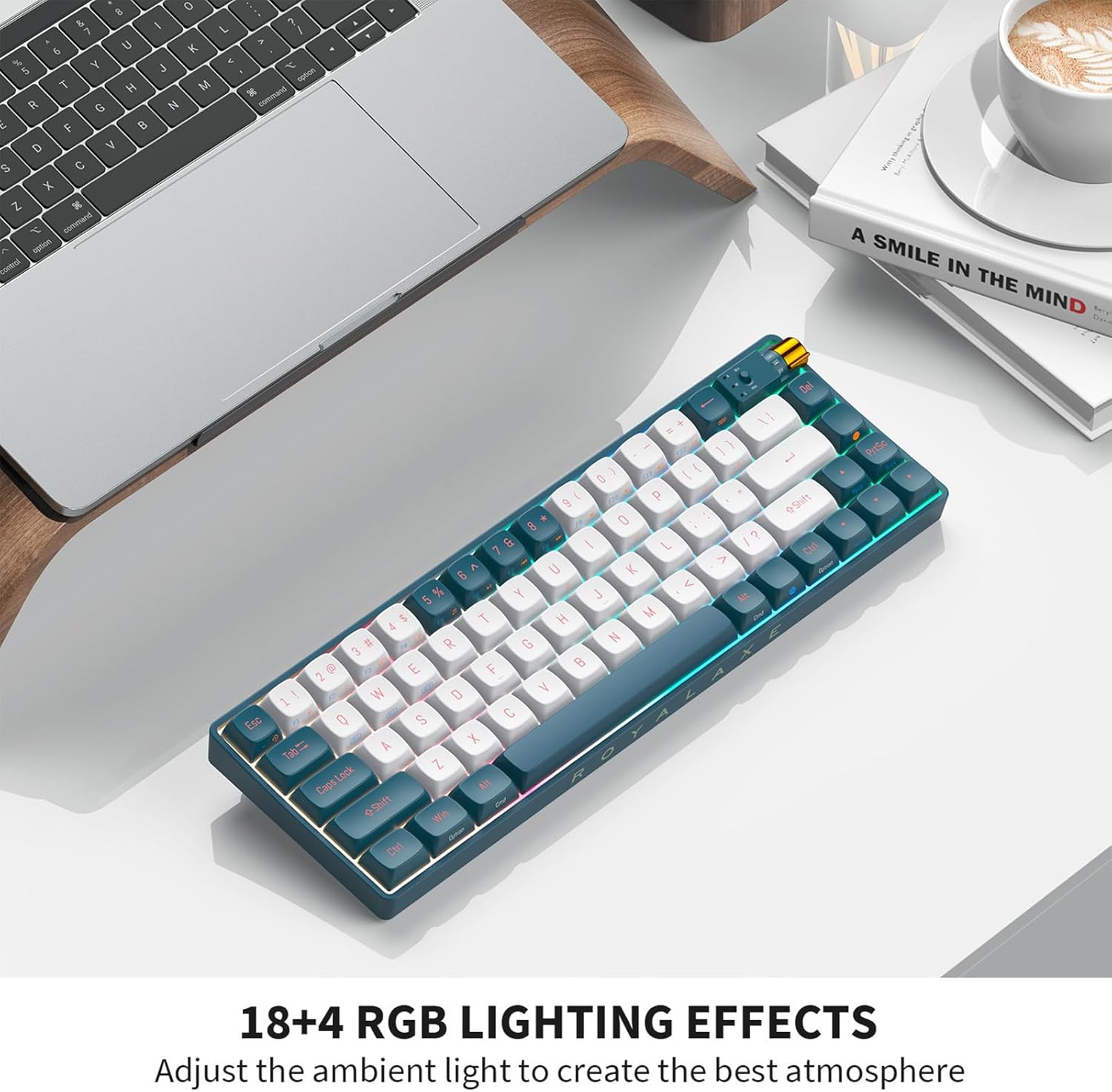 Image: The ROYALAXE R68 keyboard illuminated with colorful RGB backlighting, showcasing its various lighting effects.
Hot-Swappable Swichi
The R68 keyboard features a hot-swappable PCB, allowing you to change mechanical switches without soldering. It supports both 3-pin and 5-pin switches. The keyboard comes equipped with pre-lubed yellow switches for a smooth typing experience.
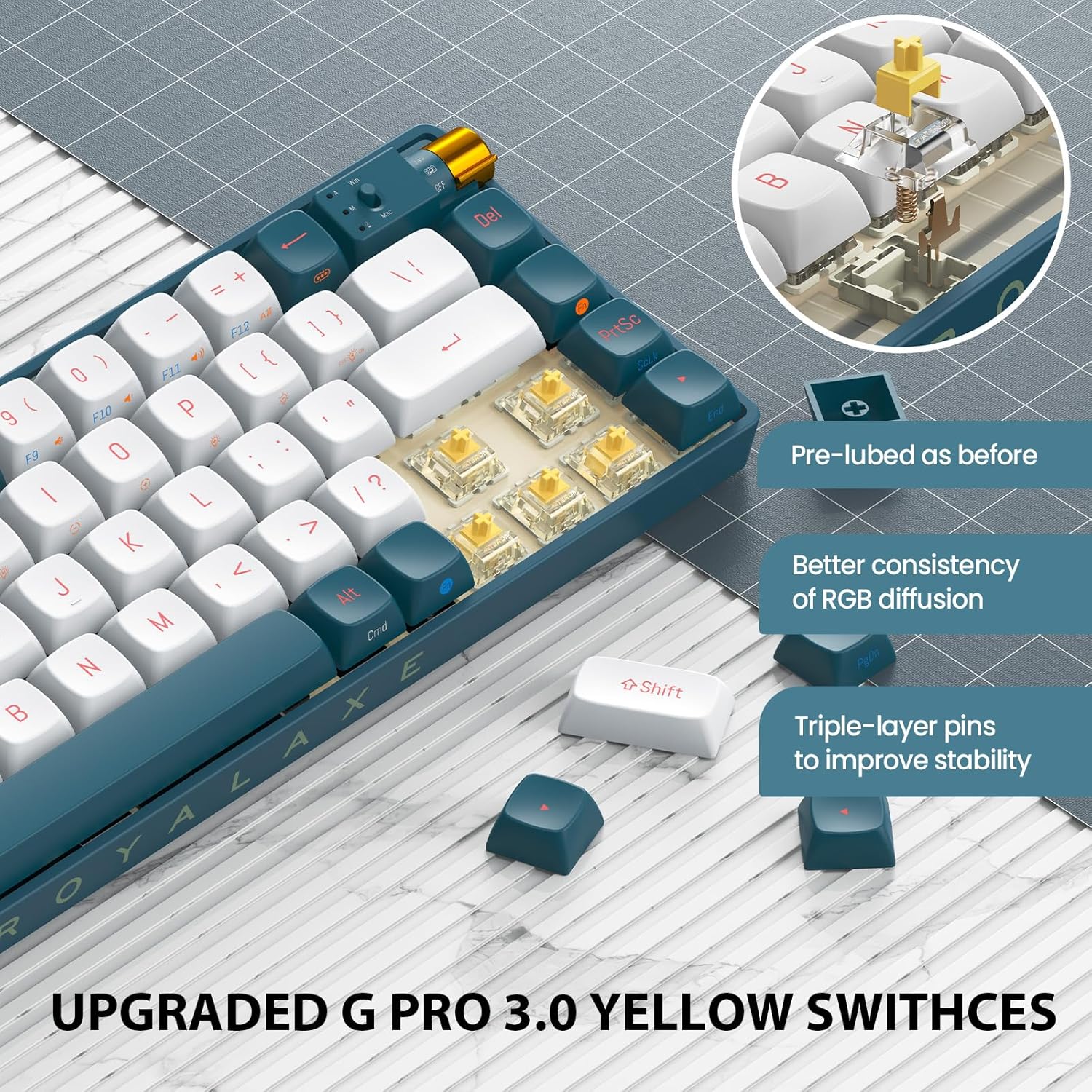 Mufananidzo: Yakadzama view of the ROYALAXE R68 keyboard's G Pro 3.0 Yellow Switches, highlighting their pre-lubed state, improved RGB diffusion consistency, and triple-layer pins for enhanced stability.
Makiyi ePBT Akapfurwa Kaviri
The R68 is equipped with durable double-shot PBT keycaps. These keycaps are resistant to wear and shine, providing a consistent feel and appearance over time.
 Image: A close-up of the ROYALAXE R68 keyboard's keycaps, emphasizing the double-shot PBT material for excellent touch experience and oil resistance.
Macro Programming and Driver Software
The ROYALAXE R68 supports full-key macro programming through its dedicated driver software. This allows you to customize single keys or key combinations for enhanced functionality and efficiency. The driver also provides advanced control over RGB lighting effects.
 Image: A screenshot of the ROYALAXE R68 keyboard's driver software interface, showing options for lighting effects, speed, brightness, and color customization.
Download the latest driver software from the official ROYALAXE website.
Anokosha Mabasa
- N-Kiyi Rollover: Ensures all key presses are registered accurately, even during rapid typing or complex gaming commands.
- WIN Key Lock: Press FN + Win to lock the Windows key, preventing accidental presses during gaming.
- Operating System Switch: The keyboard supports dual systems (Windows/Mac). Use the switch near the mode knob to select the appropriate operating system layout.
Maintenance
Kuchenesa Keyboard
- Disconnect the keyboard from all devices and power sources.
- Shandisa jira rakapfava, risina lint zvishoma dampened with water or a mild cleaning solution to wipe the keycaps and casing.
- Kana paine guruva nemarara pakati pemakiyi, shandisa mhepo yakamanikidzwa kana bhurashi diki.
- Dzivisa kushandisa makemikari ane hasha kana abrasive zvinhu.
Kutsiva Keycaps
- Use the provided keycap puller to gently remove the desired keycap by hooking it onto the keycap and pulling upwards.
- Gadzirisa keycap itsva ne switch stem wodzvanya pasi zvakasimba kusvika yadzvanya panzvimbo yayo.
Kutsiva Maswichi
- First, remove the keycap using the keycap puller.
- Use the provided switch puller to grasp the clips on the top and bottom of the switch.
- Gently pull the switch upwards to remove it from the PCB.
- Gadzirisa mapini eswitch itsva nemaburi ari paPCB. Iva nechokwadi chekuti mapini acho akatwasuka kuti asakotame.
- Press the new switch down firmly until it snaps into place.
- Tsiva keycap.
Kugadzirisa matambudziko
Keyboard Haisi Kupindura
- Wired Mode: Ensure the USB Type-C cable is securely connected to both the keyboard and the computer. Try a different USB port or cable.
- 2.4GHz Wireless Mode: Ensure the 2.4GHz USB receiver is plugged in and the mode knob is set to "2.4G". Try re-pairing by pressing FN + 4.
- Makaralı Mode: Ensure Bluetooth is enabled on your device and the mode knob is set to "BT". Try re-pairing by holding FN + 1/2/3 kwe 3-5 seconds.
- Bhatiri: Check if the keyboard battery is charged. Connect the keyboard via USB Type-C to charge it.
RGB Backlight Not Working or Incorrect
- Ensure the backlight is not turned off (try FN + P).
- Gadzirisa kupenya uchishandisa FN + ↑ / ↓.
- Cycle through effects using FN + \ |.
- If using the driver software, ensure settings are correctly applied and the software is up to date.
Keys Not Registering or Double Typing
- This could indicate a faulty switch. Try replacing the switch using the provided spare switches and switch puller.
- Iva nechokwadi chekuti switch yakagara zvakakwana muPCB.
- Clean under the keycap and around the switch to remove any debris.
Hupenyu Hupfupi Battery
- High brightness RGB settings consume more power. Reduce backlight brightness or turn it off when not needed.
- Ita shuwa kuti kiibhodhi yakachajwa zvizere.
- Kana nyaya ikaramba iripo, bata rutsigiro rwevatengi.
Zvinotsanangurwa
| Feature | Detail |
|---|---|
| Brand | ROYALAXE |
| Model | R68 |
| Layout | 60% (68-key) |
| Kubatana | Bluetooth 5.0, 2.4GHz isina waya, USB Type-C ine waya |
| Swichi | Hot-swappable (3-pin/5-pin), Pre-lubed Yellow Switches |
| Keycaps | Kaviri-pfuti PBT |
| Backlight | 16.8 Million RGB, 18+4 Effects |
| Battery Capacity | 2100mAh Lithium Ion |
| Inowirirana Devices | PC, Laptop, Mac, Mobile Phones, Tablets, PS, XBOX |
| Item Weight | 2.4 pounds (approx. 1.09 kg) |
| Package Dimensions | 16 x 5.2 x 2 inches (approx. 40.6 x 13.2 x 5.1 cm) |
| Material | Acrylonitrile Butadiene Styrene, Plastic, Polybutylene Terephthalate |
Warranty Information
ROYALAXE products are covered by a limited warranty from the date of purchase. Please refer to the official ROYALAXE website or your purchase documentation for specific warranty terms and conditions. This warranty typically covers manufacturing defects but does not cover damage caused by misuse, accidents, unauthorized modifications, or normal wear and tear.
Mutengi Support
For technical assistance, troubleshooting, or warranty claims, please contact ROYALAXE customer support through their official website. You may need to provide your product model (R68) and proof of purchase.
Official Websaiti: ROYALAXE Store on Amazon (or search for official ROYALAXE websaiti)