Nhanganyaya
This manual provides essential information for the NIMO 15.6-inch Light Gaming Laptop N15A. It covers setup, operation, maintenance, troubleshooting, and product specifications. Please read this manual thoroughly before using your new laptop to ensure proper function and longevity.

Image: NIMO 15.6-inch Light Gaming Laptop N15A, showcasing its full display and keyboard.
Package Zviri mukati
Verify that all items listed below are present in your product packaging. If any items are missing or damaged, please contact NIMO customer support.
- 1 x NIMO N15A Laptop
- 1 x Type-C 100W PD Inochaja Inokurumidza
- 1 x Chinyorwa cheMushandisi
- Sisitimu Yekushanda Yepamba yeWindows 11 (yakaiswa kare)
Product Overview
The NIMO N15A laptop is designed for balanced performance, featuring an AMD Ryzen 7 Pro 6850U processor, 32GB LPDDR5 RAM, and a 1TB PCIe 4.0 SSD. It includes a 15.6-inch Full HD IPS display, a backlit keyboard, and an integrated fingerprint reader for secure access.
Zvinokosha:
- processor: AMD Ryzen 7 Pro 6850U with 8 Cores and 16 Threads, up to 4.7GHz.
- Mifananidzo: Integrated AMD Radeon 680M GPU.
- Memory: 32GB LPDDR5 RAM for efficient multitasking.
- Kuchengeta: 1TB PCIe 4.0 SSD for fast boot times and data access.
- Ratidza: 15.6-inch Full HD (1920x1080) IPS Anti-Glare Display.
- Kuchaja: 100W USB-C Power Delivery fast charging.
- Chengetedzo: Integrated fingerprint reader for secure login.
- Kiyibhodhi: Backlit keyboard for use in various lighting conditions.
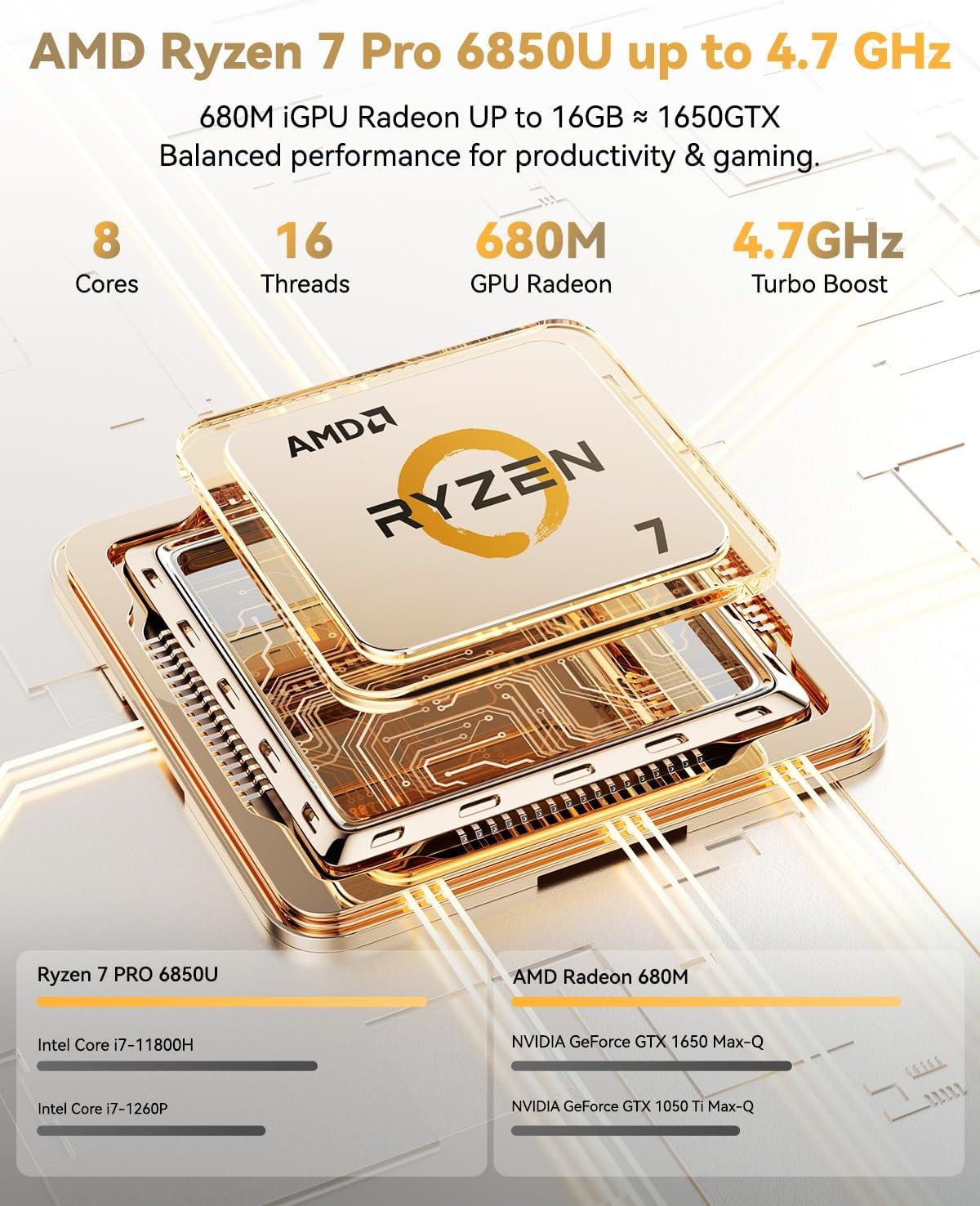
Image: Visual representation of the AMD Ryzen 7 Pro 6850U processor's core and thread count, and turbo boost speed.
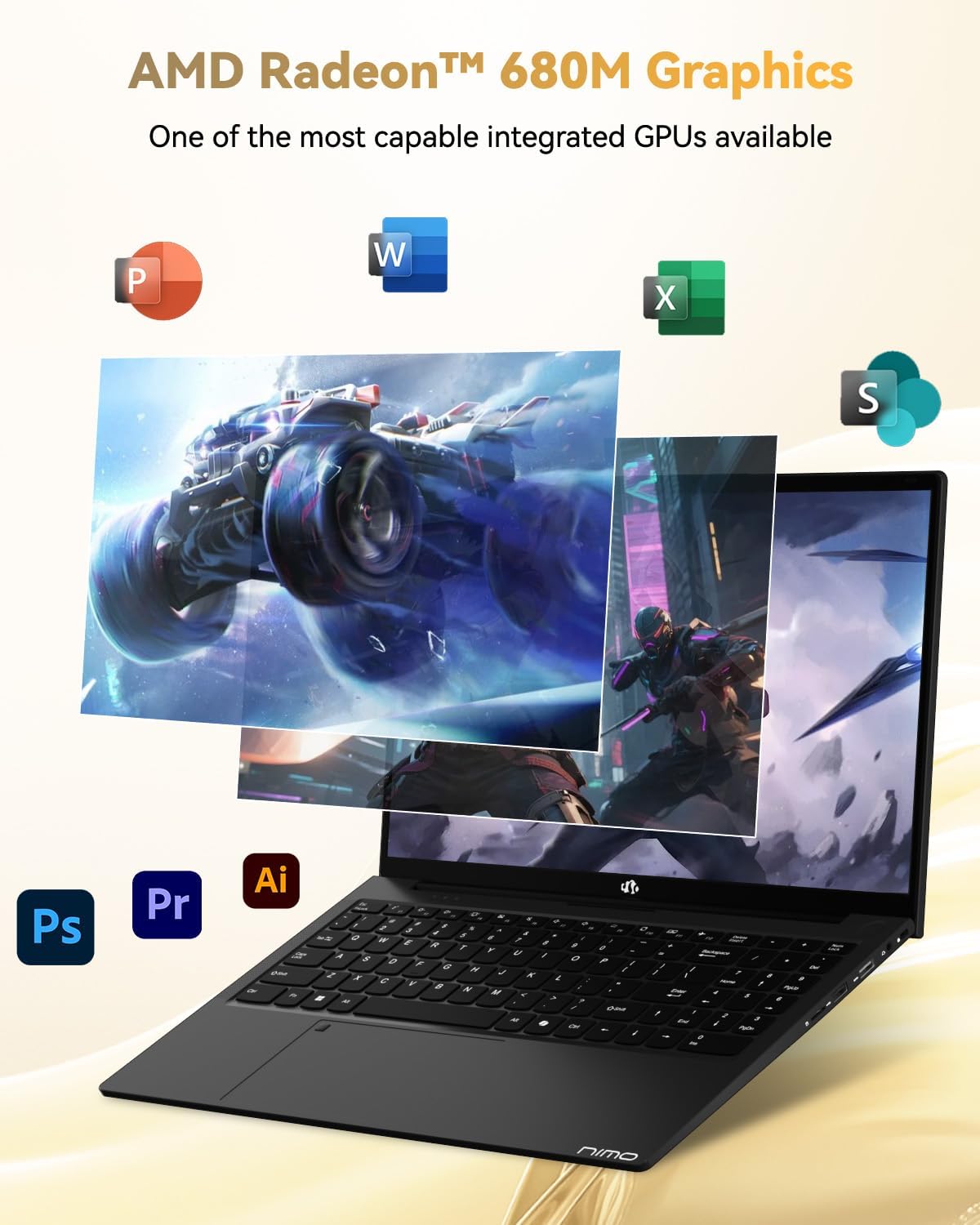
Image: Illustration highlighting the capabilities of the AMD Radeon 680M integrated graphics for various applications.

Image: Diagram showing the 32GB LPDDR5 RAM and 1TB PCIe 4.0 SSD for seamless multitasking and ample storage.
Image: The NIMO N15A laptop displaying a vibrant image on its 15.6-inch Full HD IPS screen.
Ports uye Kubatana:

Image: Diagram illustrating the various ports on the NIMO N15A laptop, including USB, HDMI, and Type-C.
- Micro SD Reader
- USB 2.0 Chiteshi
- USB 3.2 Ports (multiple)
- Headphone Jack
- Kensington Lock Slot
- Type-C (Multifunction) Ports (supporting charging and data transfer)
- HDMI Port
Gadzirira
1. Initial Charging and Power On:
- Connect the provided 100W Type-C PD Fast Charger to the laptop's Type-C charging port and a power outlet.
- Allow the laptop to charge for at least 30 minutes before initial use, or until the charging indicator shows sufficient battery.
- Dzvanya bhatani rekudzima simba riri pakhibhodi kuti ubate laptop.

Image: Illustration of the NIMO N15A laptop being charged with the 100W Type-C PD Fast Charger.
2. Windows 11 Initial Setup:
Follow the on-screen prompts to complete the Windows 11 setup process. This typically includes:
- Kusarudza dunhu rako uye keyboard marongerwo.
- Kubatanidza kune network yeWi-Fi.
- Kusaina neMicrosoft account kana kugadzira account yemuno.
- Kugadzirisa PIN kana password.
- Configuring privacy settings.
Operating Instruction
Power Management:
- Power On: Dzvanya bhatani remagetsi.
- Nzira yekurara: Vhara chivharo kana kudzvanya bhatani remagetsi kwenguva pfupi.
- Vhara: Dzvanya bhatani rekuti Start, wobva wadzvanya Power, wobva wadzima.
- Tangazve: Dzvanya bhatani rekuti Start, wobva wadzvanya Power, wobva watangazve.
Kiyibhodhi uye Touchpad:

Mufananidzo: Pedyo-up view of the NIMO N15A laptop's backlit keyboard and the integrated fingerprint reader on the touchpad.
- Backlit Keyboard: Use the dedicated function key (usually Fn + Fx) to toggle the keyboard backlight on/off and adjust brightness levels.
- Fingerprint Reader: The fingerprint reader is integrated into the touchpad. During Windows setup, you can configure your fingerprint for secure, quick login.
- Precision Touchpad: Supports multi-touch gestures for navigation. Refer to Windows settings for customization.
Kubatanidza Peripherals:
Utilize the various ports to connect external devices such as monitors, printers, external storage, and audio devices.
- USB Zvishandiso: Plug USB devices into the available USB 2.0 or USB 3.2 ports.
- Kuratidzwa Kwekunze: Connect an external monitor or TV using the HDMI port or a compatible Type-C adapter.
- Audio: Use the 3.5mm headphone jack for headphones or external speakers.
Kuvanzika kwekamera:
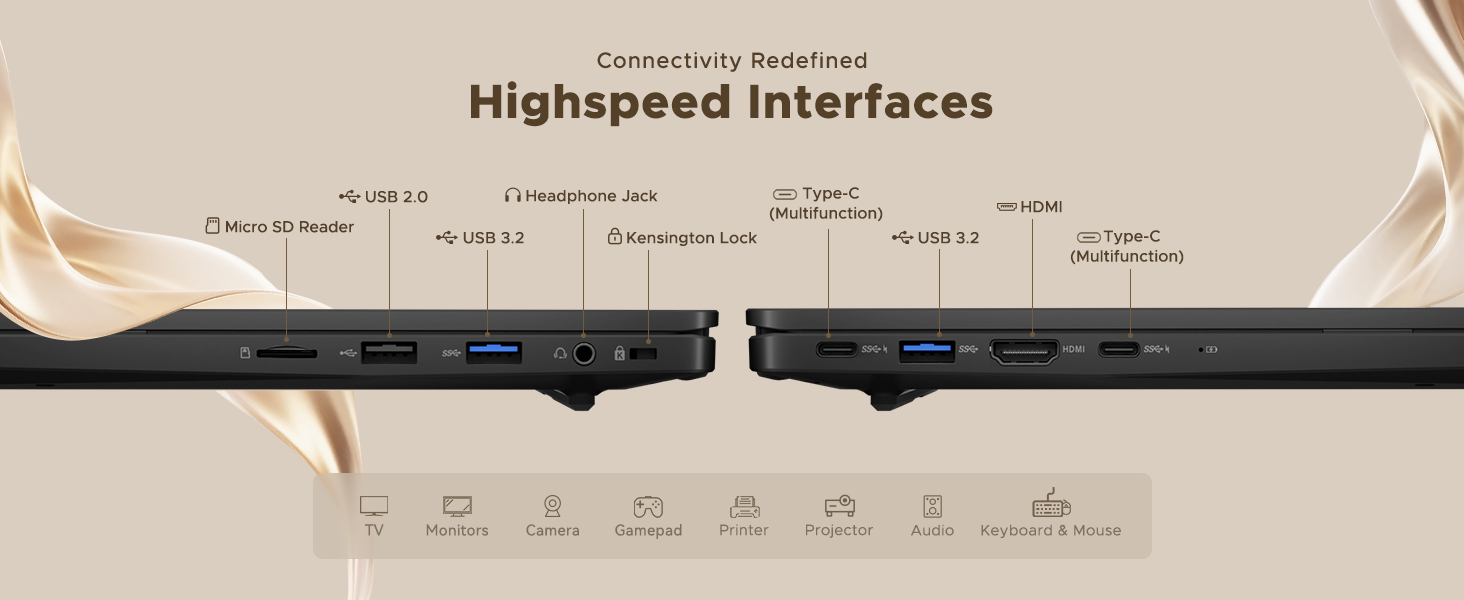
Image: Illustration of the NIMO N15A laptop's built-in privacy camera switch, allowing users to easily disable the webcam.
The NIMO N15A laptop features a built-in privacy camera switch. This allows you to physically disable the 2.0MP webkamera kana isiri kushandiswa, zvichiita kuti uve nechokwadi chekuti zvakavanzika zvako.
Maintenance
Cleaning the Laptop:
- Power off the laptop and disconnect the charger before cleaning.
- Shandisa jira rakapfava, risina lint zvishoma dampyakavharirwa nemvura kana chidzitiro chekuchenesa chekuratidzira.
- Kune keyboard uye chassis, shandisa jira rakapfava. Dzivisa makemikari ane hasha kana abrasive zvinhu.
- Use compressed air to clear dust from keyboard keys and vents.
Battery Care:
- Dzivisa kuburitsa bhatiri zvakazara nguva zhinji.
- Chengeta laptop iyi munzvimbo inotonhorera, yakaoma kana ikasashandiswa kwenguva yakareba, bhatiri richichajwa kusvika pa50-70%.
- Use only the original NIMO 100W Type-C PD Fast Charger.
Zvigadziriso zveSoftware:
- Gara uchitarisa uye kuisa Windows zvigadziriso kuti uve nechokwadi chekugadzikana kwehurongwa uye kuchengetedzeka.
- Keep device drivers updated, especially for graphics and chipset, by checking the NIMO support website or Windows Update.
Kugadzirisa matambudziko
| Dambudziko | Possible Solution |
|---|---|
| Laptop haibatike. | Ensure the charger is properly connected and the power outlet is functional. Allow the battery to charge for at least 30 minutes. If the issue persists, contact support. |
| Chiratidziro hachina chinhu kana kuti chiri kudzima. | Try connecting an external monitor to check if the issue is with the laptop's display. Adjust display brightness. Restart the laptop. |
| Kunonoka kuita. | Close unnecessary applications. Check for background processes consuming high resources. Ensure sufficient free storage space. Run a system scan for malware. |
| Keyboard backlight haisi kushanda. | Press the dedicated function key combination (e.g., Fn + Fx) to toggle or adjust the backlight. Check keyboard settings in Windows. |
| Fingerprint reader not responding. | Ensure your finger is clean and dry. Re-register your fingerprint in Windows settings. Restart the laptop. |
For issues not listed here or if solutions do not resolve the problem, please refer to the Warranty and Support section for assistance.
Zvinotsanangurwa
| Feature | Detail |
|---|---|
| Brand | NIMO |
| Model Name | NIMO N15AL (N15A) |
| Screen Size | 15.6 inches |
| Screen Resolution | 1920 x 1080 pixels (Yakazara HD) |
| processor | AMD Ryzen 7 Pro 6850U (8 Cores, up to 4.7 GHz) |
| RAM | 32 GB LPDDR5 (6400 MHz) |
| Hard Drive | 1024 GB SSD (PCIe 4.0, Solid State) |
| Graphics Coprocessor | AMD Radeon 680M (Yakabatanidzwa) |
| Operating System | Windows 11 |
| Wireless Type | 802.11a/b/g/n/ac |
| USB 2.0 Ports | 1 |
| USB 3.0/3.2 Ports | 4 |
| Avhareji Hupenyu hweBhatiri | 9 Maawa |
| Item Weight | 3.75 makirogiramu |
| Product Dimensions | 14.07 x 8.98 x 0.76 inches |
| Color | Nhema |
| Rear Webcam Resolution | 2 MP |
| Special Features | Kiyibhodhi ine mwenje wekumashure, Muverengi weminwe, HD Audio, Keypad yenhamba |
Warranty uye Support
NIMO provides comprehensive support for your laptop.
- Warranty: Your NIMO N15A laptop comes with a 2-year manufacturer's warranty.
- Return Policy: A 90-day hassle-free return policy is offered from the date of purchase.
- Tsigiro yeVatengi: For technical assistance, warranty claims, or product-related inquiries, please contact NIMO customer support.
Contact information for support is typically available on the official NIMO website or through the product's packaging.
Safety Information
Zvakakosha: Read and follow these safety guidelines to prevent damage to your device or personal injury.
- Shandisa machaja ekutanga chete uye gara uchiongorora tambo kuti uone kana dzakakuvara.
- Bata laptop nehwaro hwayo wofunga nezvekushandisa bhokisi rekudzivirira. Dzivisa kuisa zvinhu zvinorema pairi.
- Isa laptop panzvimbo yakaoma, yakati sandara kuti ive nechokwadi chekuti mhepo inofema zvakanaka uye kudzivirira kupisa zvakanyanya. Ichengetedze kure nekupisa kwakanyanya uye hunyoro.
- Do not overcharge the battery. Discontinue use if the battery shows signs of swelling or damage.
- Set strong passwords, keep software updated, use antivirus software, and regularly back up your data.
- Kana mvura ikadonha, bvisa laptop yacho pakarepo woisiya yaoma zvachose usati waedza kuibatidza.
- For any issues, consult qualified professionals. Do not attempt to disassemble or repair the device yourself.
Legal Disclaimer
This NIMO laptop is provided "as is," without express or implied warranties, except for any applicable manufacturer's limited warranty. Implied warranties of merchantability or fitness for a specific purpose are disclaimed. NIMO is not liable for damages resulting from misuse (e.g., non-approved chargers, unauthorized repairs), physical damage, or failure to adhere to safety guidelines, including data loss or business interruption. Users are responsible for regularly backing up their data. This disclaimer does not exclude liability for manufacturing defects or violations of mandatory local laws. By using this laptop, you accept these terms, which are governed by the laws of the applicable jurisdiction.


