1. Nhanganyaya
This manual provides essential information for the setup, operation, and maintenance of your NIMO 15.6-inch laptop, model N15A. Please read this guide thoroughly to ensure optimal performance and longevity of your device.
1.1 Chigadzirwa Pamusoroview
The NIMO 15.6-inch laptop is designed for productivity and light gaming, featuring an AMD Ryzen 7 Pro 6850U processor, 16GB LPDDR5 RAM, and a 1TB PCIe 4.0 SSD. It includes a 15.6" FHD IPS anti-glare display, a backlit keyboard, and an integrated fingerprint sensor for secure login.

Image 1.1: NIMO 15.6-inch Laptop N15A. This image displays the laptop with its screen showing a dynamic graphic, highlighting key features like the 15.6" FHD IPS display, AMD Ryzen 7 Pro 6850U processor, 16GB RAM, 1TB SSD, fingerprint sensor, Type-C PD charger, and backlit keyboard.
1.2 Chii chiri muBhokisi
- 1 x NIMO N15A Laptop
- 1 x Type-C 100W PD Inochaja Inokurumidza
- 1 x Chinyorwa cheMushandisi (gwaro iri)
- Windows 11 Home (yakaiswa kare)
2. Setup
2.1 Kutanga Kuchaja
Before first use, it is recommended to fully charge your NIMO laptop. Connect the included 100W PD fast charger to the Type-C charging port on the laptop and to a power outlet. The charging indicator light will illuminate. A 15-minute charge can provide up to 2 hours of usage, and a full charge typically takes approximately 1 hour for 5 hours of usage, with up to 12 hours of standby time.
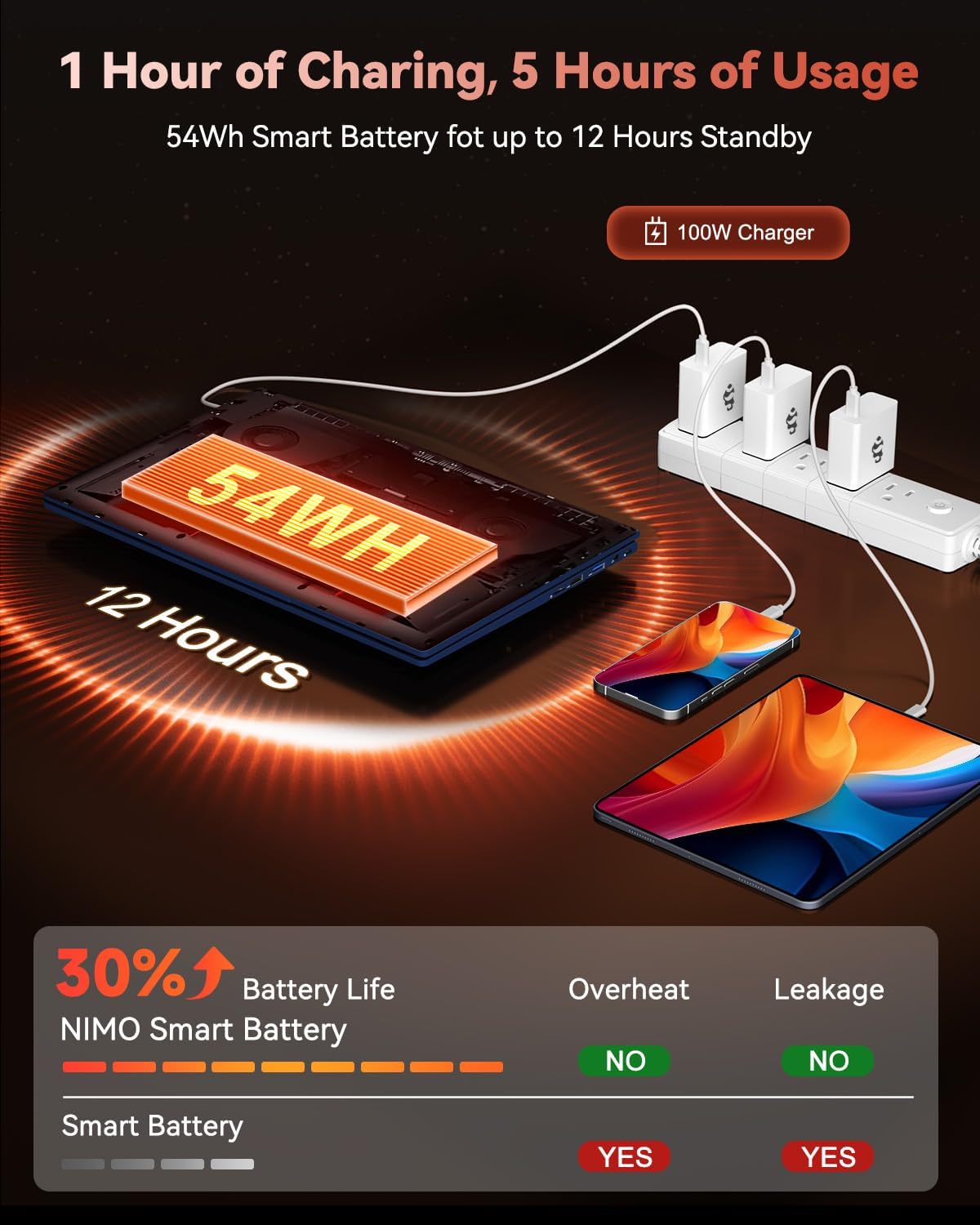
Image 2.1: NIMO Laptop Charging. This image illustrates the laptop being charged with the 100W Type-C PD fast charger, highlighting the 54Wh smart battery and charging efficiency.
2.2 Kubatidza
Press the power button located on the keyboard to turn on the laptop. The system will boot into Windows 11 Home. Follow the on-screen instructions for initial Windows setup, including language selection, network connection, and user account creation.
3. Kushanda
3.1 Ratidza
Your NIMO laptop features a 15.6-inch Full HD (1920x1080 pixels) IPS anti-glare display. This display offers clear, vibrant visuals with an 85% screen-to-body ratio and eye protection features. Adjust brightness using the function keys (Fn + Fx keys, refer to keyboard layout for specific keys).

Image 3.1: NIMO Laptop Display. This image emphasizes the 15.6-inch Full HD IPS display with its 1920x1080 resolution, bright view, and eye protection features.
3.2 Kiyibhodhi uye Touchpad
The laptop is equipped with a backlit keyboard for comfortable typing in various lighting conditions. The precision gesture touchpad allows for effortless navigation. An integrated fingerprint sensor is located on the touchpad for secure and instant login.

Image 3.2: NIMO Laptop Backlit Keyboard and Fingerprint Sensor. This image shows a user interacting with the laptop, highlighting the backlit keyboard and the fingerprint sensor on the touchpad.
3.3 Webcam Yakavanzika
The laptop includes a built-in 2.0 MP webcam with a privacy camera switch. This allows you to physically disable the webcam when not in use, enhancing your privacy.
4. Kuita
4.1 Processor and Graphics
The NIMO N15A is powered by an AMD Ryzen 7 Pro 6850U processor, featuring 8 cores and 16 threads with turbo speeds up to 4.7GHz. This processor is designed for efficient handling of demanding tasks, professional workloads, and content creation. Integrated graphics are provided by the AMD Radeon 680M GPU, one of the most capable integrated GPUs available, offering balanced performance for productivity and gaming.

Image 4.1: AMD Ryzen 7 Pro 6850U Processor. This image visually represents the AMD Ryzen 7 Pro 6850U processor, highlighting its 8 cores, 16 threads, 680M GPU Radeon, and 4.7GHz turbo boost.

Image 4.2: AMD Radeon 680M Graphics. This image showcases the laptop's capability with AMD Radeon 680M graphics, displaying various applications and games.
4.2 ndangariro uye Kuchengeta
The laptop comes equipped with 16GB of LPDDR5 RAM, operating at 6400 MHz, providing a 50% speed increase compared to DDR4. For storage, it includes a 1TB PCIe 4.0 SSD, offering rapid multitasking and data access with speeds up to 6000 MB/s. This configuration ensures seamless multitasking and ample storage yako files uye zvikumbiro.

Image 4.3: NIMO Laptop Memory and Storage. This image illustrates the 1TB PCIe 4.0 SSD and 16GB LPDDR5 RAM, demonstrating the laptop's multitasking capabilities with multiple applications open.
5. Kubatana
The NIMO N15A laptop offers a range of high-speed interfaces for connecting peripherals and external devices:
- USB 3.0 Ports: Maport matatu ekutumira data nekukurumidza.
- USB 2.0 Chiteshi: 1 port for general peripheral connections.
- Machiteshi eType-C: Multiple Type-C ports, including one for 100W PD charging and others with multifunction capabilities.
- HDMI Port: Zvekubatanidza kune zvekunze zviratidziro kana mapurojekita.
- Headphone Jack: Zvekuburitsa audio.
- Muverengi weMicro SD: For expanding storage or transferring data from memory cards.
- Kensington Lock Slot: Kuchengetedzwa kwemuviri.
- Wireless Kubatana: Supports 802.11a/b/g/n/ac for Wi-Fi.

Image 5.1: NIMO Laptop Connectivity Ports. This image provides a detailed diagram of the laptop's various ports, including Micro SD, USB 2.0, USB 3.2, Headphone Jack, Kensington Lock, Type-C (multifunction), HDMI, and Charger LED.
6. Kuchengeta
6.1 Kutarisira Kwese
- Keep the laptop clean by regularly wiping surfaces with a soft, dry cloth.
- Dzivisa kuisa laptop pakupisa kwakanyanya, zuva rakananga, kana hunyoro hwakawanda.
- Do not place heavy objects on the laptop.
- Iva nechokwadi chekufefetedza kwakaringana nekusavharira mamhepo emhepo.
6.2 Kuvandudzwa kweZvikamu
The NIMO N15A laptop is designed with user-friendly upgrade options. You can easily upgrade components such as the SSD to meet evolving needs. Refer to the official NIMO support resources or a qualified technician for detailed upgrade instructions to avoid voiding your warranty.
7. Kugadzirisa matambudziko
This section addresses common issues you might encounter with your NIMO laptop. For more complex problems, please contact NIMO customer support.
7.1 Nyaya dzeMasimba
- Laptop haibatike: Ensure the charger is properly connected and the battery has sufficient charge. Try holding the power button for 10-15 seconds to perform a hard reset.
- Bhatiri risiri kuchaja: Verify the charger is functioning correctly and connected to a working power outlet. Check the Type-C cable for damage.
7.2 Ratidza Matambudziko
- Screen haina chinhu: Ensure the laptop is powered on. Try adjusting the display brightness using function keys. Connect to an external monitor to check if the issue is with the laptop's internal display.
7.3 Nyaya dzeBatanidzo
- Wi-Fi haisi kubatanidza: Check if Wi-Fi is enabled in Windows settings. Restart your router and the laptop. Ensure correct Wi-Fi password is entered.
- Zvishandiso zve USB hazvizivikanwe: Try connecting the device to a different USB port. Ensure device drivers are up to date.
8. Zvinotsanangurwa
| Feature | Detail |
|---|---|
| Brand | NIMO |
| Model Name | NIMO N15AB (N15A) |
| Screen Size | 15.6 inches |
| Screen Resolution | 1920 x 1080 Pixels (Full HD IPS) |
| processor | AMD Ryzen 7 Pro 6850U (8 Cores, up to 4.7 GHz) |
| RAM | 16 GB LPDDR5 (6400 MHz) |
| Hard Drive | 1024 GB SSD (PCIe 4.0) |
| Graphics Coprocessor | AMD Radeon 680M (Yakabatanidzwa) |
| Operating System | Windows 11 Home |
| Wireless Type | 802.11a/b/g/n/ac |
| USB Ports | 1 x USB 2.0, 4 x USB 3.0, Multiple Type-C (Multifunction) |
| Zvimwe Zviteshi | HDMI, Headphone Jack, Micro SD Reader, Kensington Lock |
| Hupenyu hwebhatiri (Avhareji) | 9 Maawa |
| Item Weight | 3.8 makirogiramu |
| Product Dimensions | 14.07 x 8.98 x 0.76 inches |
| Special Features | Kiyibhodhi ine mwenje wekumashure, Muverengi weminwe, HD Audio, Keypad yenhamba |
| Rear Webcam Resolution | 2 MP |
9. Warranty uye Tsigiro
NIMO stands by the quality of its products. Your NIMO laptop comes with the following:
- 2-Year Manufacturer's Warranty: Inovhara kukanganisa kwezvinhu uye kugadzirwa pasi pekushandiswa kwakajairwa.
- Mutemo wemazuva makumi matatu wekudzorera zvinhu zvisina matambudziko: Allows for returns within 90 days of purchase.
For technical assistance, warranty claims, or product-related inquiries, please contact NIMO customer support. Our dedicated support team is available to provide prompt and effective assistance.
Contact information may be found on the official NIMO website or through the product page where you made your purchase.