Nhanganyaya
The Apple Watch Ultra 3 is a robust and advanced smartwatch designed for athletes and adventurers, featuring a rugged titanium case, GPS + Cellular connectivity, and comprehensive health and fitness tracking capabilities. This manual provides essential information for its proper use and maintenance.
1. Setup
1.1 Chii chiri muBhokisi

Image: Contents of the Apple Watch Ultra 3 packaging, including the watch, Milanese Loop band, and USB-C Magnetic Fast Charging Cable.
- Apple Watch Ultra 3 GPS + Cellular 49mm (Natural Titanium Case)
- Natural Titanium Milanese Loop Band
- Apple Watch Magnetic Fast Charger to USB‑C Cable (1m)
1.2 Kuenderana
The Apple Watch Ultra 3 requires an iPhone Xs or later, including iPhone SE (2nd generation or later), running iOS 18 or later.
1.3 Initial Pairing and Activation
- Chaja Wachi Yako: Connect the Magnetic Fast Charger to the back of your Apple Watch Ultra 3 and plug the USB-C end into a power adapter. Ensure the watch has sufficient charge before proceeding.
- Power On: Dzvanya uye bata bhatani reSide kusvika Apple logo yaonekwa.
- Batanidza ne iPhone: Bring your iPhone close to your Apple Watch. A pairing animation will appear on your iPhone. Tap "Continue" and follow the on-screen instructions to pair your watch.
- Set Up Cellular (Optional): During setup, you will have the option to activate cellular service for your Apple Watch Ultra 3. This allows you to make calls, send messages, and use data without your iPhone nearby.
- Customize Settings: Personalize your watch faces, app layout, and notification preferences.
1.4 Kuchaja
Use the included Apple Watch Magnetic Fast Charger to USB‑C Cable. The watch supports fast-charging, allowing it to charge from 4% to 100% in less than 90 minutes.
2. Kushandisa Apple Watch yako Ultra 3
2.1 Kuratidza uye Kudyidzana
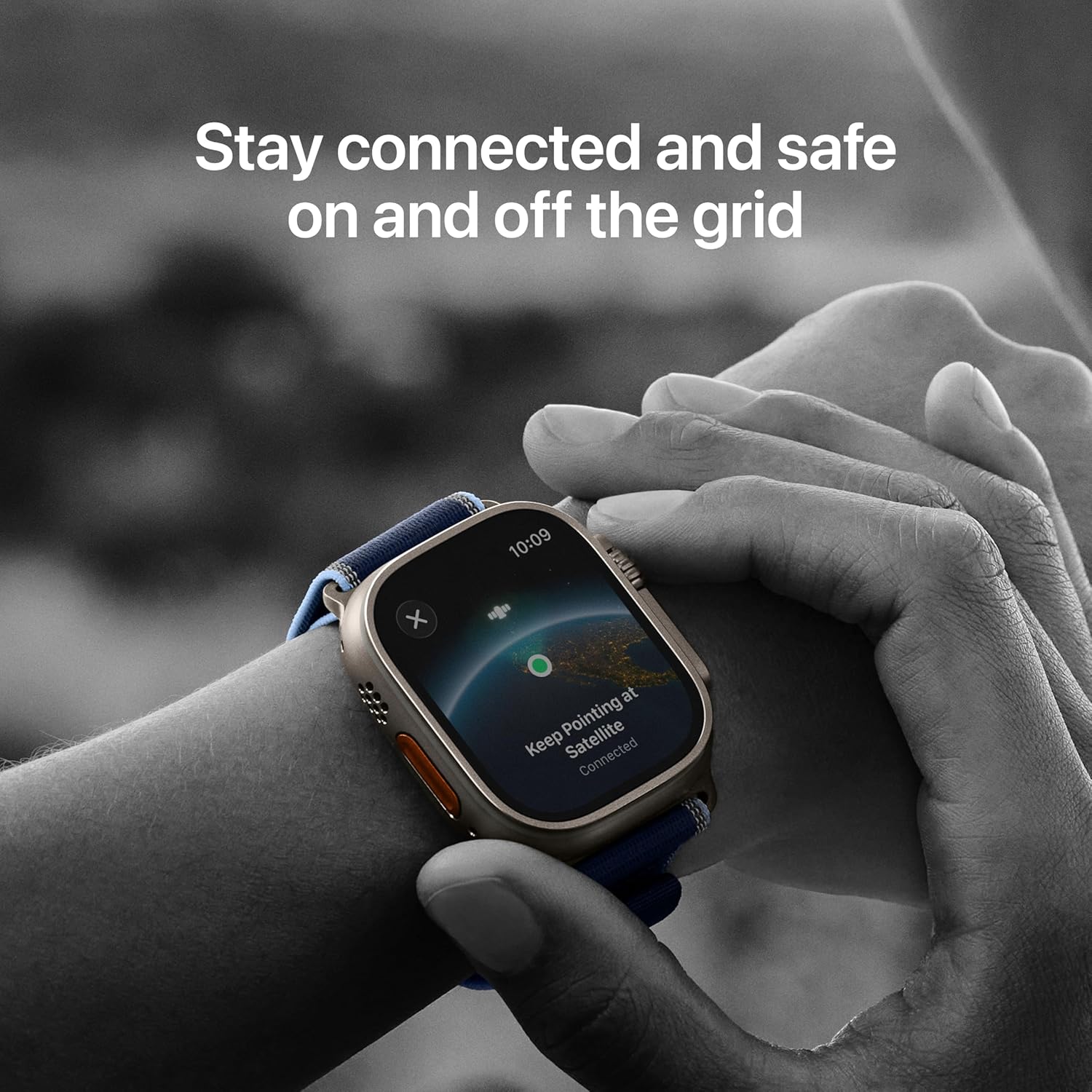
Image: Key features of the Apple Watch Ultra 3, including multi-day battery life, Emergency SOS via satellite, durable sapphire crystal display, and the customizable Action button.
- Kuratidzwa kweRetina Kunogara Kuripo: The display remains visible at all times, with up to 3000 nits peak brightness for clear visibility in various conditions.
- Night Mode: Available for specific Apple Watch Ultra faces (Modular Ultra, Wayfinder, Orienteering) to optimize visibility in low-light environments.
- Bata Gestures: Navigate the watch using taps, swipes, and pinches.
- Tap kaviri uye Wrist Flick: Utilize these gestures for quick interactions without touching the screen.
2.2 Hardware Controls
- Digital Crown: Rotate to scroll, zoom, or adjust values. Press to return to the watch face or access the App View. Press and hold for Siri.
- Side Button: Press to access the Dock, make emergency calls (press and hold), or use Apple Pay (double-press).
- Customizable Action Button: This orange button can be configured for various functions, such as starting a workout, marking a Compass Waypoint, or turning on the flashlight. Customize its function in the Watch app on your iPhone.
2.3 Connectivity and Communication
- Serura: With an active cellular plan, make and receive calls, send messages, and stream audio directly from your watch without your iPhone.
- GPS: Precision dual-frequency GPS (GPS, GNSS, Galileo, BeiDou) provides accurate location tracking for workouts and navigation.
- Wi-Fi uye Bluetooth: Connects to Wi-Fi 4 (802.11n) and Bluetooth 5.3 for seamless integration with your iPhone and accessories.
- Satellite Communications: For emergency situations without cellular or Wi-Fi, the built-in satellite communications allow you to text emergency services.
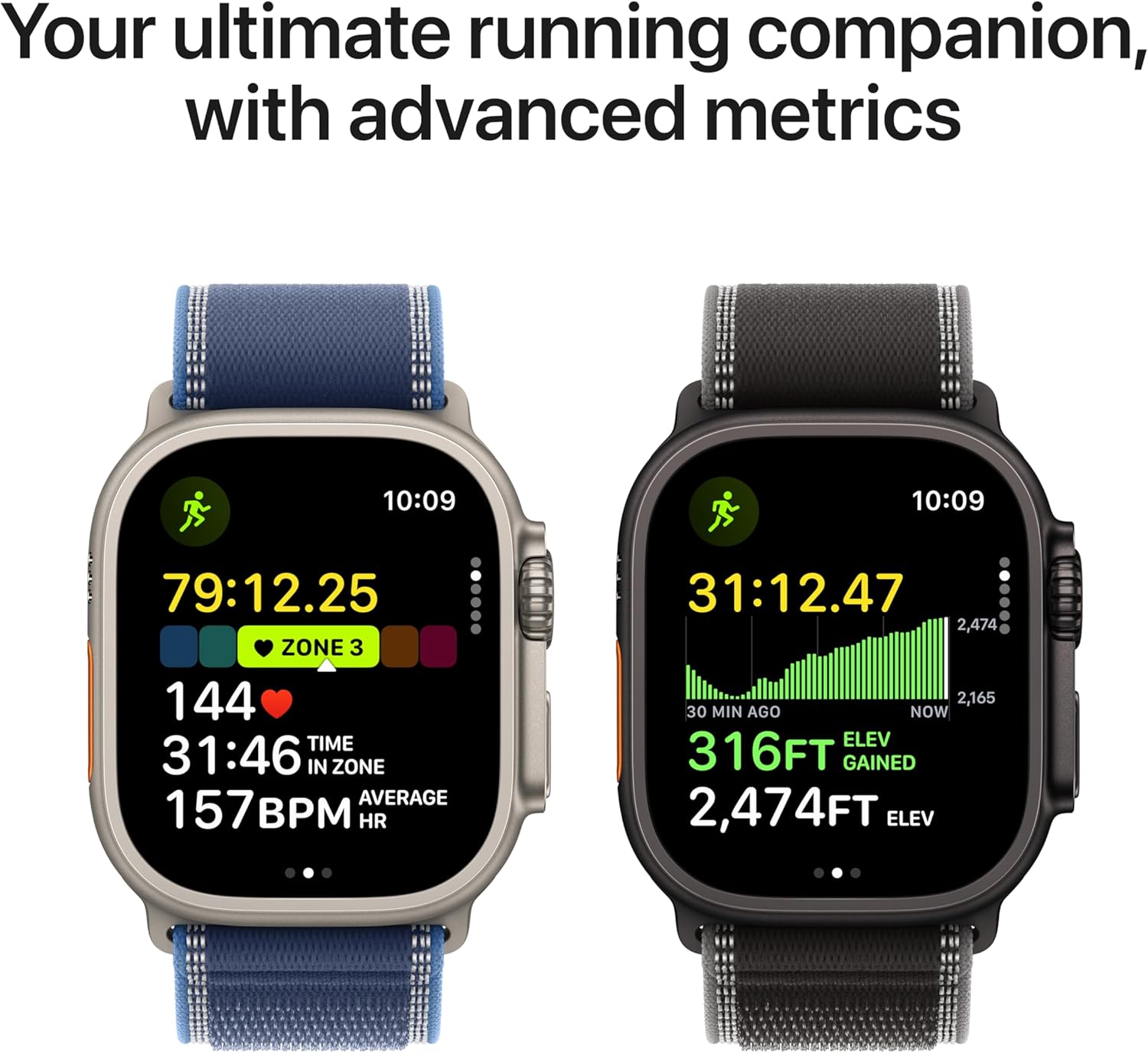
Image: Apple Watch Ultra 3 screen showing instructions to "Keep Pointing at Satellite" for emergency communication.
2.4 Health and Wellness Tracking
- Chiyero chemoyo: Third-generation optical heart sensor and Electrical heart sensor for ECG app. Receive high and low heart rate notifications and irregular rhythm notifications.
- Ropa Oxygen: Measure your blood oxygen levels using the Blood Oxygen app.
- Tembiricha Sensor: Provides temperature sensing for advanced health insights, including retrospective ovulation estimates for cycle tracking.
- Kutsvaga Kurara: Monitor sleep stages and receive sleep scores.
- App yeVitals: Track your daily health status and receive notifications for potential hypertension or sleep apnea.
- Mishonga App: Manage and track your medication schedule.
2.5 Workouts and Activity
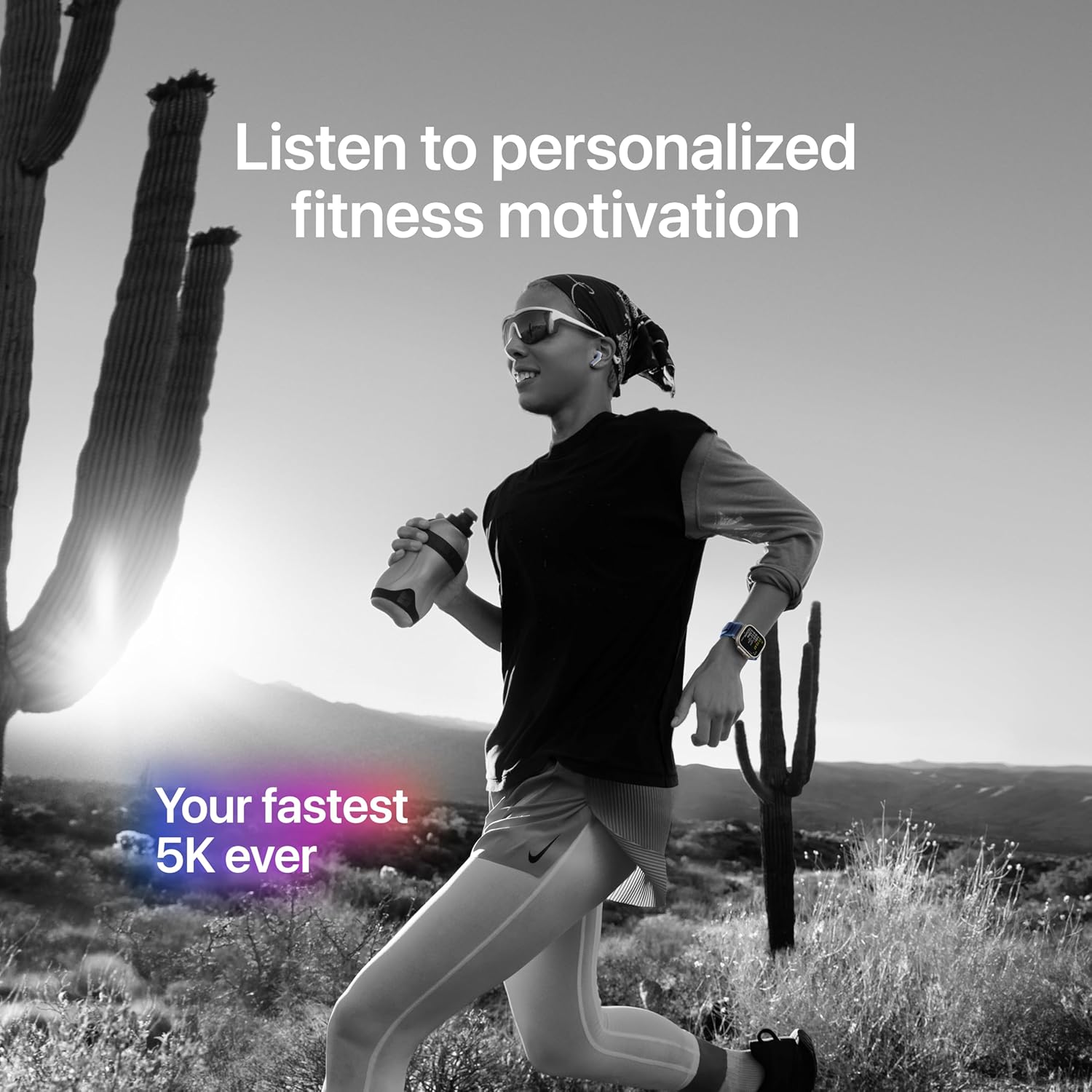
Image: Apple Watch Ultra 3 displaying advanced running metrics, including heart rate, time in zone, elevation gained, and average pace.
- Multisport Tracking: Supports a wide range of activities including running, hiking, cycling, swimming, skiing, snowboarding, and more.
- Maitiro Epamusoro: Access features like Pacer, Heart Rate Zones, Custom Workouts, running power, and training load.
- Mitambo yemumvura: Water resistant to 100m, suitable for swimming, diving (recreational scuba to 40m), and high-speed water sports.
- Depth Gauge: Integrated depth gauge and water temperature sensor for underwater activities.
2.6 Chengetedzo Zvimiro
- Emergency SOS: Quickly call emergency services.
- International Emergency Calling: Works in many countries and regions.
- Siren: Activate a loud siren to attract attention in emergencies.
- Kuona Crash: Automatically detects severe car crashes and can connect you to emergency services.
- Kuwira Kuwana: Detects hard falls and can initiate an emergency call if you are unresponsive.
3. Kuchengeta
3.1 Cleaning Your Apple Watch Ultra 3
- Watch Case: Wipe the titanium case with a soft, lint-free cloth. If necessary, dampen jira nemvura yakachena.
- Ratidza: Clean the sapphire crystal display with a soft, lint-free cloth. Avoid abrasive materials.
- Mabhendi: Clean bands according to their material. For Milanese Loop, wipe with a soft, damp cloth. Ensure bands are dry before reattaching.
- After Water Exposure: After swimming or exposure to water, rinse the watch with fresh water and dry it thoroughly with a soft cloth.
3.2 Kugadzirisa Hupenyu hweBhatiri
- Low Power Mode: Enable Low Power Mode to extend battery life up to 72 hours. This mode disables or limits certain features.
- Manage Notifications: Reduce the number of notifications to conserve power.
- Background App Refresh: Limit background app refresh for apps you don't need constantly updated.
- Ratidza Kupenya: Adjust display brightness to a comfortable level.
3.3 Band Installation and Removal
To install or remove a band, press the band release button on the back of the watch and slide the band horizontally. Ensure the band clicks securely into place. If you experience difficulty, ensure the band is correctly aligned and the release button is fully depressed. Avoid forcing the band, as this can cause damage.
4. Kugadzirisa matambudziko
4.1 Matambudziko Anowanikwa uye Magadzirirwo
| Nyaya | Solution |
|---|---|
| Watch not pairing with iPhone | Ensure both devices are charged, Bluetooth is enabled on iPhone, and the Watch app is open. Restart both devices. |
| Bhatiri kupera nekukurumidza | Enable Low Power Mode. Review background app refresh settings and notification frequency. Check for apps consuming excessive power. |
| Ratidza kusadaira | Force restart the watch by holding the Digital Crown and Side button simultaneously until the Apple logo appears. |
| Nharembozha haisi kushanda | Verify your cellular plan is active for your Apple Watch. Check signal strength. Restart the watch. |
| Inaccurate health/fitness data | Ensure the watch is worn snugly on your wrist. Clean the back of the watch to ensure sensor contact. Calibrate your watch for improved accuracy. |
5. Zvinotsanangurwa
| Feature | Detail |
|---|---|
| Model Number | MEWY4LW/A |
| Zviyero (H x W x D) | 49mm x 44mm x 14.4mm |
| Nyaya Weight | 61.4g |
| Nyaya Yenyaya | Grade 5 Titanium |
| Display | Always-On Retina display, LTPO3 OLED, Flat sapphire crystal, Up to 3000 nits peak brightness |
| Chip | S10 with 64-bit dual-core processor, 4-core Apple Neural Engine |
| Storage Capacity | 64 GB |
| Operating System | watchOS |
| Hupenyu hwebhatiri (Kazhinji Kushandiswa) | Kusvikira kumaawa makumi maviri nemashanu |
| Hupenyu hwebhatiri (Low Power Mode) | Kusvikira kumaawa makumi maviri nemashanu |
| Kuramba Mvura | 100m (ISO standard 22810:2010), EN13319 recreational scuba diving to 40m |
| Dust Resistance | IP6X (IEC 60529) |
| Kubatana | LTE and UMTS, Wi-Fi 4 (802.11n), Bluetooth 5.3, Precision dual-frequency GPS |
| Sensors | Electrical heart sensor, Optical heart sensor (3rd gen), Blood oxygen sensor, Temperature sensor, Depth gauge, Water temperature sensor, Compass, Always-on altimeter, High-g accelerometer, Gyroscope, Ambient light sensor |
| Kugarisana | iPhone Xs or later with iOS 18 or later |
6. Ruzivo rweWaranti
Your Apple Watch Ultra 3 is covered by a one-year limited warranty from Apple against defects in materials and workmanship. This warranty is in addition to rights provided by consumer law. For full details regarding warranty coverage, terms, and conditions, please refer to the official Apple warranty documentation included with your product or visit the official Apple Support webNzvimbo yacho. Humbowo hwekutenga hunogona kudiwa pakukumbira garandi.
7. Tsigiro
Kuti uwane rumwe rubatsiro, rutsigiro rwehunyanzvi, kana sevhisi, ndapota shanyira Apple Support yepamutemo websaiti kana kubata Apple vatengi sevhisi.
- Rutsigiro rwepamhepo: support.apple.com/watch
- Nharaunda Forums: Access user forums for tips and solutions.
- Vakabvumirwa Sevhisi Vanopa: Tsvaka nzvimbo dzesevhisi dzakatenderwa kuti dzigadziriswe.


