1. Nhanganyaya
Thank you for choosing the Grundig 50 GKU 700 50-inch 4K Ultra HD Smart Google TV. This manual provides essential information for the safe and efficient use of your new television. Please read these instructions thoroughly before operating the device and retain them for future reference.
2. Ruzivo Rwakakosha Chekuchengetedza
Kuti uderedze njodzi yekuvhundutswa nemagetsi, moto, kana kukuvara, gara uchitevera izvi zvakakosha zvekuchengetedza:
- Kunobva Simba: Connect the TV only to an AC power outlet of the specified voltage.
- Kufefetedza Ita shuwa kuti kune ventilation yakakwana. Usavhare kuvhurika kwemhepo.
- Mvura uye Unyoro: Usafumure TV kunaya kana kunyorova. Usaise zvinhu zvakazara nezvinwiwa, zvakaita semavhasi, paTV.
- Kuchenesa: Bvisa TV kubva pamagetsi usati waichenesa. Shandisa jira rakapfava, rakaoma. Usashandise michina yekuchenesa mvura kana mishonga yekuchenesa mweya.
- Kuiswa: Isa TV panzvimbo yakagadzikana uye yakati sandara. Dzivisa kuiisa pachiedza chezuva chakananga kana pedyo nekupisa.
- Sevhisi: Usaedze kushandira chigadzirwa ichi iwe pachako. Tumira masevhisi ese kuvashandi vanokwanisa.
- Power Cord: Chengetedza tambo yemagetsi kubva pakufambiswa kana kudzvanywa, kunyanya pamapulagi, midziyo yekurerutsira, nenzvimbo yavanobuda kubva mumidziyo.
3. Package Zviri mukati
Ndokumbira utarise kuti zvinhu zvese zviripo mupasuru yako:
- Grundig 50 GKU 700 50-inch 4K Ultra HD Smart Google TV
- Remote Control
- Power Cable
- TV Stand (2 zvidimbu)
- Zvikuruu zveChigadziko cheTV
- Mushandisi Chinyorwa (gwaro iri)
- Quick Start Guide

Mufananidzo 1: Mberi view of the Grundig 50 GKU 700 TV with its stand. The screen displays a scenic landscape with mountains and a lake. The TV features a slim bezel and the Grundig logo at the bottom center.
4. Setup
4.1 Kubatanidza iyo TV Stand
- Carefully place the TV screen-down on a soft, flat surface (e.g., a blanket or foam) to prevent damage.
- Ziva zvidimbu zvechigadziko chekuruboshwe nerudyi.
- Gadzirisa chidimbu chimwe nechimwe chechigadziko nemiganhu inoenderana nacho pasi peTV.
- Chengetedza zvigadziko uchishandisa screws dzakapihwa. Iva nechokwadi chokuti dzakasimbiswa zvakasimba.
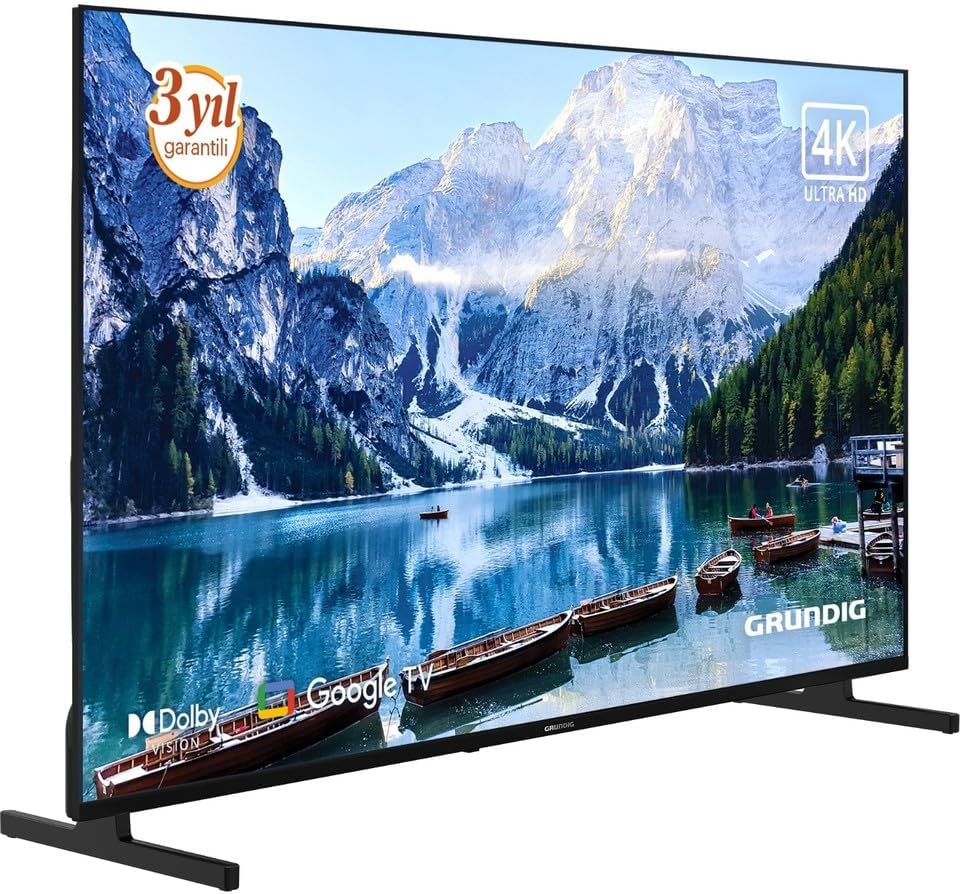
Mufananidzo 2: Angled kumberi view of the Grundig 50 GKU 700 TV, showcasing its slim design and the attached stand. The screen displays a vibrant image, highlighting the 4K Ultra HD capability.
4.2 Kubatanidza Simba
- Locate the power input port on the back of the TV.
- Connect the power cable securely to the TV.
- Batanidza imwe magumo etambo yemagetsi mudura repamadziro.

Mufananidzo 3: Pedyo-up view of the power input port located on the back of the Grundig TV, labeled "AC IN". A caution label regarding electric shock is visible nearby.
4.3 Kubatanidza Zvishandiso Zvekunze
Your Grundig TV offers various connection options:
- HDMI: For connecting Blu-ray players, game consoles, set-top boxes, etc. (HDMI 1, HDMI 2, HDMI 3 ports available).
- USB: Yekubatanidza midziyo yekuchengetera USB kutamba midhiya files. (USB 1, USB 2 ports available).
- Satellite/Antenna: For connecting a satellite dish or terrestrial antenna.
- Ethernet (LAN): Kuti uve newaya yeinternet.

Mufananidzo 4: Detailed view of the connectivity panel on the back of the Grundig TV, showing multiple ports including USB, HDMI (HDMI 1/ARC, HDMI 2, HDMI 3), satellite/antenna input, and an Ethernet (LAN) port.

Mufananidzo 5: Kumashure kwakazara view of the Grundig 50 GKU 700 TV, showing the overall design of the back panel and the central area where the power and input ports are located.
4.4 Yekutanga Setup Wizard
After connecting power and turning on the TV for the first time, a setup wizard will guide you through:
- Kusarudzwa kwemutauro.
- Network yekubatanidza (Wi-Fi kana Ethernet).
- Google account sign-in (for Google TV features).
- Channel scanning (for satellite or terrestrial broadcasts).
5. Kushandisa TV Yako
5.1 Remote Kudzora Pamusoroview
The remote control allows you to access all functions of your TV. Insert two AAA batteries (not included) into the remote control, ensuring correct polarity.

Mufananidzo 6: Mberi view of the Grundig TV remote control. Key buttons include Power, Google Assistant (microphone), Settings, Input, Navigation Pad with OK button, Volume, Channel, Home, Mute, Netflix, YouTube, Prime Video, and Apps buttons, along with numeric keys.

Mufananidzo 7: Angled view of the Grundig TV remote control, showing its ergonomic design and the layout of its buttons.
- Bhatani reSimba: Batidza kana kudzima TV.
- Bhatani reMubatsiri weGoogle: Activates voice control for searching content or controlling the TV.
- Navigation Pad (Kumusoro/Pasi/Kuruboshwe/Kurudyi) uye OK: Yekutenderera menyu uye kusarudza.
- Vhoriyamu (+/-): Inogadzirisa chiyero chevhoriyamu.
- Chiteshi (Kumusoro/Kudzika): Inochinja chiteshi cheTV.
- Bhatani Repamba: Inodzokera kuGoogle TV home screen.
- Bhatani rekupinda: Selects input sources (HDMI, USB, Satellite, etc.).
- Netflix, YouTube, Prime Video, Apps Buttons: Direct access to streaming services and the app menu.
5.2 Google TV Interface
Your TV runs on Google TV, providing a personalized experience with content recommendations, access to a vast library of apps from the Google Play Store, and integrated Google Assistant functionality.
- Sikirini Yemba: Displays recommended content, installed apps, and quick access to settings.
- Apps: Download and manage your favorite streaming services and applications.
- Voice Control: Use the Google Assistant button on your remote to search for movies, check the weather, or control smart home devices.
6. Kuchengeta
6.1 Kuchenesa TV
- Gara uchisunungura TV usati wachenesa.
- Shandisa jira rakapfava, rakaoma, risina maronda kupukuta sikirini nekabhineti.
- Kana paine mavara akaomarara pachidzitiro, nyora zvishomaampIsa jira nemvura kana muchina wekuchenesa sikirini (ita shuwa kuti hazvina njodzi ku LED screens) wopukuta zvinyoro nyoro. Usapfapfaidze mvura zvakananga pa sikirini.
- Dzivisa kushandisa abrasive cleaners, wax, kana solvents.
6.2 Zvigadziriso zveSoftware
Your TV may receive software updates periodically to improve performance and add new features. Ensure your TV is connected to the internet to receive these updates. You can usually check for updates in the TV's settings menu under "System" or "About".
7. Kugadzirisa matambudziko
Kana ukasangana nematambudziko neTV yako, tarisa kune anotevera akajairika matambudziko nemhinduro:
7.1 Hapana Simba
- Tarisa kana tambo yemagetsi yakabatanidzwa zvakanaka paTV nepamadziro.
- Iva nechokwadi chekuti nzvimbo yekubuditsa magetsi iri kushanda nekubatanidza chimwe chishandiso.
- Dzvanya bhatani rekudzima magetsi riri pa remote control kana paTV pachayo.
7.2 No Picture, But Sound is Present
- Ensure the correct input source is selected (e.g., HDMI 1, Satellite).
- Check the connections of external devices.
- Edza kutangazve TV nechero mudziyo wakabatana.
7.3 No Sound, But Picture is Present
- Tarisa huwandu hwevhoriyamu uye iva nechokwadi chekuti TV haina kudzimwa.
- If using external audio devices (soundbar, receiver), ensure they are properly connected and powered on.
- Tarisa marongero eaudio mumenyu yeTV.
7.4 Remote Control Haisi Kushanda
- Tsiva mabhatiri nemamwe matsva, kuve nechokwadi chechokwadi polarity.
- Ita shuwa kuti hapana zvipinganidzo pakati peremote neTV's IR sensor.
- Kana iri remote yeBluetooth, edza kuibatanidza zvakare neTV (tarisa magadzirirwo eTV kuti uwane mirairo yekuibatanidza).
7.5 Network Connection Nyaya
- For Wi-Fi, ensure the router is on and within range. Try restarting the router.
- Kana muchida kubatanidza waya, iva nechokwadi chekuti tambo yeEthernet yakabatana zvakanaka paTV nerouter.
- Check network settings in the TV menu.
8. Zvinotsanangurwa
| Feature | Tsanangudzo |
|---|---|
| Brand | Grundig |
| Model Name | GE5T00 |
| Model Year | 2025 |
| Screen Size | 50 inches |
| Display Technology | Akatungamirira LCD |
| Resolution | 4K (3840 x 2160 Pixels) |
| Aspect ratio | 16:9 |
| Refresh Rate | 60 Hz |
| Operating System | Google TV |
| Kubatana Technology | USB, HDMI, Ethernet, Satellite/Antenna |
| Inosanganisirwa Zvikamu | Power Cable |
| Product Dimensions | 190.5 x 5.08 x 480.06 cm |
| Product Weight | 500 magiramu |
| ASIN | B0FSG93693 |
9. Warranty uye Tsigiro
Your Grundig 50 GKU 700 TV comes with a manufacturer's warranty. Please refer to the warranty card included in your package for specific terms and conditions. For technical support, service inquiries, or to register your product, please visit the official Grundig website or contact their customer service department. Contact information can typically be found on the Grundig websaiti kana mune zvinyorwa zvinopihwa neTV yako.
Rutsigiro rwepamhepo: www.muzundo.com


