1. Nhanganyaya
This manual provides essential information for setting up, operating, maintaining, and troubleshooting your Auusda 16-inch FHD Laptop T161N. Please read this manual thoroughly before using your device to ensure proper function and longevity.
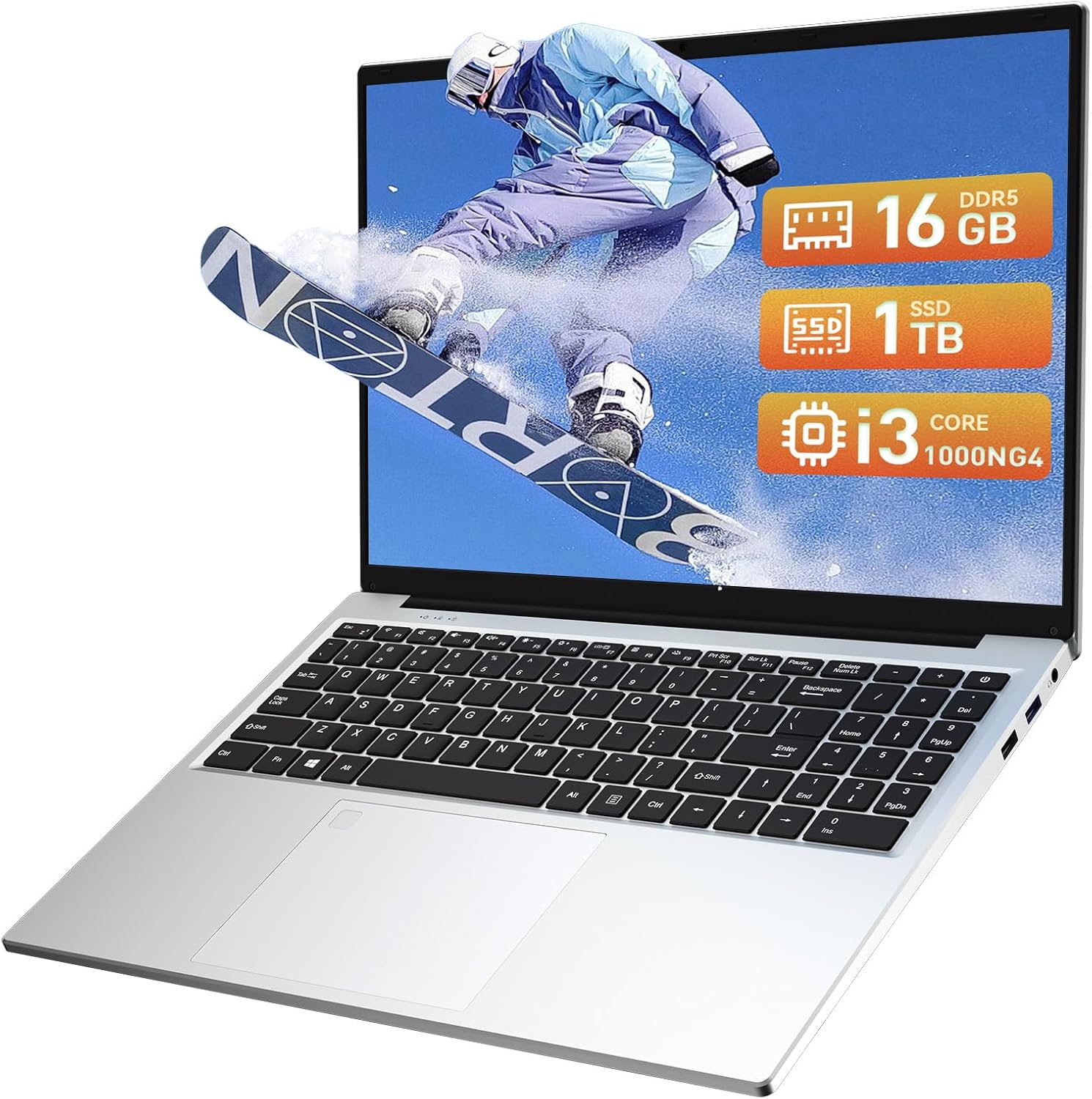
Image: The Auusda 16-inch FHD Laptop T161N, showcasing its sleek design and screen.
2. Chii chiri muBhokisi
Upon opening your Auusda T161N laptop package, verify that all the following items are included:
- Auusda 16-inch FHD Laptop T161N
- Power Adapter/Chaja
- Chinyorwa Chirairo (gwaro iri)
- Keyboard Cover

Image: A visual representation of the items included in the Auusda T161N laptop packaging.
3. Chigadzirwa Pamusoroview
3.1 Mamiriro Akakosha
- Ratidza: 16-inch Full HD (1920x1080) IPS screen with 180° vieweng angle
- processor: Intel Core i3-1000NG4 (up to 3.2GHz).
- Memory: 16GB DDR4 RAM.
- Kuchengeta: 1TB PCIe SSD.
- Kubatana: Wi-Fi 6, Bluetooth 5.3.
- Chengetedzo: Fingerprint Reader.
- Input: Backlit Keyboard.
- Operating System: Windows 11 Pro.
3.2 Zviteshi uye Zvibatanidza
The Auusda T161N laptop is equipped with various ports for versatile connectivity:
- USB 3.0 Zvidhori (x2)
- Full-Function Type-C Port (x1) - Supports data transfer, screen mirroring, and charging.
- USB 2.0 Chiteshi (x1)
- Mini HDMI Port (x1)
- 3.5mm Standard Headphone Jack (x1)
- Microphone Input (shared with headphone jack)
- Kuchaja Port

Image: A detailed diagram illustrating the location and type of ports on the Auusda T161N laptop.
3.3 Visual Overview
Vhidhiyo: Kuperaview of the Auusda 16-inch FHD Laptop T161N, demonstrating its design and key features.
4. Setup
4.1 Kutanga Kuchaja
- Batanidza adapta yemagetsi kune chinongedzo chekuchaja chiri palaptop.
- Batanidza adapta yemagetsi mudura repamadziro.
- Bvumira Laptop ichichaja kweanenge maminetsi makumi matatu isati yatanga kushandiswa, kana kusvika chiratidzo chebhatiri charatidza kubhadharisa kwakakwana.
4.2 Powering On and Initial Windows Setup
- Dzvanya bhatani rekudzima simba riri pakhibhodi kuti ubate laptop.
- Tevedza iyo pa-screen mirairo kuti upedze iyo Windows 11 Pro setup process. Izvi zvinosanganisira kusarudza dunhu rako, mutauro, kubatanidza kunetiweki yeWi-Fi, uye kugadzira account yemushandisi.
- Ensure you have an active internet connection for Windows updates and driver installations during the setup.
5. Operating Instructions
5.1 Keyboard Functions (Fn + Function Keys)
The laptop features a full-size keyboard with dedicated function keys that can be accessed by pressing the Fn kiyi pamwe chete nekiyi yebasa rinoenderana (F1-F12).
- Backlit Keyboard: Press Fn + F9 to cycle through 2 brightness levels. Pressing it a third time turns the backlight off.
- Num Lock: Press Fn + Num Lk to toggle the numeric keypad on or off.
- Kudzora inzwi: Shandisa Fn + Speaker keys (F1-F3) to mute, decrease, or increase volume.
- Kudzora Kupenya: Shandisa Fn + Sun keys (F4-F5) to decrease or increase screen brightness.

Image: A visual guide to using the Fn (Function) keys on the Auusda T161N keyboard for various controls.
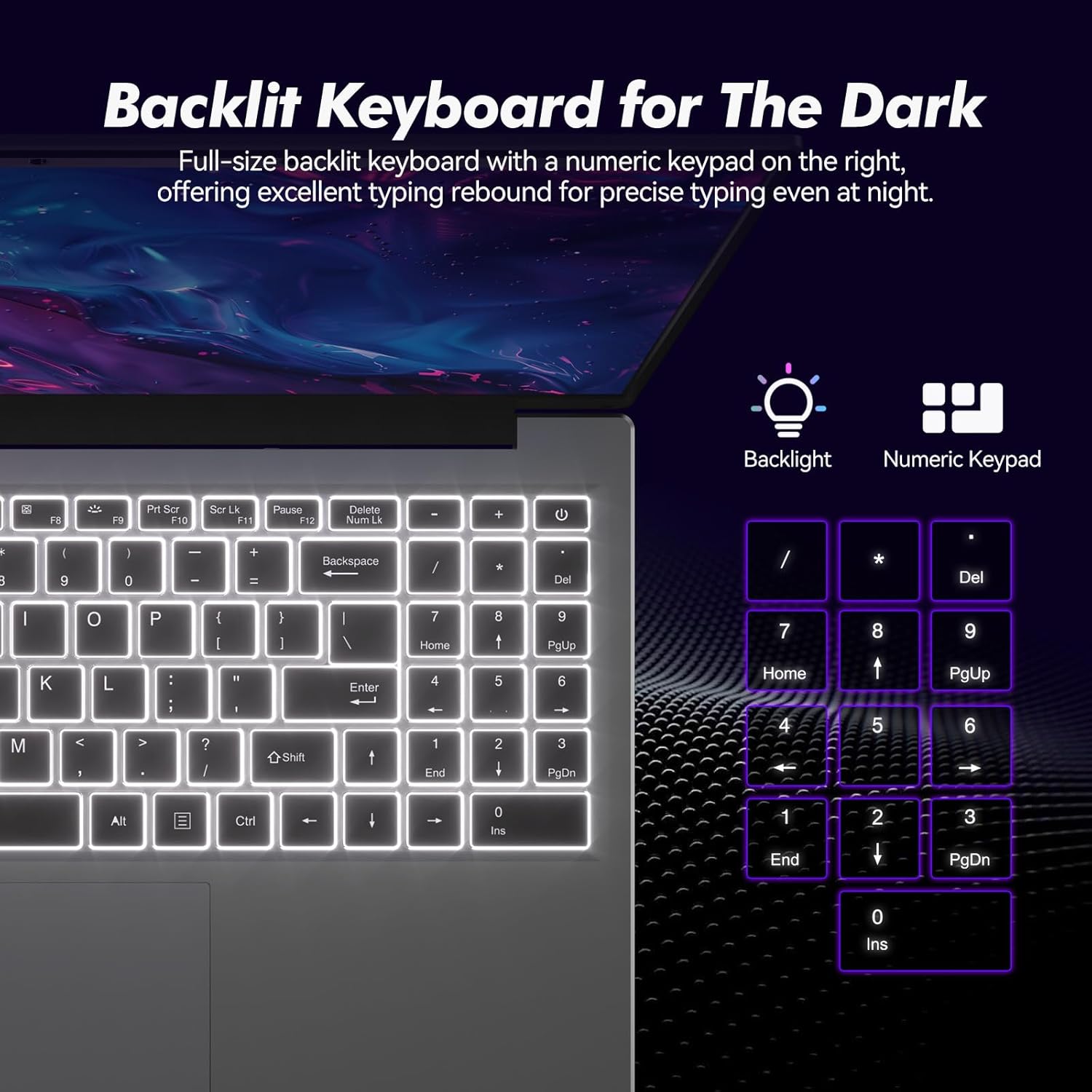
Mufananidzo: Pedyo-up view of the backlit keyboard and numeric keypad, highlighting their functionality.
5.2 Fingerprint Reader
The integrated fingerprint reader provides a secure and fast way to unlock your laptop. To set up fingerprint recognition:
- Navigate to Windows Settings > Accounts > Sign-in options.
- Under 'Windows Hello Fingerprint', click 'Set up'.
- Tevedzera zvinokurudzirwa pachikirini kuti unyorese zvigunwe zvako.
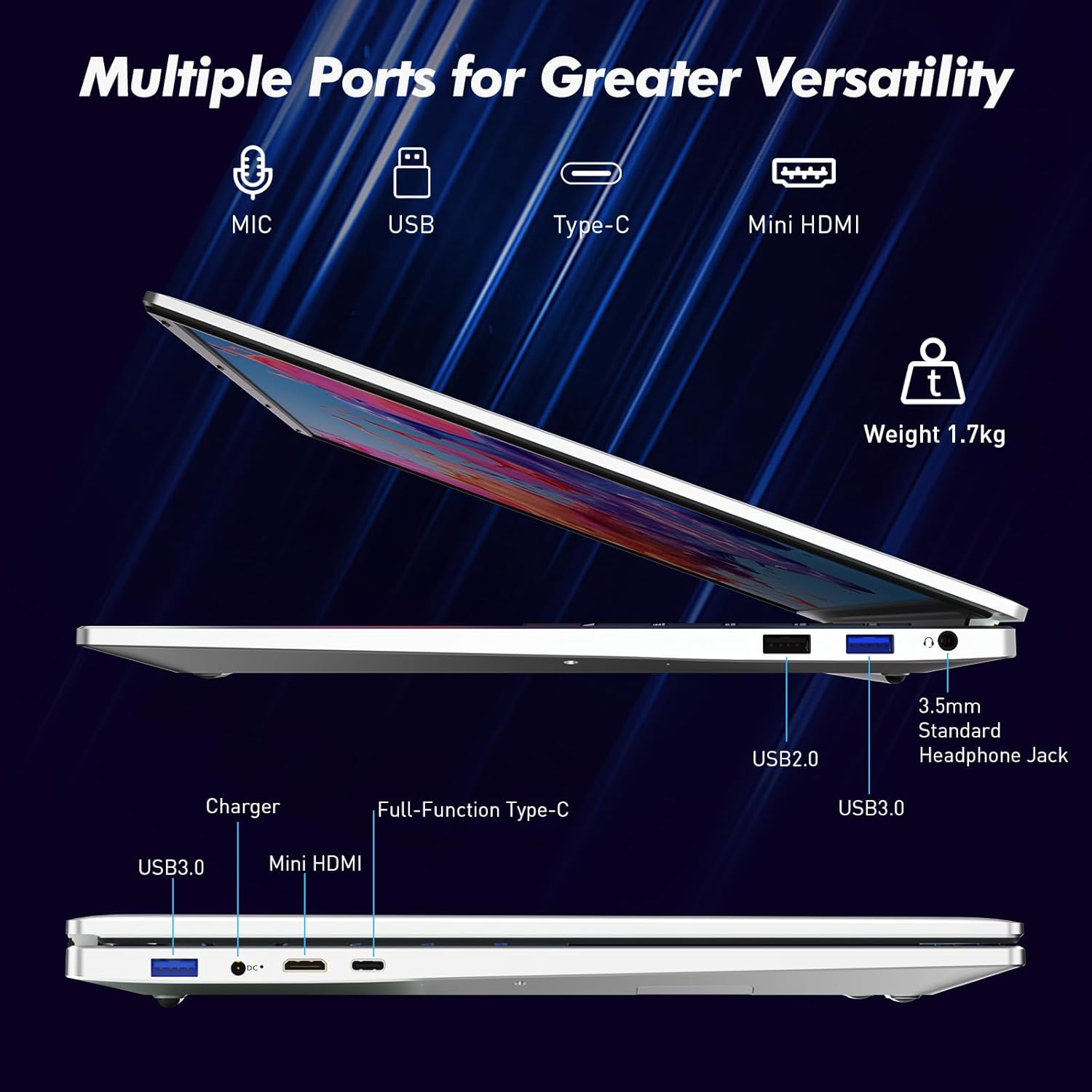
Image: A visual representation of the fingerprint reader location and its quick unlock capability.
5.3 Type-C Connectivity
The full-function Type-C port offers versatile connectivity options:
- Kuendesa Data: Connect compatible devices for high-speed data exchange.
- Screen Mirroring: Output video to an external display using a compatible Type-C to HDMI/DisplayPort adapter (sold separately).
- Kuchaja: Charge the laptop using a compatible Type-C power delivery charger.
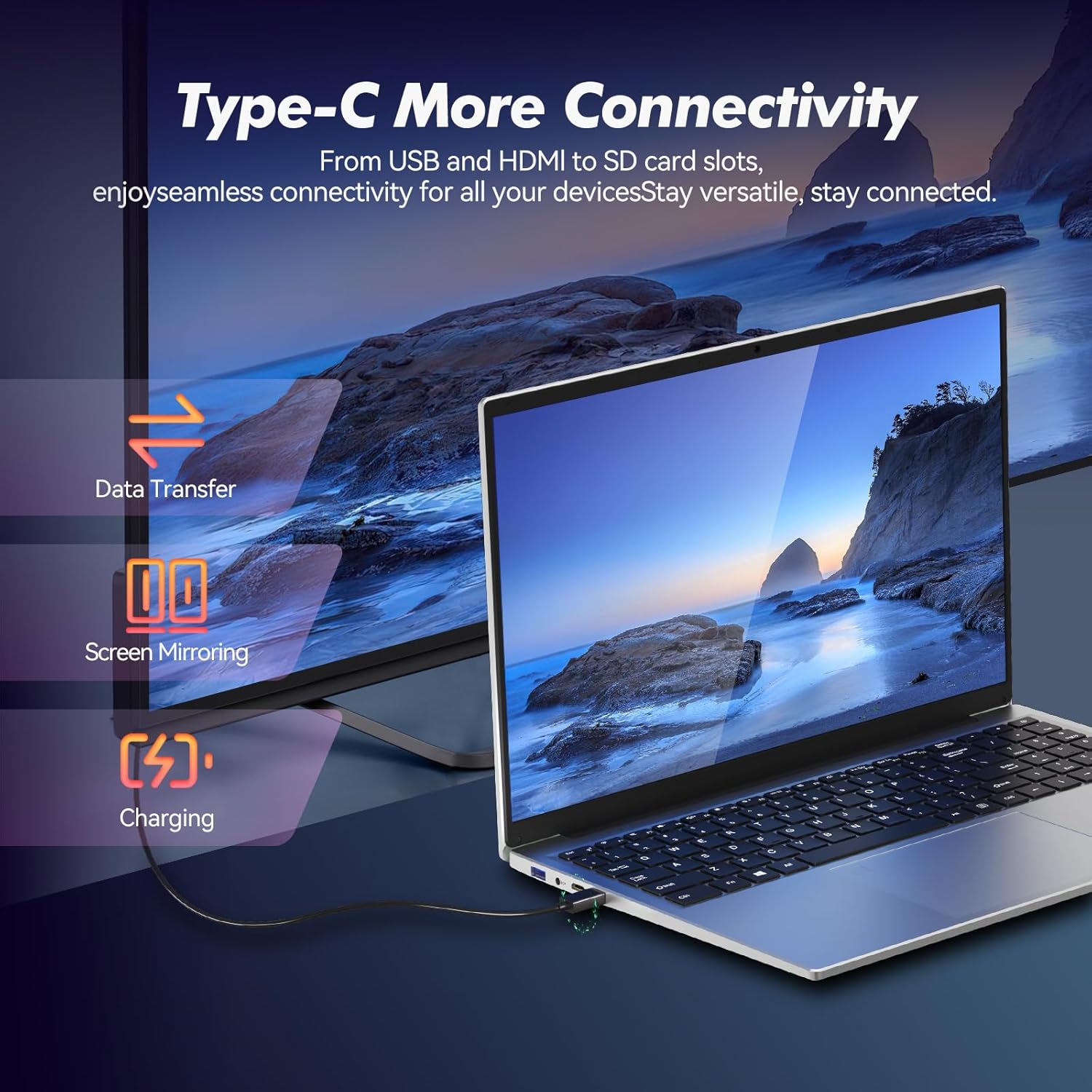
Image: Illustrates the multi-functional capabilities of the Type-C port, including data transfer, screen mirroring, and charging.
5.4 Wi-Fi 6 and Bluetooth 5.3
The laptop supports Wi-Fi 6 for faster and more stable wireless internet connections and Bluetooth 5.3 for connecting wireless peripherals.
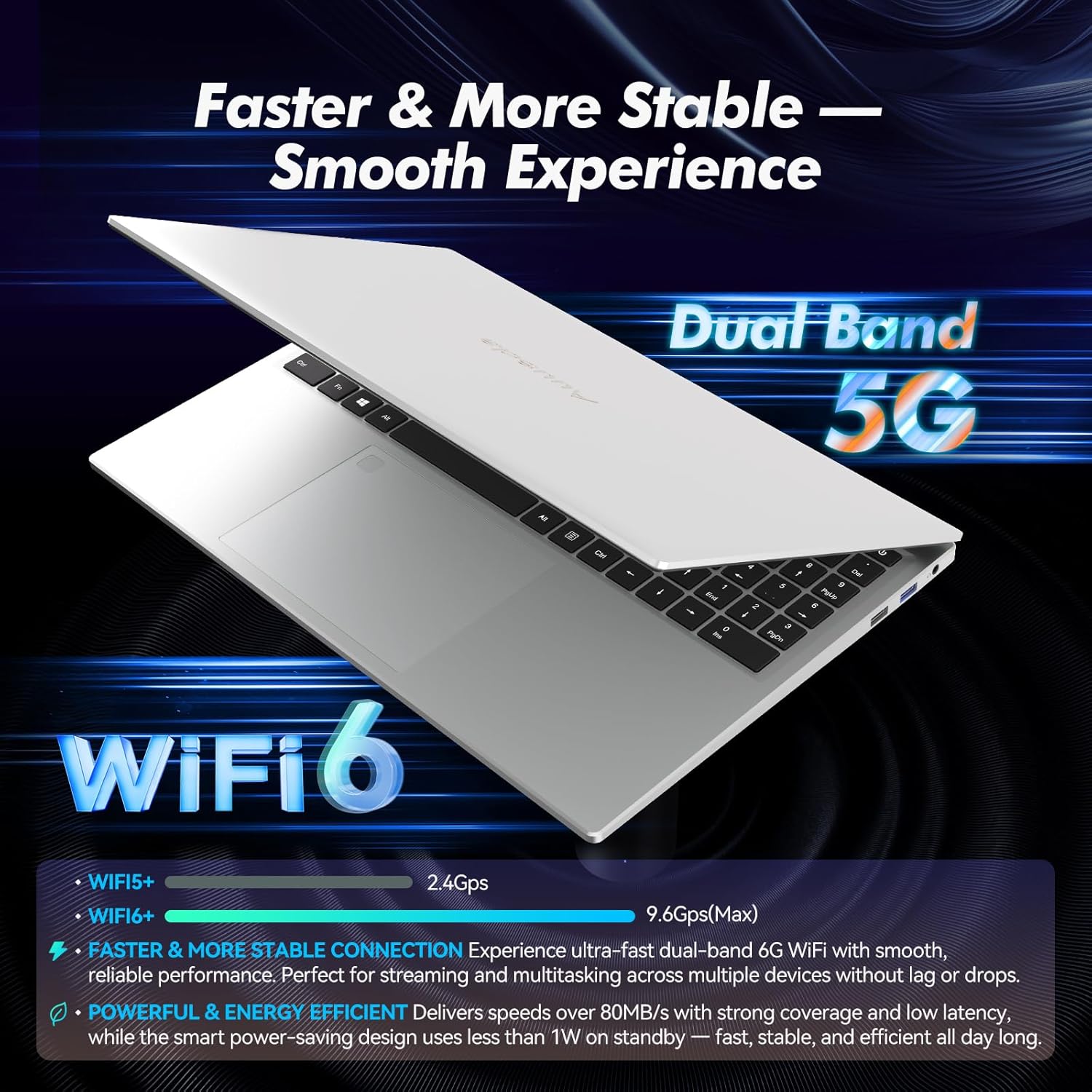
Image: Highlights the advanced wireless connectivity of the laptop, including Wi-Fi 6 and Dual Band 5G support.
6. Zvinotsanangurwa
Below are the detailed technical specifications for the Auusda 16-inch FHD Laptop T161N:
| Feature | Tsanangudzo |
|---|---|
| Model Number | T161N |
| Screen Size | 16 inches |
| Screen Resolution | 1920 x 1080 pixels (FHD) |
| processor | Intel Core i3-1000NG4 (1.09 GHz, up to 3.2 GHz) |
| RAM | 16 GB DDR4 SDRAM |
| Hard Drive | 1 TB SSD (PCIe) |
| Graphics Coprocessor | Iris Plus Graphics G4 48EUs (Integrated) |
| Operating System | Windows 11 Pro |
| Wireless Type | 802.11ax (Wi-Fi 6), Bluetooth 5.3 |
| USB 3.0 Ports | 2 |
| USB 2.0 Ports | 1 |
| Item Weight | 5.21 makirogiramu |
| Product Dimensions | 14.17 x 10.83 x 0.71 inches |
| Color | Sirivha |
| Mabhatiri | 1 12V bhatiri (rinosanganisirwa) |
7. Kuchengeta
Regular maintenance helps ensure the optimal performance and longevity of your laptop.
7.1 Kuchenesa
- Use a soft, lint-free cloth to clean the screen and exterior surfaces. For stubborn marks, slightly damppukuta jira nemvura kana muchina wekuchenesa usingakuvadzi skrini.
- Dzivisa kumwaya zvinwiwa zvakananga palaptop.
- Shandisa mweya wakamanikidzwa kubvisa huruva kubva kukiyi kiyi uye magrille emhepo.
7.2 Zvigadziriso zveSoftware
- Regularly check for and install Windows updates to ensure system stability and security. Go to Settings > Windows Update.
- Keep your drivers updated. Windows Update typically handles this, but you may occasionally need to check the Auusda support website for specific driver updates.
7.3 Kuchengeta Battery
- Dzivisa kuburitsa bhatiri zvakazara nguva zhinji.
- Chengetedza laptop munzvimbo inotonhorera, yakaoma kana isina kushandiswa kwenguva yakareba.
8. Kugadzirisa matambudziko
Ichi chikamu chinogadzirisa zvinowanzoitika zvaungasangana nazvo nelaptop yako.
8.1 Laptop Haibati
- Ita shuwa kuti iyo adapta yemagetsi yakabatana zvakachengeteka kune ese ari maviri laptop uye inoshanda simba rekubuda.
- Tarisa kuti magetsi emagetsi ari kushanda nekuisa imwe mudziyo.
- Kana bhatiri rakapera zvachose, ribvumire kuchaja kweinenge 15-30 maminetsi usati waedza kubatidza zvakare.
8.2 Matambudziko eWi-Fi
- Check if Wi-Fi is enabled in Windows settings (Settings > Network & internet > Wi-Fi).
- Tangazve router yako uye modem.
- Ita shuwa kuti uri mukati mehuwandu hweWi-Fi network yako.
- Update your Wi-Fi drivers if necessary.
8.3 Keyboard or Touchpad Not Responding
- Tangazve laptop.
- Check for any physical obstructions or debris under the keys or on the touchpad.
- Ensure the touchpad has not been accidentally disabled (some laptops have a function key or a setting to toggle the touchpad).
For further assistance, refer to the support section below.
9. Warranty uye Tsigiro
Auusda provides customer support and warranty services for its products.
9.1 Ruzivo rweWaranti
Auusda laptops typically come with a two-year after-sales service period. Please retain your proof of purchase for warranty claims.
9.2 Mutengi Tsigiro
If you encounter issues or require technical assistance, please contact Auusda customer support:
- Email Support: Send your order number and a video demonstrating the problem to Auusda.ltd@gmail.com.
- Amazon Buyer Account: Log in to your Amazon buyer account, find your order, and click "Get Help" or "Ask questions" for direct support.


