1. Nhanganyaya
Thank you for choosing the Nillkin Pocket Foldable Wireless Keyboard. This manual provides essential information for setting up, operating, and maintaining your new keyboard. Please read it thoroughly before use to ensure proper functionality and to maximize your user experience.
2. Package Zviri mukati
Ona kuti zvinhu zvese zviripo mupasuru yako:
- Nillkin Pocket Foldable Wireless Keyboard
- USB-C Kuchaja Cable
- Mushandisi Chinyorwa (gwaro iri)
- Kutakura Bag
3. Chigadzirwa Pamusoroview
The Nillkin Pocket Foldable Wireless Keyboard is designed for portability and versatility, featuring a full-size (small) layout, integrated touchpad, and numerical pad. It connects wirelessly via Bluetooth to multiple devices.

Image: The Nillkin Pocket Foldable Wireless Keyboard in its fully unfolded state, displaying the complete QWERTY layout alongside the integrated numerical pad and touchpad.
The keyboard features a durable organic silicone cover and magnetic folding mechanism, making it compact for travel. Its design includes dedicated function keys for media control and shortcuts, enhancing productivity across various operating systems.

Image: The keyboard in its compact, folded state, demonstrating its portability as it is easily stored in a bag.
4. Setup
4.1 Kuchaja Kiyibhodhi
Before first use, fully charge the keyboard using the provided USB-C cable. Connect the cable to the keyboard's USB-C port and a compatible power source (e.g., computer USB port, USB wall adapter). The charging indicator light will show charging status (refer to Section 5.5 for details).
4.2 Bluetooth Pairing
The keyboard supports connection to up to three devices simultaneously.
- Ita shuwa kuti Bluetooth yemudziyo wako yakabatidzwa.
- Pa keyboard, dzvanya Fn + Q (yeBT1), Fn + W (yeBT2), kana Fn + E (yeBT3) kuti usarudze chiteshi cheBluetooth.
- Press Fn + C to enter pairing mode. The Bluetooth indicator light will flash.
- On your device, search for "Cube Pocket Keyboard" in the Bluetooth settings and select it to connect.
- Once connected, the Bluetooth indicator light will turn off.
- To connect additional devices, repeat steps 2-5 for BT2 and BT3.
Video: A tutorial demonstrating Bluetooth connection and switching between multiple devices on the Nillkin Pocket Foldable Wireless Keyboard.
5. Operating Instructions
5.1 Kuchinja Pakati Pemidziyo Yakabatana
After pairing with multiple devices, you can switch between them by pressing Fn + Q (for Device 1), Fn + W (for Device 2), or Fn + E (for Device 3).

Image: Visual guide on seamlessly switching between up to three paired devices using the designated function key combinations.
5.2 Touchpad and Numerical Pad Functionality
The numerical pad area also functions as a touchpad. To switch between touchpad mode and numerical keypad mode, press Fn + Command.
- In numerical keypad mode, press a multi-function key alone to input numbers.
- Press Shift + multi-function key for punctuation.
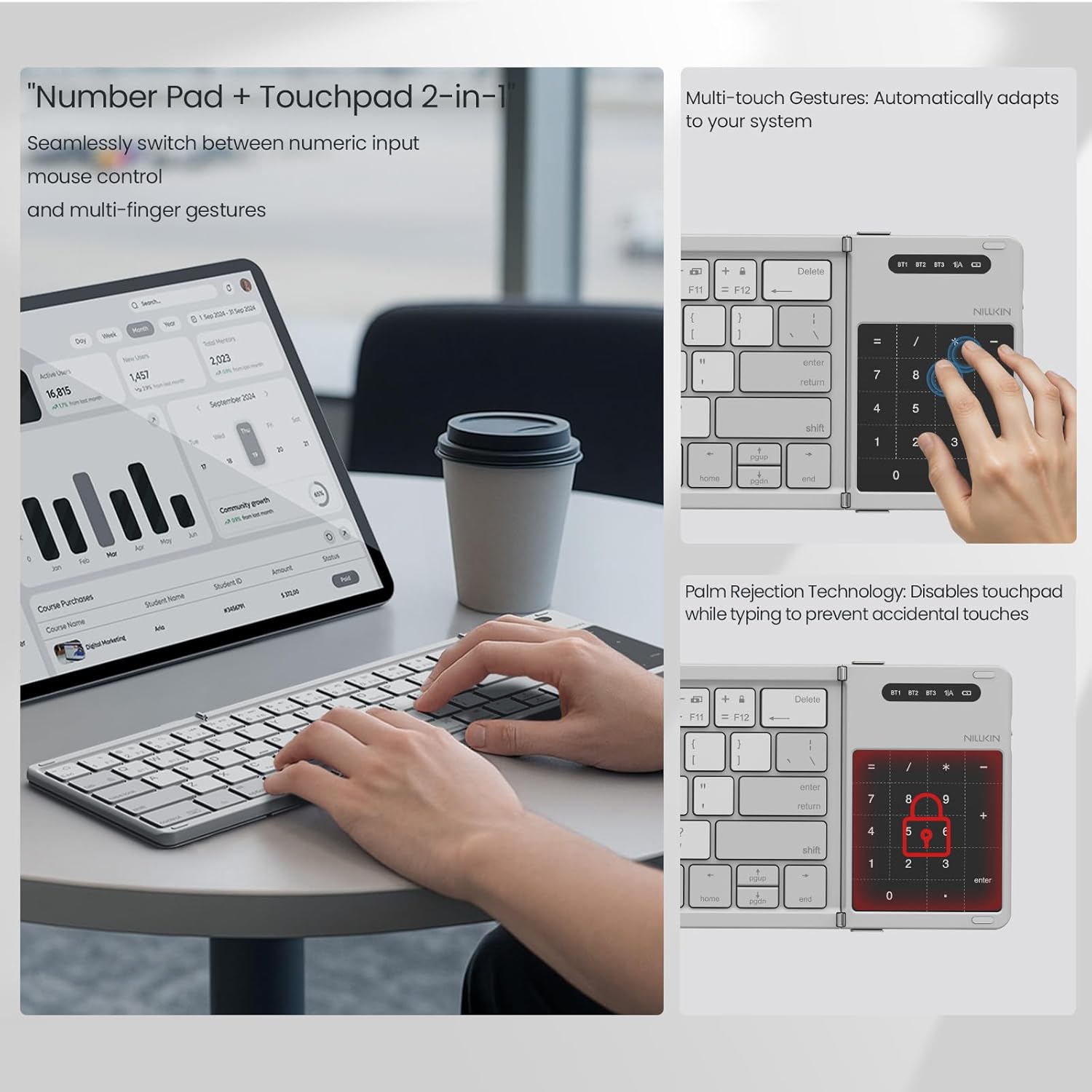
Image: The numerical pad area, highlighting its dual functionality as a touchpad with support for multi-touch gestures.

Image: A visual representation of how the touchpad and numerical keypad functions are combined into one area.
5.3 Fn Keyboard Shortcuts (Multimedia and F-keys)
The keyboard's function keys have dual purposes:
- Kutanga kudzvanya Fn + Tab: Keys output multimedia controls (e.g., volume, play/pause).
- Chechipiri dzvanya Fn + Tab: Keys output standard ESC/F1-F12 functions.
- Wechitatu press Fn + Tab: Keys return to number mode.
5.4 Kuchinja Mutauro
To switch input languages:
- For iOS/Mac devices: Press Ctrl + Space.
- For Android devices: Press Ctrl + Space or Shift + Space.
- For Windows devices: Press Alt + Shift.
5.5 Kutarisa Battery Level
Kuti utarise huwandu hwebhatiri riripo, tinya Fn + Command. The indicator light will flash:
- Green light flashes 3 times: 70-100% battery.
- Blue light flashes 3 times: 30-70% battery.
- Red light flashes 3 times: 0-30% battery.
During charging, the red light stays on. When fully charged, the light turns off.
6. Kuchengeta
To ensure the longevity of your Nillkin keyboard:
- Kuchenesa: Shandisa jira rakapfava, rakaoma kupukuta pamusoro pekhibhodi. Kana wakaita tsvina yakaoma, pukuta zvishomaampsn jira rine mvura kana mushonga wakapfava wekuchenesa. Dzivisa kunyorova kwakanyanyisa.
- Kuchengeta: When not in use, fold the keyboard and store it in the provided carrying bag to protect it from dust and scratches.
- Dzivisa Zvakanyanya: Do not expose the keyboard to extreme temperatures, direct sunlight, or high humidity.
- Mvura Inorasika: The keyboard is made from organic silicone that resists spills, but it is not waterproof. In case of a spill, immediately power off the keyboard and allow it to dry completely before reuse.
7. Kugadzirisa matambudziko
| Dambudziko | Zvinogona Kukonzera | Solution |
|---|---|---|
| Kiyibhodhi haibati. | Bhatiri rakaderera. | Charge the keyboard using the USB-C cable. |
| Kusakwanisa kuibatanidza neBluetooth. | Bluetooth not enabled on device; keyboard not in pairing mode; device too far. | Ensure device Bluetooth is on. Press Fn + C to enter pairing mode. Move keyboard closer to the device. |
| Makiyi haasi kupindura kana kunyora zvisiri izvo. | Incorrect operating system mode; low battery; connection issue. | Ensure the correct operating system mode is selected (if applicable). Recharge the keyboard. Re-pair the keyboard. |
| Touchpad/Numerical pad not working as expected. | Nzira isiriyo yakasarudzwa. | Press Fn + Command to toggle between touchpad and numerical pad modes. |
8. Zvinotsanangurwa
- Brand: Nillkin
- Muenzaniso: Pocket Foldable Wireless Keyboard
- Kubatana Technology: Wireless (Bluetooth)
- Zvishandiso Zvinoenderana: iPad, most tablets (e.g., Samsung, Pixel), Laptops, PCs, Fold Mobile Phones
- Kiyibhodhi Tsanangudzo: Multi-functional, Foldable, Portable, Numeric Keypad, Trackpad, Hotkeys and Media Keys, Lightweight, Rechargeable, Silent and Quiet
- Material: PC Basic + Organic Silicone Cover + Magnets
- Kupeta Saizi: Anenge 18 x 10.8 x 1.6 cm (7.09 x 4.25 x 0.63 inches)
- Saizi Yakawedzerwa: Anenge 34 x 10.8 x 0.95 cm (13.39 x 4.25 x 0.37 inches)
- Chinhu Weight: Anenge 0.52 lbs (0.24 kg)
- Bhatiri: 1 Nonstandard Bhatiri (inosanganisirwa)

Image: Detailed dimensions of the keyboard in both folded and unfolded states, presented with other devices for size comparison.
9. Warranty uye Tsigiro
Nillkin products are manufactured to high-quality standards. For warranty information, technical support, or service inquiries, please refer to the warranty card included in your package or visit the official Nillkin website. Chengeta risiti rako rekutenga seumboo hwekutenga.


