1. Chigadzirwa Pamusoroview
The Woox R4041 is a versatile 2K Wi-Fi indoor security camera designed for comprehensive monitoring of your home, pets, or baby. It features 360° panoramic rotation, advanced night vision, motion and sound detection, two-way audio, and smart home integration. This manual provides essential information for setting up, operating, and maintaining your camera.
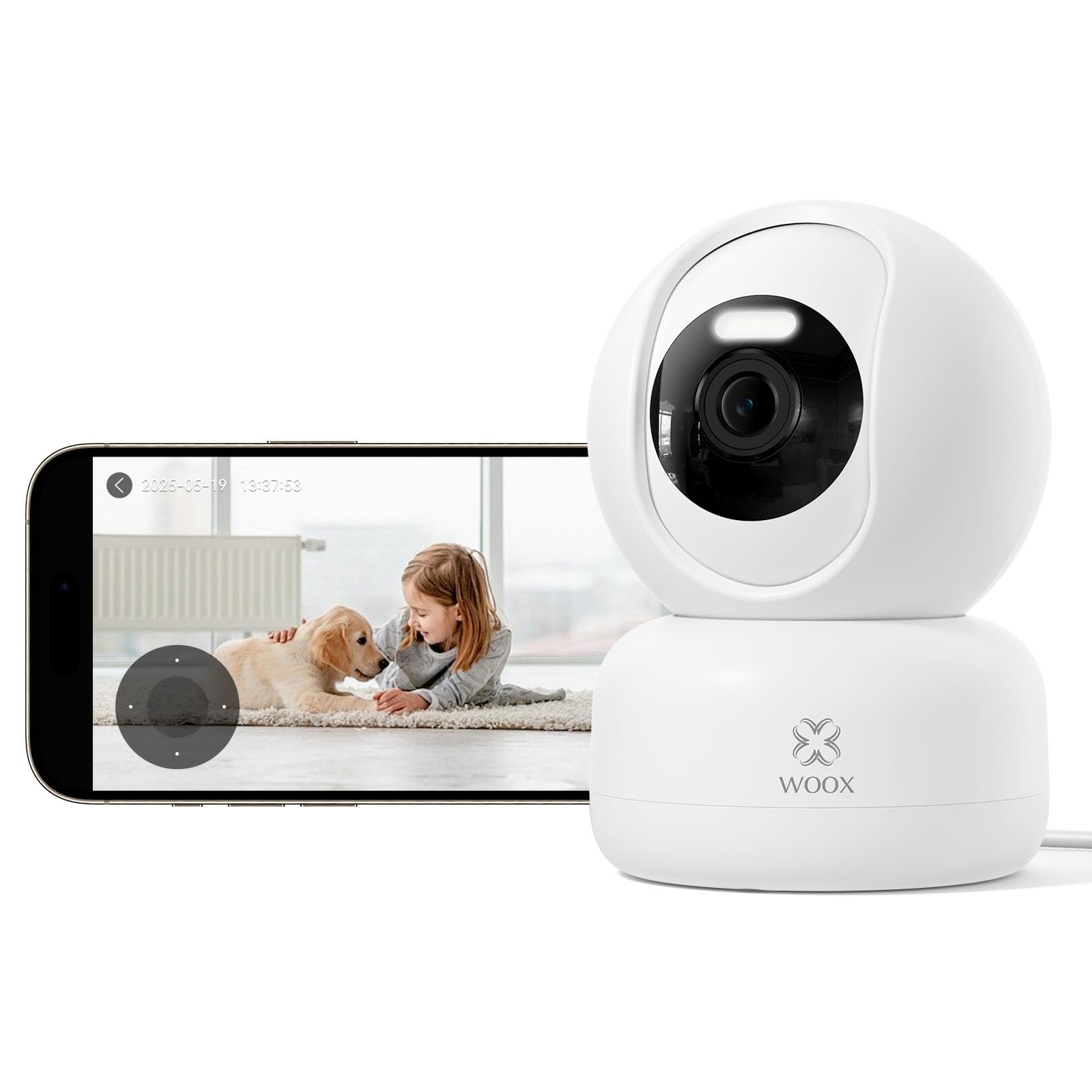
Mufananidzo: Mberi view of the Woox R4041 2K Wi-Fi 360° Indoor Security Camera, showcasing dhizaini yayo diki uye lenzi.
2. Package Zviri mukati
Ndapota tarisai kuti zvikamu zvese zviripo mupakeji yenyu:
- Smart Indoor PTZ Camera x 1
- User Manual x 1
- Base Bracket x 1
- USB Cable (1.2 m) x 1
- Power Adapter (EU white) x 1
- Screw Bag x 1
- Positioning Stickers x 1
- Security Stickers x 2
- Mushure mekutengesa Kadhi x 1
3. Kutanga (Setup)
3.1 Physical Placement and Mounting
The camera can be placed on a flat surface like a table or shelf, or mounted on a wall or ceiling using the included base bracket and screws. Ensure the camera is positioned to cover your desired monitoring area.
3.2 Kubatidza
Connect the USB cable to the camera's power port and the power adapter. Plug the adapter into a standard electrical outlet. The camera will power on and initiate its startup sequence.
3.3 Kudhawunirodha App uye Kugadzira Akaunti
Download the Woox Home App from your smartphone's app store (available for iOS and Android). Follow the on-screen instructions to create a new account or log in if you already have one.
3.4 Kubatanidza kuWi-Fi
Ita shuwa kuti network yako yeWi-Fi yakachengeteka 2.4 GHz. The camera does not support 5 GHz Wi-Fi. Keep your smartphone close to the camera and your Wi-Fi router during the setup process.
3.5 Kubatanidza Kamera
- Open the Woox Home App and tap the "+" icon to add a new device.
- Select the camera model from the list of devices.
- Follow the in-app instructions, which typically involve scanning a QR code displayed on your phone with the camera lens or listening for a pairing tone.
- Once successfully paired, the camera will appear in your device list within the app.
4. Kushanda
4.1 Rarama View uye Zvinodzora
Access the live video feed of your camera through the Woox Home App. Use the on-screen controls to pan (360° horizontal) and tilt (104° vertical) the camera remotely, allowing you to monitor every angle without blind spots. The smart tracking function automatically follows detected movement.
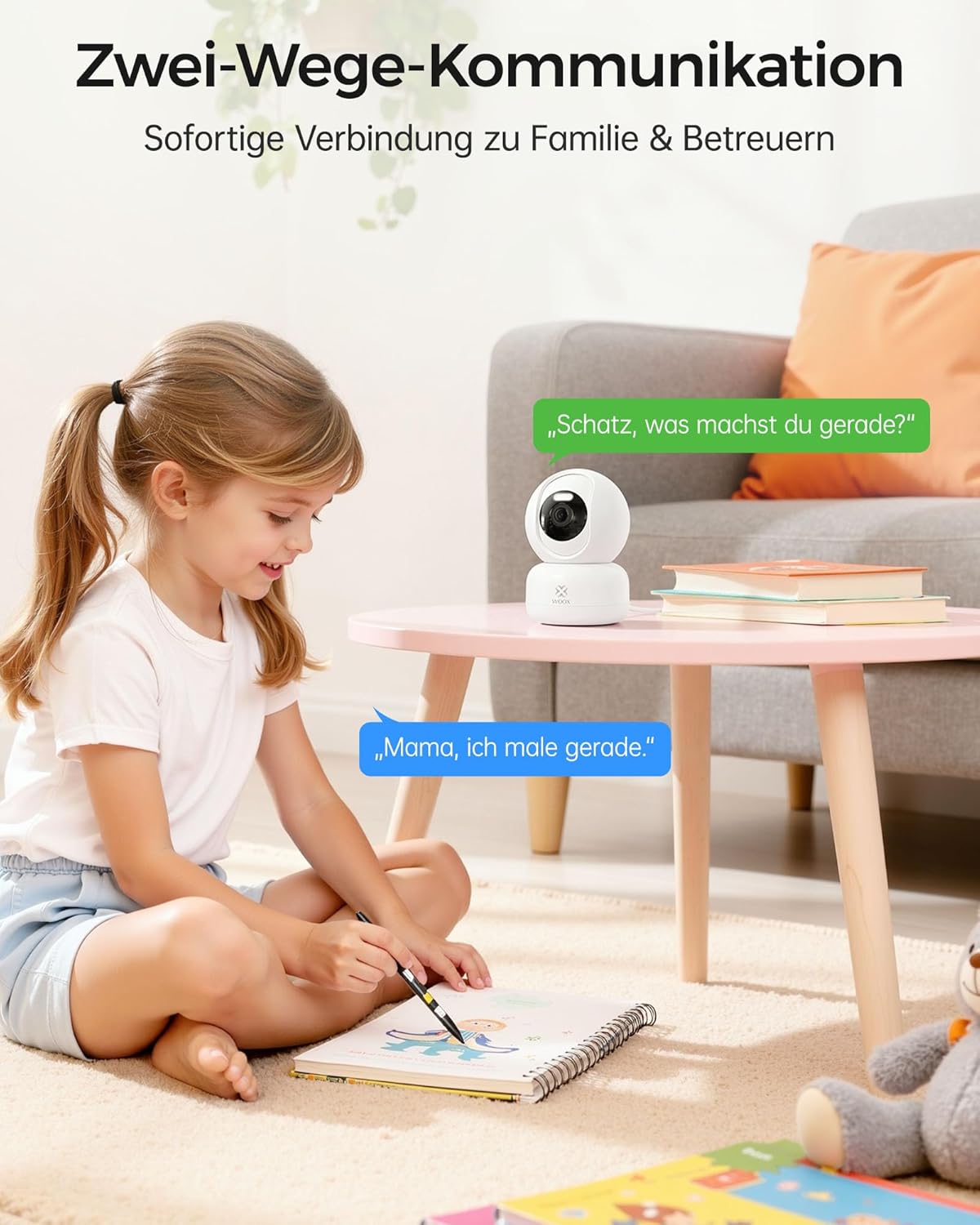
Image: A modern living room with the Woox camera, illustrating its 360° horizontal and 104° vertical rotation. An inset phone screen shows the camera's live view and pan/tilt controls, demonstrating comprehensive monitoring.
4.2 Hunhu hweVhidhiyo uye Kuona Husiku
The camera provides crisp 2K HD image quality. Equipped with infrared sensors and white light LEDs, it offers up to 12 meters of advanced night vision, including both color and black & white modes, ensuring clear visibility even in complete darkness.

Image: Comparison of 1080P video quality versus 2K 3MP, showing a family with a dog. The 2K image is significantly clearer and more detailed, highlighting the camera's superior resolution.
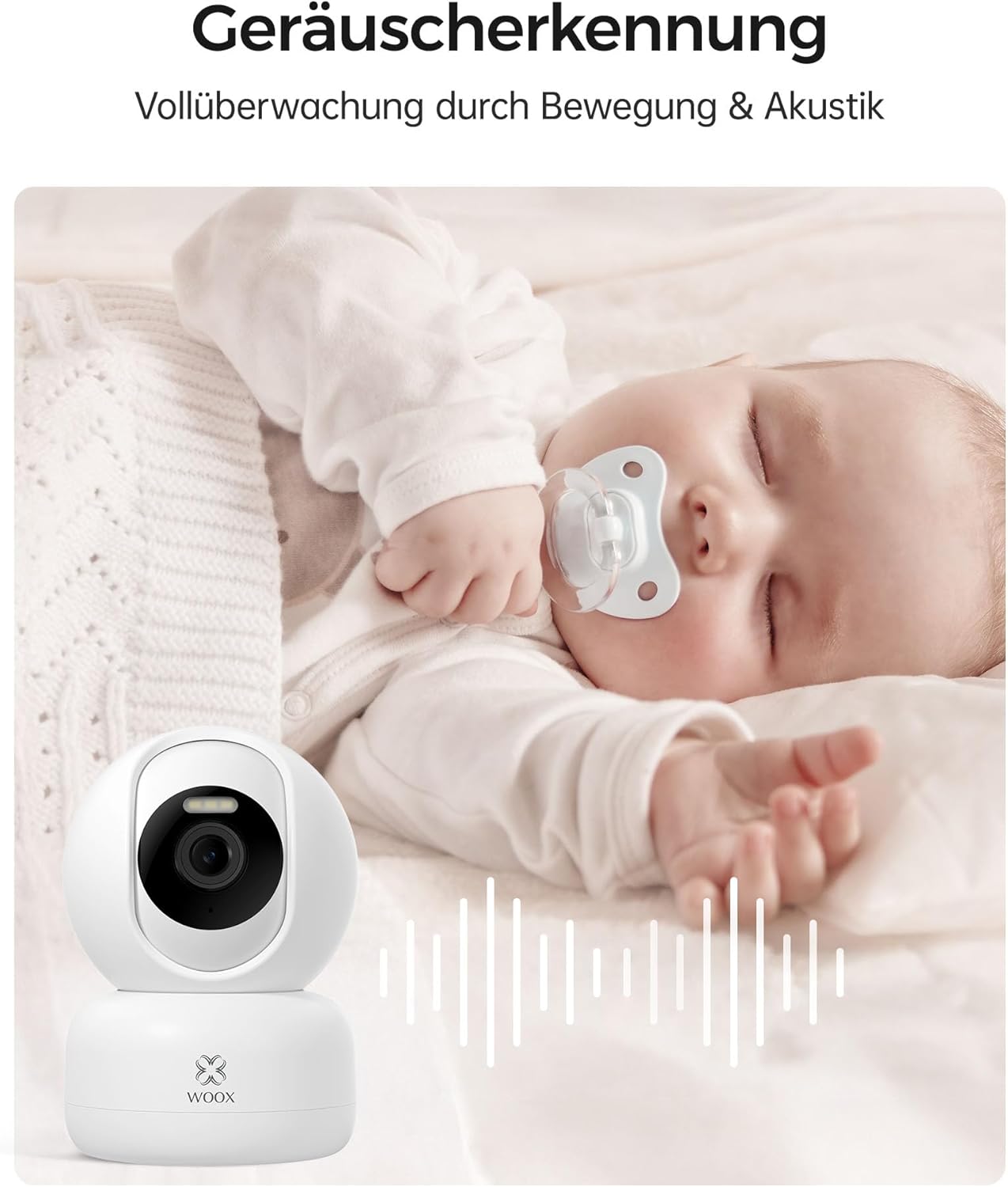
Image: A child sleeping peacefully in bed, illustrating the camera's smart color night vision capability. Text indicates a 12-meter night vision range, emphasizing the ability to capture important details in low light.
4.3 Kuziva Kufamba uye Ruzha
The camera features advanced AI for precise detection of human and pet movements, as well as unusual sounds (e.g., glass breaking, loud noises). Upon detection, the camera instantly tracks the activity, records warning clips, and sends real-time notifications to your smartphone.

Image: Two cats playing in a living room, with green boxes highlighting them, demonstrating the AI detection and tracking feature. A Woox camera is visible in the background, indicating its ability to recognize and follow people and pets in real-time.
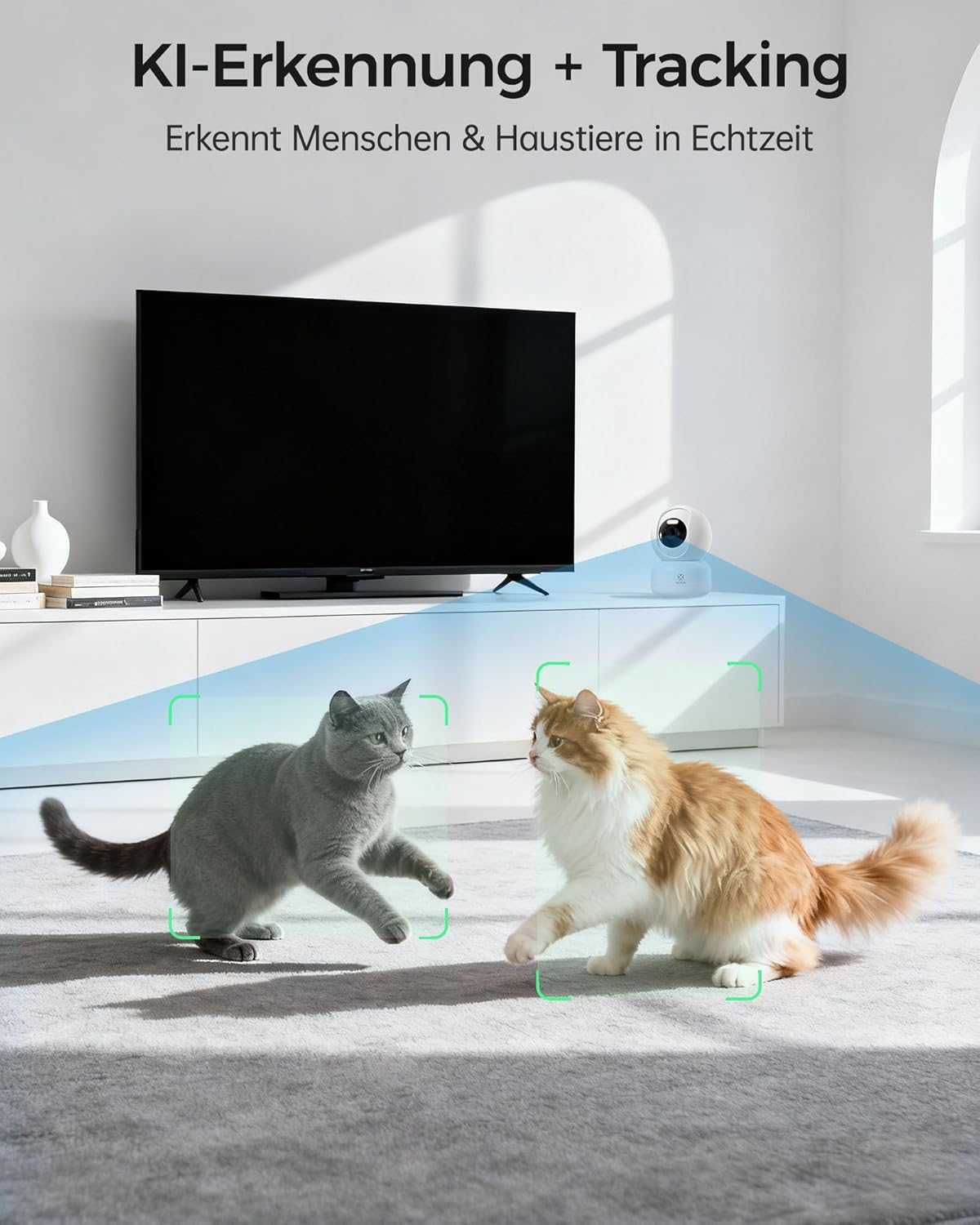
Image: A baby sleeping with a pacifier, with a Woox camera in the foreground and sound wave graphics next to it, indicating the camera's sound detection feature. This illustrates the camera's ability to detect unusual noises.
4.4-Nzira mbiri Audio
With its integrated microphone and speaker, the camera enables direct voice communication. You can calm a crying baby, speak to family members, or give instructions remotely through the app.

Image: A child drawing on the floor next to a Woox camera, with speech bubbles indicating two-way communication. This demonstrates the camera's ability for instant voice connection.
4.5 Kurekodha uye Kuchengeta
The camera supports 24/7 continuous recording. You can store videos locally on an SD card (up to 128 GB, not included) or use the cloud storage service (7-day free trial available). Advanced encryption technology ensures your videos are secure and accessible only by you.
4.6 Sharing Access
Through the Woox Home App, you can securely share camera access with up to 5 other individuals, such as family members or trusted caregivers, allowing multiple users to stay connected.
4.7 Smart Home Kubatanidzwa
The camera is compatible with Amazon Alexa and Google Assistant. You can control your camera with voice commands, for example, "Alexa, show me the living room," to view rarama footage on your smart display.
5. Kuchengeta
- Kuchenesa: Pukuta lenzi yekamera nemuviri wayo zvinyoro nyoro nejira rakaoma uye rakapfava. Dzivisa kushandisa makemikari akaomarara kana zvinhu zvinokwesha.
- Firmware Dzokorora: Regularly check the Woox Home App for available firmware updates to ensure optimal performance and security.
- Kuiswa: Ensure the camera is placed in a stable location to prevent accidental falls. Avoid direct exposure to water or extreme temperatures.
6. Kugadzirisa matambudziko
- Kamera Pasina Indaneti: Check your Wi-Fi connection and ensure the camera is powered on. Restart the camera and your router if necessary. Verify that your Wi-Fi is 2.4 GHz.
- Hunhu Hwakashata Wemufananidzo: Iva nechokwadi chekuti lenzi yekamera yakachena. Tarisa kumhanya kweinternet yako.
- Hapana Zviziviso: Verify that motion and sound detection are enabled in the app settings. Check your phone's notification settings for the Woox Home App.
- Maitiro maviri-Nzira Maodhiyo Nyaya: Ensure your phone's microphone and speaker are working correctly. Check the volume settings in the app.
- SD Card haina kuwanikwa: Ensure the SD card is inserted correctly and is not damaged. Format the SD card through the app if issues persist.
7. Zvinyorwa zveUnyanzvi
| Feature | Tsanangudzo |
|---|---|
| Model Name | R4041 |
| Vhidhiyo Capture Resolution | 2K (3MP), SD (640*360) |
| Wireless Communication Technology | Wi-Fi (2.4 GHz) |
| Kubatana Protocol | Bluetooth, ONVIF, Wi-Fi |
| Mounting Type | Wall Mount; No Installation |
| Viewing Angle | 350 madhigirii (Horizontal) |
| Night Vision Range | 8 Meters (Effective), up to 12 meters (Color/B&W) |
| Frame Rate | 20 mafuremu pasekondi |
| Material | Acrylonitrile Butadiene Styrene (ABS) |
| Voltage | 5 Volts |
| Wattage | 5 Watts |
| Zviyero zveChigadzirwa (L x W x H) | 8 x 8 x 10 cm |
| Kurema | 400 g |
| Mvura Resistance Level | Kwete Kudzivirira Mvura |
| Special Features | Two-Way Audio, HD Resolution, Motion Sensor, PTZ Technology, Night Vision |
| Inowirirana Devices | Smartphone, Tablet |
| Controller Type | Amazon Alexa, Google Assistant, WOOX Home APP |
8. Warranty uye Tsigiro
For warranty information and technical support, please refer to the After-sales Card included in your package or visit the official Woox website. You can also contact Woox customer service through the Woox Home App for assistance.


