1. Nhanganyaya
Thank you for choosing the Pisichen 27-inch 4K UHD Touchscreen Monitor with Webcam. This manual provides essential information for the safe and efficient operation of your new monitor. Please read it thoroughly before use and retain it for future reference.
2. Safety Information
- Kunobva Simba: Shandisa adapta yemagetsi chete inopihwa nemonitor. Iva nechokwadi chekuti soketi yemagetsi inosangana nevoltage zvinodiwa.
- Kufefetedza Usavhare kuvhurika kwemhepo. Bvumira nzvimbo yakakwana yakatenderedza cheki chekutarisa kuyerera kwemhepo.
- Liquid Exposure: Chengeta chidzitiro kure nemvura. Usachiise munzvimbo ine mvura kana hunyoro.
- Kuchenesa: Disconnect the power cable before cleaning. Use a soft, dry cloth. Avoid abrasive cleaners.
- Kuiswa: Isa cheki panzvimbo yakatsiga, yakati sandara kuti isadonha.
- Sevhisi: Usaedze kusevha iyo monitor iwe pachako. Tumira masevhisi ese kuvashandi vanokwanisa.
3. Package Zviri mukati
Ndapota tarisa zviri mupakeji kana muchibvisa zvinhu. Kana paine zvinhu zvisipo kana kuti zvakakuvara, taurai nemutengesi wenyu.
- Pisichen 27-inch 4K UHD Touchscreen Monitor
- Chigadziko cheMonitor (Base neArm)
- Power Adapter
- HDMI Cable
- USB-B to USB-A Cable (for Touch Function)
- User Manual
4. Chigadzirwa Pamusoroview
4.1 Mamiriro Akakosha
- Ultra HD 4K Touchscreen Display: 27-inch 4K Ultra HD screen with vibrant colors, sharp details, and wide viewing angles. Features a responsive 10-point touchscreen for intuitive control.
- Built-in High-Definition Webcam Integrated webcam for video calls, online meetings, and streaming, reducing desk clutter.
- Kubatana kwakasiyana-siyana: Multiple ports including HDMI, DisplayPort, and USB-C for easy connections to various devices. Supports both touch and traditional input.
- Optimized for Productivity and Creativity: Large 4K touch display for precise control and streamlined workflows, ideal for graphic designers, content creators, and multitasking.
- Sleek and Functional Design: Modern design with an adjustable stand for optimal viewing angles and comfort during extended use.
4.2 Tarisa Zviteshi
The monitor features various ports for connecting to your devices. Refer to the image below for port identification.
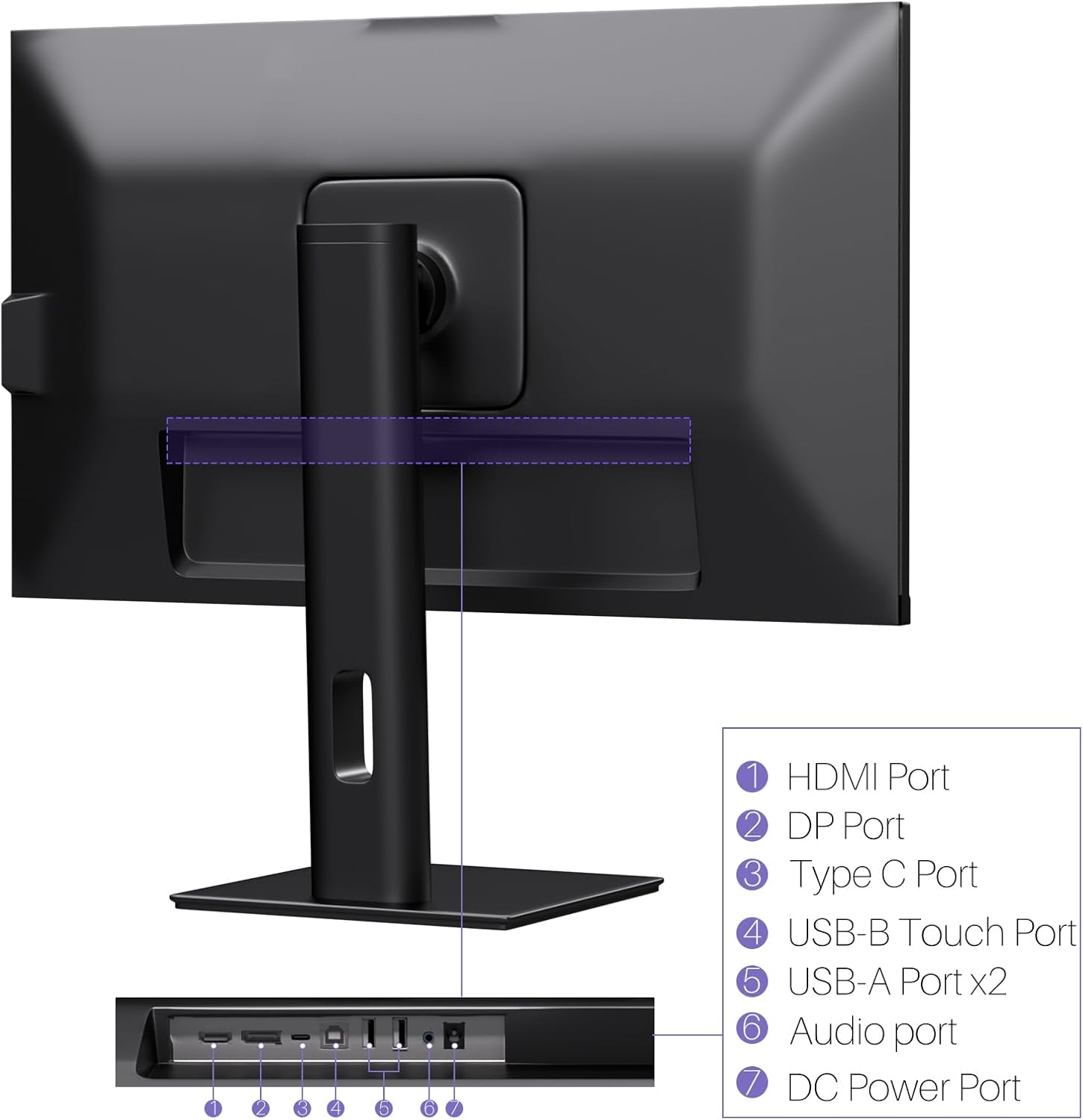
Mufananidzo: Rear view of the monitor displaying the HDMI, DP, Type-C, USB-B Touch, USB-A, Audio, and DC Power ports.
- HDMI Port: Connects to devices via HDMI cable for video and audio input.
- DP Port: Connects to devices via DisplayPort cable for video and audio input.
- Type-C Port: Connects to devices via USB-C cable for video, audio, and power delivery. (Requires USB-C port on signal device to support DisplayPort Alternate Mode for touch functionality).
- USB-B Touch Port: Connects to your computer via USB-B to USB-A cable to enable touchscreen functionality.
- Chiteshi cheUSB-A (x2): Yekubatanidza USB peripherals.
- Audio Port: Yekubatanidza ekunze ekuteerera midziyo.
- DC Power Port: Inobatanidza kune adapta yemagetsi.
5. Setup Instructions
5.1 Kuunganidza Chigadziko
- Nyatsobvisa chekutarisa uye kumira zvikamu kubva pakurongedza.
- Attach the stand arm to the monitor's VESA mounting points.
- Secure the stand base to the arm using the provided screws.
- Ensure all connections are tight and the monitor is stable.
5.2 Kubatanidza kune Chishandiso
The monitor supports various connection types. Choose the appropriate cable for your device.

Image: Connection diagrams illustrating how to connect the monitor as a secondary display (HDMI/DP + DC), a touchscreen monitor (HDMI/DP + USB-B + DC), or via USB-C (USB-C + DC).
- For Video and Audio (Non-Touch): Connect an HDMI or DisplayPort cable from your computer to the corresponding port on the monitor.
- For Video, Audio, and Touch (Windows PC): Connect an HDMI or DisplayPort cable for video/audio. Additionally, connect the USB-B to USB-A cable from the monitor's USB-B Touch Port to a USB-A port on your computer.
- For Video, Audio, and Touch (USB-C Compatible Device): Connect a USB-C cable from your device to the monitor's Type-C port. Ensure your device's USB-C port supports DisplayPort Alternate Mode for touch functionality.
5.3 Simba Connection
- Connect the power adapter to the monitor's DC Power Port.
- Batanidza adapta yemagetsi mudura repamadziro.
6. Operating Instructions
6.1 Simba On/Kudzima
Dzvanya bhatani remagetsi riri pamonitor kuti ibatike kana kudzima.
6.2 Pa-Screen Display (OSD) Menyu
Use the control buttons (typically located on the back or bottom of the monitor) to navigate the OSD menu. This menu allows you to adjust settings such as brightness, contrast, color temperature, input source, and other display parameters.
6.3 Touchscreen Basa
The monitor features a 10-point multi-touch screen. Ensure the USB-B to USB-A cable (or USB-C cable for compatible devices) is connected to enable touch functionality.
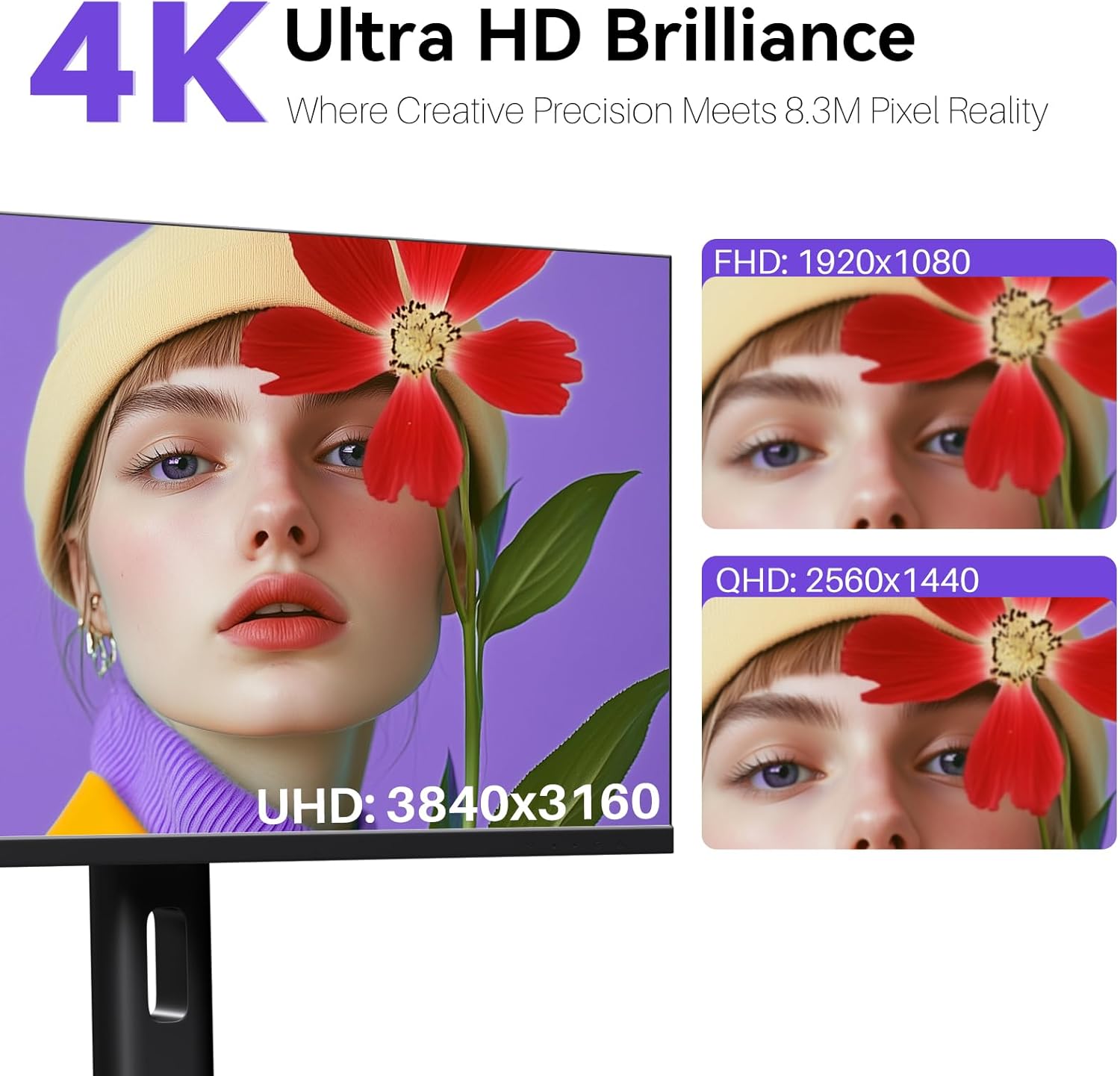
Image: A user's hand interacting with the monitor screen, highlighting the responsive 10-point touch experience.
- Basic Touch: Tap to click, swipe to scroll.
- Multi-Touch Gestures: Use two fingers to zoom in/out, rotate, or pan, depending on the application.
- Touch Calibration (Windows Only): If the cursor does not align with your touch, calibration may be required. Go to Control Panel > Hardware and Sound > Tablet PC Settings > Calibrate. Follow the on-screen prompts.
6.4 Using the Built-in Webcam
The Integrated webcam is automatically detected by most operating systems and video conferencing applications. No additional drivers are typically required.

Image: The monitor displaying a video conference call, showcasing its integrated webcam for seamless communication.
- Vhura software yaunofarira yekuonana pavhidhiyo (semuenzaniso, Zoom, Microsoft Teams, Skype).
- Select the integrated webcam as your video input device in the application's settings.
6.5 Adjusting Display Resolution
To set the resolution of the monitor (Windows):
- Right-click on your desktop and select "Display Settings."
- Find your monitor (if multiple displays are connected).
- Under "Display resolution," select the recommended resolution of 3840 x 2160.
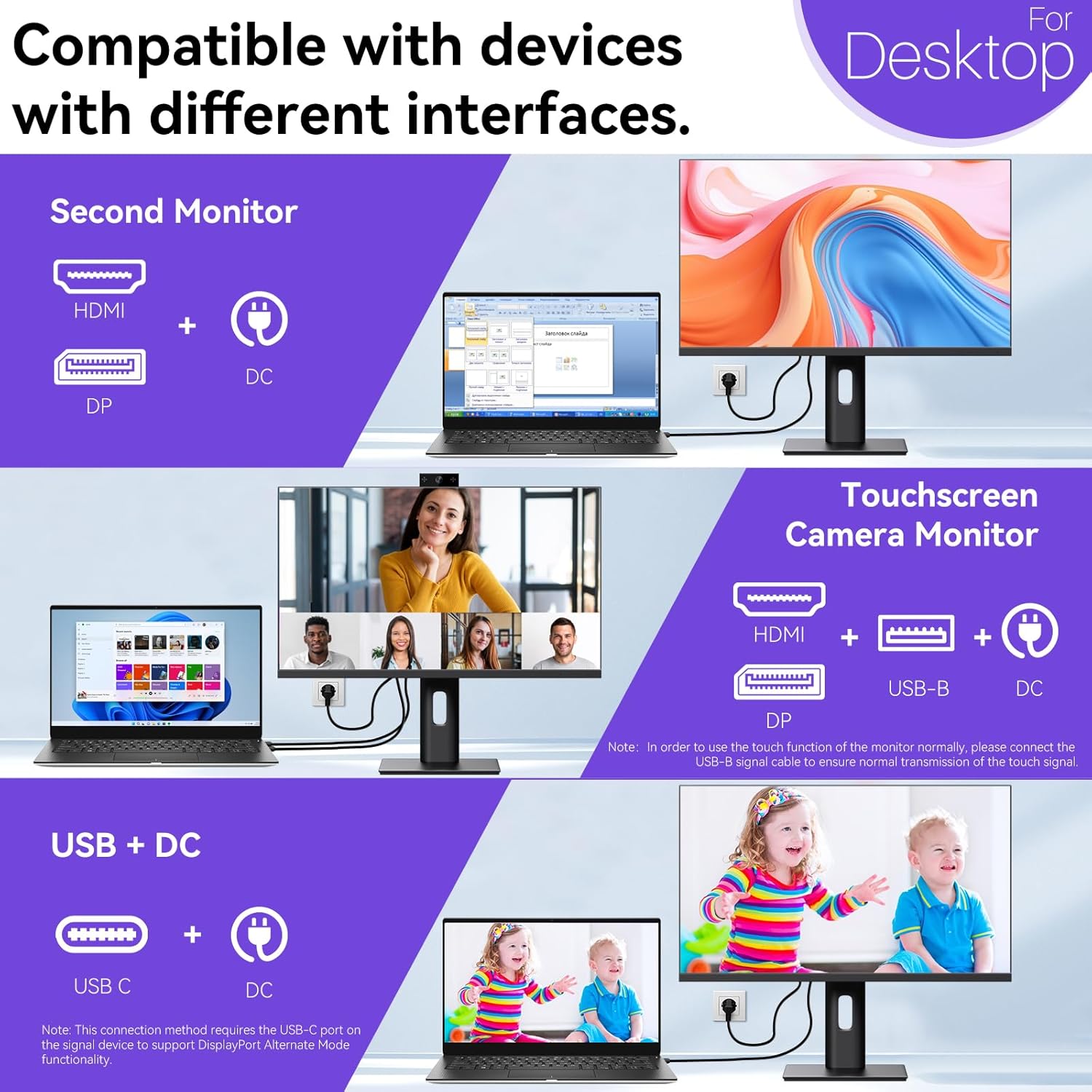
Image: A visual comparison demonstrating the superior clarity of 4K UHD (3840x2160) compared to FHD (1920x1080) and QHD (2560x1440) resolutions.
7. Kuchengeta
- Kuchenesa Screen: pukuta skrini zvinyoro nyoro nemucheka wakapfava, usina lint. Pazvibodzwa zvakasindimara, zvishoma dampIsa jira nemvura kana mushonga wekuchenesa wakagadzirirwa jira. Usapfapfaidza mvura zvakananga pajira.
- Kuchenesa iyo Casing: Shandisa jira rakapfava, rakaoma kuchenesa monitor casing.
- Kuchengeta: Kana ukachengeta chekutarisa kwenguva yakareba, bvisa kubva pamagetsi, chirongedza mupakeji yayo yepakutanga, uye uichengete munzvimbo inotonhorera, yakaoma.
8. Kugadzirisa matambudziko
If you encounter issues with your monitor, refer to the following troubleshooting guide. For problems not listed, please contact customer support.
| Dambudziko | Zvinogona Kukonzera | Solution |
|---|---|---|
| Hapana mufananidzo pachiratidziri | Tambo yemagetsi yakabviswa; Vhidhiyo tambo yakabviswa; Kwasarudzwa zvisirizvo. | Ensure power cable is securely connected. Check video cable (HDMI/DP/USB-C) connections. Select correct input source via OSD menu. |
| Touchscreen haisi kudaira | USB-B cable not connected; USB-C port not supporting DisplayPort Alternate Mode; Device incompatibility (e.g., iPhone). | Ensure the USB-B to USB-A cable is connected from the monitor to your computer. If using USB-C, verify your device's USB-C port supports DisplayPort Alternate Mode. Note: Touch function is not supported when connected to an iPhone due to iOS system restrictions. |
| Cursor moves incorrectly (Windows) | Touchscreen calibration required. | Perform touchscreen calibration: Go to Control Panel > Hardware and Sound > Tablet PC Settings > Calibrate. |
| Webcam haina kuonekwa | USB connection issue; Software settings. | Ensure all necessary USB cables are connected. Check your application's settings to select the correct webcam. |
9. Zvinotsanangurwa
| Feature | Detail |
|---|---|
| Brand | Pisichen |
| Model Number | 27INTSCMR-4K |
| Screen Size | 27 inches |
| Resolution | 3840 x 2160 Pixels (4K UHD 2160p) |
| Aspect ratio | 16:9 |
| Mufananidzo Kupenya | 400 Candela |
| Screen Surface Tsananguro | Glossy |
| Product Dimensions | 14.37 x 24.21 x 16.54 inches |
| Item Weight | 16.59 makirogiramu |
| Mugadziri | Shenzhen Konowa Electronics Co., LTD |
| Kubatana | HDMI, DisplayPort, USB-C, USB-B (for touch), USB-A (x2), Audio Port |
10. Warranty uye Tsigiro
This product comes with a manufacturer's warranty. Please refer to the warranty card included in your package for specific terms and conditions. For technical support or inquiries, please contact Pisichen customer service at support_2308@163.com. When contacting support, please provide your model number and a detailed description of the issue, including any relevant pictures or videos.


