1. Nhanganyaya
Thank you for choosing the LG 34 Inch UltraWide WQHD Curved Monitor. This manual provides essential information for the safe and efficient use of your new monitor. Please read it thoroughly before operating the device and keep it for future reference.
Package Zviri mukati
- LG 34 Inch UltraWide Curved Monitor
- Monitor Stand (Base and Neck)
- Power Cable
- HDMI Cable
- RatidzaPort Cable
- USB-C Cable
- User Manual & Warranty Card
2. Key Features
- 34-inch WQHD UltraWide Curved Display: Expansive 21:9 screen (3440 x 1440) for enhanced productivity and immersive viewing.
- HDR Display with 99% sRGB: Delivers vibrant, natural colors and distinct image layers, supporting HDR brightness performance.
- 120Hz Mwero weKuzorodza Wakanyanya: Ensures fluid scrolling and dynamic content for a comfortable visual experience.
- 5ms (GTG) Response Time: Provides quick pixel response for smooth motion.
- LG Switch for Multitasking & Eye Care: Enables quick split-screen functionality, customizable layouts, and Reader Mode to reduce eye strain.
- Adjustable Stand: Supports height, tilt, and swivel adjustments for optimal viewing angles.
- Vakavakwa-Vatauri: Odhiyo yakabatanidzwa kuti zvive nyore.
- Multiple Connectivity Options: Includes DisplayPort and HDMI inputs.
3. Setup
3.1 Kuunganidza Chigadziko
Carefully remove the monitor and stand components from the packaging. Follow the instructions below to attach the stand to the monitor.
- Isa chekutarisa pasi panzvimbo yakapfava, yakachena kudzivirira mavanga.
- Batanidza mutsipa wechigadziko pabhodhi rekumashure remonitor. Iva nechokwadi chekuti yanyatsopinda panzvimbo yayo.
- Attach the stand base to the bottom of the stand neck. Tighten the screw(s) firmly to secure the base.
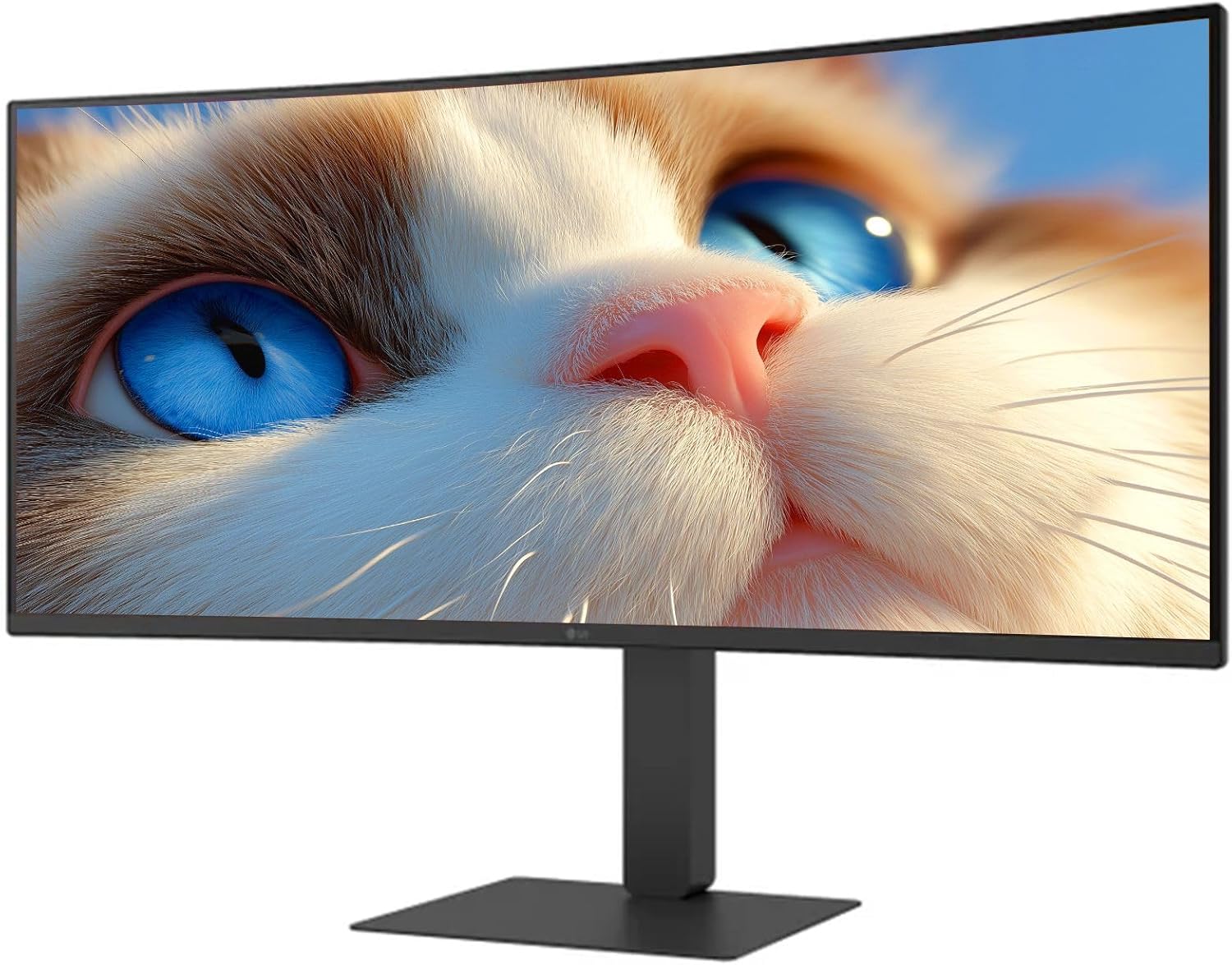
Mufananidzo 1: Mberi view of the LG 34 Inch UltraWide Curved Monitor with stand.

Mufananidzo 2: Rutivi view of the LG 34 Inch UltraWide Curved Monitor with stand.
3.2 Kubatanidza Monitor
Batanidza monitor kune komputa yako kana zvimwe zvishandiso uchishandisa tambo dzakakodzera.
- Batanidza tambo yemagetsi kune yekuisa simba remonitor uye ipapo kune chinobuda magetsi.
- For video input, connect either an HDMI cable or a DisplayPort cable from your computer's graphics card to the corresponding port on the monitor.
- If your computer supports USB-C, you can use the provided USB-C cable for video, audio, and data transfer.

Mufananidzo 3: Kumashure view of the monitor showing available ports for connectivity.
4. Kushandisa Monitor
4.1 Simba On/Kudzima
Press the power button, usually located on the bottom center of the monitor, to turn the monitor on or off. The power indicator light will illuminate when the monitor is on.
4.2 Pa-Screen Display (OSD) Menyu
The OSD menu allows you to adjust various monitor settings. Use the joystick button (typically located on the bottom center) to navigate the menu.
- Mufananidzo Mode: Select from various preset modes (e.g., Custom, Reader, HDR Effect) or customize settings like brightness, contrast, and sharpness.
- Input: Manually select the input source (HDMI, DisplayPort, USB-C).
- General: Access settings for language, OSD transparency, and power-saving options.
4.3 Kugadzirisa Chimiro
The monitor stand offers ergonomic adjustments for your comfort:
- Kugadzirisa Hurefu: Gently push or pull the monitor up or down to your desired height.
- Tilt Adjustment: Hold both sides of the monitor and tilt it forwards or backwards.
- Swivel Adjustment: Tenderedza monitor kuruboshwe kana kurudyi pahwaro hwayo.
5. Kuchengeta
5.1 Kuchenesa Monitor
Kuti uve nechokwadi chekuti monitor yako inogara kwenguva refu uye inoshanda zvakanaka, tevera nhungamiro idzi dzekuchenesa:
- Gara uchibvisa cheki kubva pamagetsi usati wachenesa.
- Shandisa jira rakapfava, risina lint zvishoma dampyakaturikwa nemvura kana nespecialized screen cleaner.
- Usapfapfaidza chekuchenesa zvakananga pachiratidziri.
- Avoid using abrasive cleaners, solvents, or ammonia-based products.
6. Kugadzirisa matambudziko
Kana ukasangana nematambudziko nemonitor yako, tarisa kune anotevera akajairika mhinduro:
- Hapana Simba: Iva nechokwadi chekuti tambo yemagetsi yakabatana zvakanaka nemonitor nepanobuda magetsi. Tarisa kana panobuda magetsi pacho.
- Hapana Chiratidzo: Verify that the video cable (HDMI, DisplayPort, or USB-C) is correctly connected to both the monitor and your computer. Ensure the correct input source is selected in the OSD menu.
- Flickering Screen: Check the video cable connection. Try adjusting the refresh rate in your computer's display settings.
- Kukanganiswa Kwemifananidzo: Reset the monitor to factory settings via the OSD menu. Ensure your computer's display resolution matches the monitor's native resolution (3440 x 1440).
- No Sound from Built-in Speakers: Check the volume settings on both the monitor and your computer. Ensure the audio output is correctly routed to the monitor.
If the problem persists after trying these steps, please contact LG customer support.
7. Zvinotsanangurwa
| Feature | Tsanangudzo |
|---|---|
| Brand | LG |
| Model Number | 195174134092 |
| Screen Size | 34 inches |
| Maximum Resolution | WQHD (3440 x 1440) |
| Refresh Rate | 120Hz |
| Nguva Yekupindura | 5ms (GTG) |
| Aspect ratio | 21:9 |
| Color Gamut | sRGB 99% |
| HDR Tsigiro | HDR10 |
| Viewing Angle | 178 degrees (R/L), 178 degrees (U/D) |
| Ratidza Zvibatanidza | 1 x HDMI, 1 x DisplayPort |
| Eye Relief Features | Low blue light, Flicker-free, Anti-glare, Reader Mode |
| Vakavakwa-mukati Vatauri | Ehe |
| Zviyero zvechigadzirwa (ne stand) | 8.7"D x 32.1"W x 19.2"H |
| Uremu hwechigadzirwa (pamwe nemira) | 16.8 Pondo |
8. Warranty uye Tsigiro
Your LG 34 Inch UltraWide Curved Monitor comes with a standard manufacturer's warranty. Please refer to the warranty card included in your package for detailed terms and conditions.
For technical support, service, or further inquiries, please visit the official LG website or contact their customer service hotline. Keep your purchase receipt and product serial number (located on the back of the monitor) handy when contacting support.